Hello. Thank you to all customers using SellerVisor.
Even with an ad report, it's not immediately clear where the leaks are. If there are dozens of search terms and multiple campaigns, following the table with your eyes becomes exhausting. SellerVisor Amazon Report Analyzer's Search Term Analysis, when you upload a Sponsored Products Search Term Report (XLSX), organizes and displays clicks, ad spend, orders, and conversion rates by search term.
This article is a tutorial that organizes the process of uploading an actual report file and reading the results step-by-step. The report used as an example is a file with 62 search terms, 8,587 impressions, 101 clicks, $316.40 ad spend, and 0 orders recorded. Since it's a report with no conversions, it's actually good for learning how to read it.
Requirements
- Sponsored Products Search term report (XLSX) downloaded from Amazon Ads console
- Download path: After accessing the Ads console, navigate to Measurement & Reporting → Reporting → Sponsored Ads reports, then select Create report → Report type as Search term → Set period → Download as XLSX, in English.
- The file must be downloaded in English for column names to be recognized.
Step 1. Open Search Term Analysis in the Report Analyzer
From the left menu, if you go to Amazon Report Analyzer, there are three tools: Keyword by Query Score, Search Term Analysis, and Payment Dashboard. Select the Search Term Analysis tab among these. Each tool accepts different files. Search Term Analysis is exclusively for Excel (.xlsx) files.
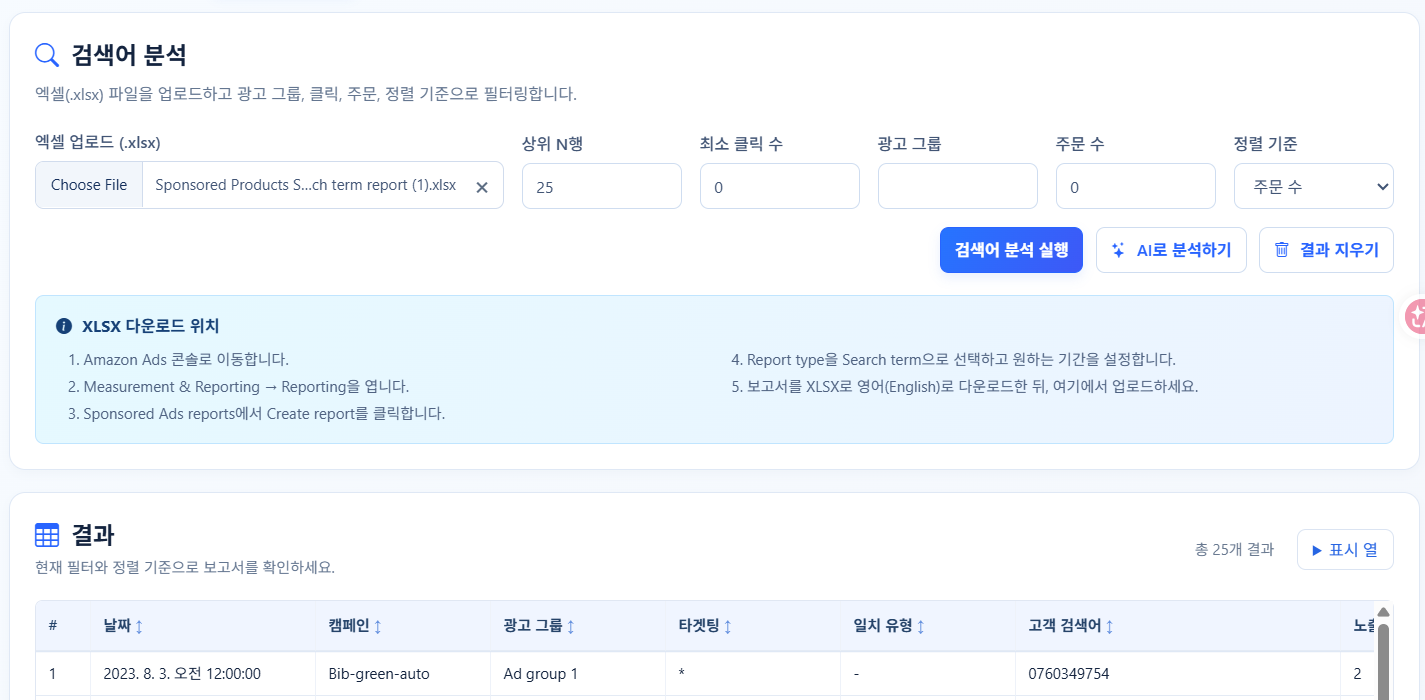
Step 2. Upload XLSX and Set Filters
When you upload the file, filters for determining how to view the results appear.
- Top N rows: Maximum number of rows to display in the table
- Minimum clicks: Excludes search terms with clicks below this value. Used to reduce noise.
- Ad Group: View only specific ad groups
- Number of orders: View only search terms with orders equal to or greater than this value
- Sort by: Clicks, Orders, Conversion Rate (CVR), Click-Through Rate (CTR)
Initially, it's quicker to set the sort criterion to clicks and raise the minimum clicks to around 3, viewing only search terms with accumulated clicks. Search terms with only a few clicks do not provide enough data for judgment.
Step 3. Read the Results Table
When you click 'Run Search Term Analysis', a table appears. The columns are Date, Campaign, Ad Group, Targeting, Match Type, Customer Search Term, Impressions, Clicks, Click-Through Rate, Cost Per Click, Ad Spend, Orders, Total Sales, ACOS, ROAS, and Conversion Rate. If there are many columns, you can keep only the necessary items in 'Display Columns'. In practice, Date, Campaign, Customer Search Term, Impressions, Clicks, Ad Spend, Orders, and Conversion Rate are usually sufficient.
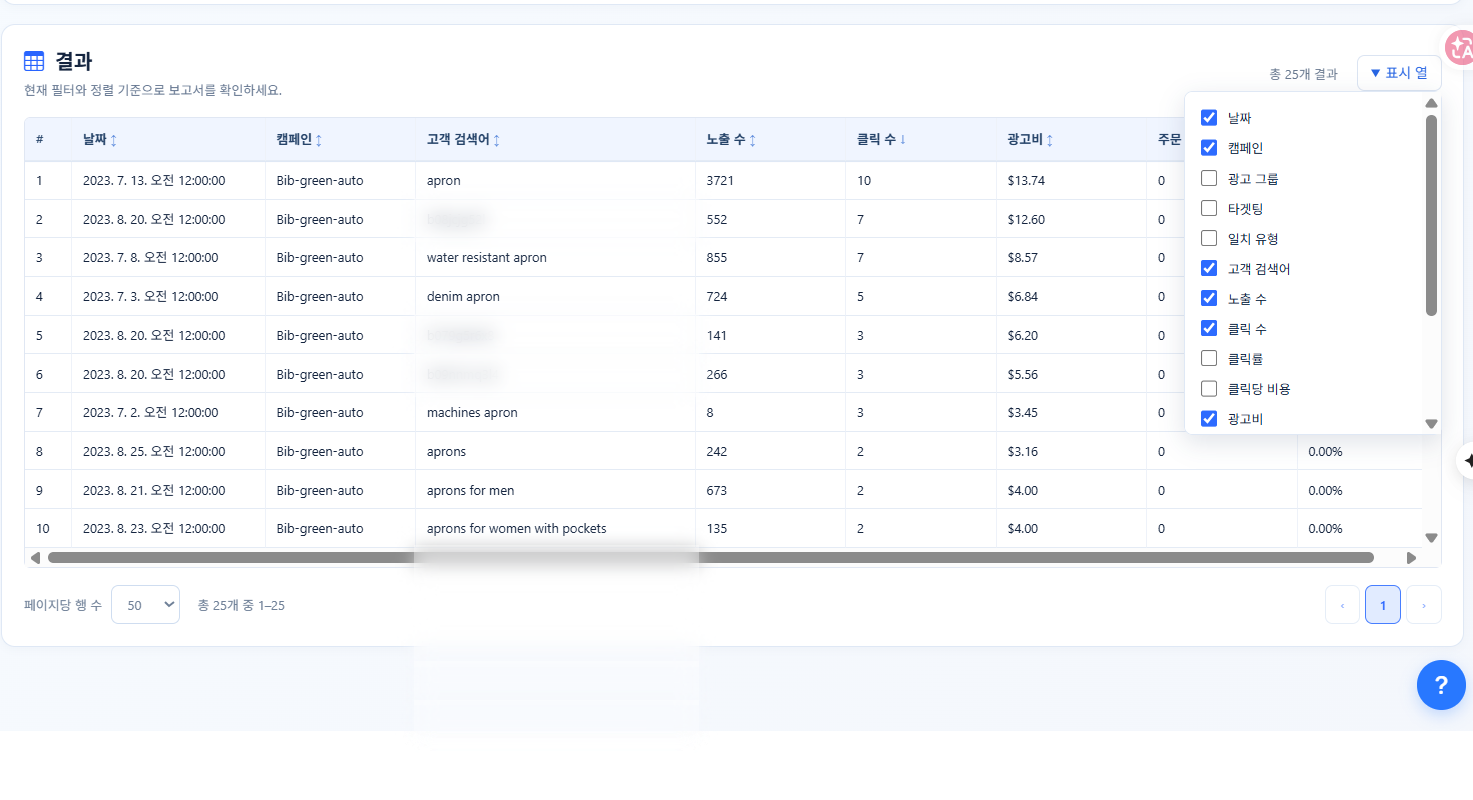
The overall summary of the example report is as follows: 62 search terms, 8,587 impressions, 101 clicks, $316.40 ad spend, 0 orders. In other words, there were no orders from 101 clicks. We need to find out where the leaks are.
Step 4. Keep only Candidates with Minimum Clicks
If you raise the minimum clicks to 3 and sort by clicks, only search terms with accumulated clicks but no orders remain. In this report, 7 search terms were identified, and $56.96 was spent on these 7 terms. 18% of the total ad spend of $316.40 went to these search terms.
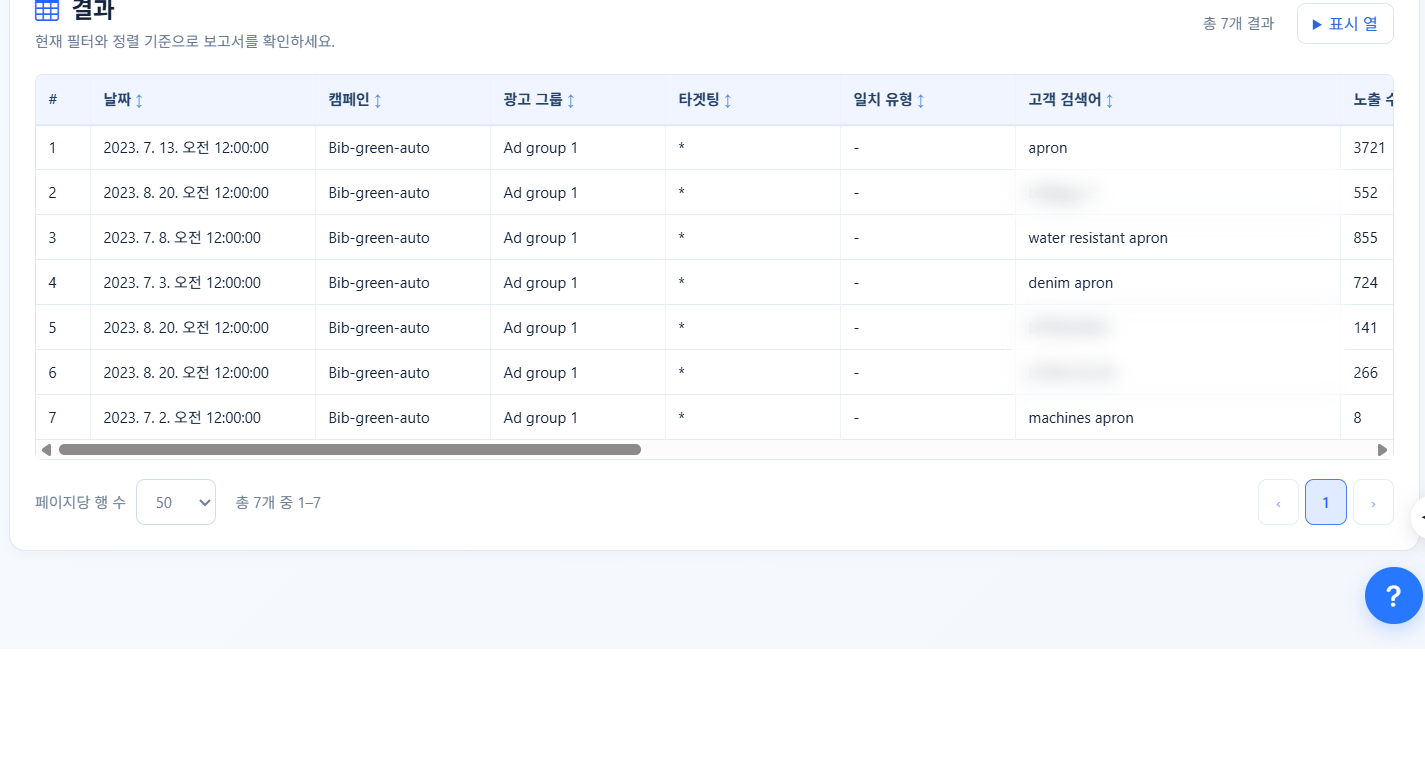
Two types stand out in the table. One type is general search terms related to the product but not converting, such as apron, water resistant apron, denim apron, machines apron. The other type is items where ASINs appeared in the search term. This traffic comes from opening product pages on Amazon, so its nature is different. (Search terms entered as ASINs are blurred out in the image above.)
Step 5. What to Do with the Results
The purpose of search term analysis ultimately boils down to three things:
- Negative keyword management: Search terms with accumulated clicks but 0 orders should be registered as negative keywords in the campaign. The 7 terms above are candidates for this.
- Promoting high-performing search terms: By changing the sort criterion to orders or conversion rate, you can identify search terms that resulted in conversions. These search terms should be separated and managed in manual campaigns or as exact matches.
- Comparing campaigns and ad groups: Use the ad group filter to see variations by group. Even for the same product, if performance varies by group, adjust targeting or budget allocation.
The ACOS and ROAS columns are meaningful for search terms that generated sales. If sales are 0, ACOS is also displayed as 0, so for rows with 0 orders, look at ad spend instead of ACOS.
Step 6. Analysis Request and Cleanup
After reading the table, you can click 'Analyze with AI' to get a summary of the search term clusters. You can clear the screen with 'Clear Results' and upload another report. The number of rows per page can be chosen from 10, 25, 50, 100, or 500. When reviewing the entire report, set it to 100 or 500, and when selecting candidates, narrow it down to 25.
Frequently Asked Questions
- Which file should I upload? It is the Search term report for Sponsored Products. The file name includes 'Sponsored Products Search term'. Sponsored Brands or Display reports may not be recognized due to different column structures.
- Do I have to download it only in English? Yes. Since it reads based on column names, downloading in other languages will prevent recognition of values.
- Should I also look at search terms with 0 clicks? Search terms with impressions but no clicks might indicate image or pricing issues. However, the priority is search terms with accumulated clicks.
- Is a report with 0 orders a failed report? No. It is a report that tells you where to block. If, like in this example, $316 in ad spend went out without conversions, you can immediately reduce it by managing negative keywords.
- How should I set the period? At least 30 days; for seasonal products, compare with the same period last year. If you only look at 7 days, you might mistake random fluctuations for a trend.
Usage Tips
- Adjust the minimum clicks criterion according to account size. For accounts with few daily clicks, 2 is appropriate; for accounts with many, 5 or more is suitable.
- Negative keywords should be registered as exact matches. If entered as phrase matches, normal search terms will also be blocked.
- Collect items where ASINs appeared as search terms separately, and decide whether to move them to a competitor product targeting campaign.
- By running and comparing the same report once before and once after listing modifications, you can numerically confirm the improvement effects.
- The fastest sequence is to select candidates using search term analysis and then actually register them on the negative keywords screen.