 SellerVisor
Product Research
Find products that fit your next opportunity
Open the Product Research tab, select categories or a preset, and adjust price, revenue, reviews, and competition filters. Review matching products and send an ASIN to A or B for deeper research.
1
Market research
Choose a marketplace and categories
- Open Market Research → Product Research. Check the marketplace at the top, then select at least one category. Use Select All only when you want a broad search.
- Choose standard/oversize products and Amazon, FBA, or FBM sellers to match your sourcing requirements. Exclude unavailable products or top brands when appropriate.
2
Market research
Combine presets with numeric filters
- Try High Demand and Low Competition together. These presets fill filter values; review the resulting ranges before clicking Search. Reset clears the filter selections.
- Set minimum and maximum price, monthly sales/revenue, reviews, rating, or seller count. Add include/exclude keywords if needed, then Search. If results are empty, widen one restrictive range at a time.
3
Market research
Read, sort, and narrow the results
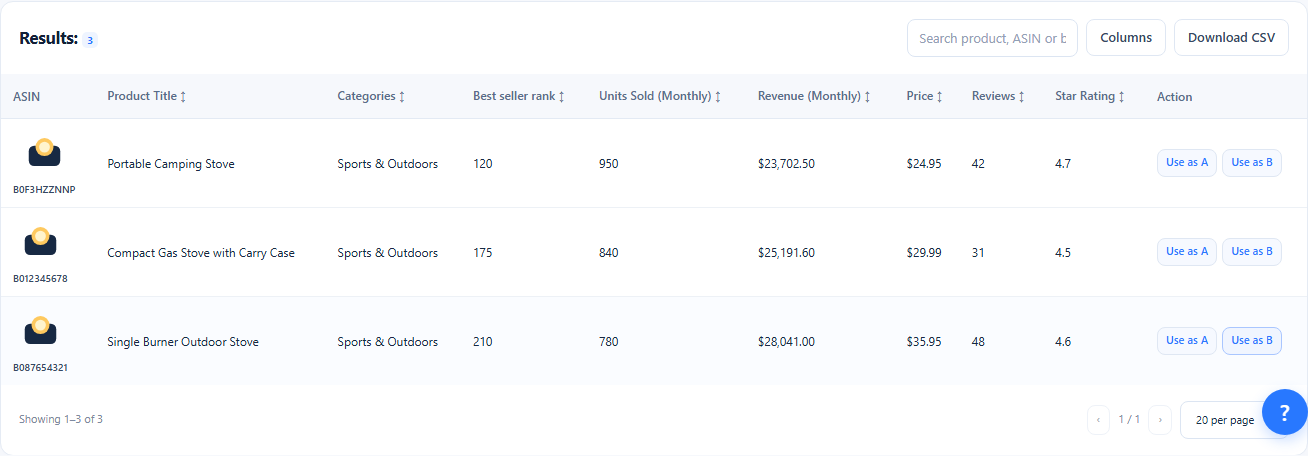
- Compare monthly units and revenue with price, BSR, reviews, and rating. A lower BSR means a better sales rank within that category; compare products in the same market and category.
- Click a column header to change sorting. Search the loaded rows by ASIN, title, or brand and change page size to review more products. These table controls reuse the loaded results.
4
Market research
Inspect product details, columns, and exports
- Click a product's ASIN or thumbnail to open its details. Review the available dimensions, weight, fees, seller count, and listing information before shortlisting it.
- Use Columns to show additional metrics such as FBA, referral, and total fees. Export CSV to review the filtered product list outside SellerVisor.
5
Market research
Send a product to A or B for deeper research
- Choose View as A or Compare as B on a result row. SellerVisor opens Market Research with that ASIN; use B when you want to compare the candidate against your existing A search.
- Compare keyword overlap, search volume, organic rank, and trends. Track a focused keyword set or create a research report once you have identified a relevant candidate.
Screenshots are in English and may contain sample data. Available features depend on your plan, connections, and data.