
Ads Management

Negative Keywords Management

Stop hunting through individual campaigns to find negative keywords. Manage every new negative in one clean, centralized workspace.
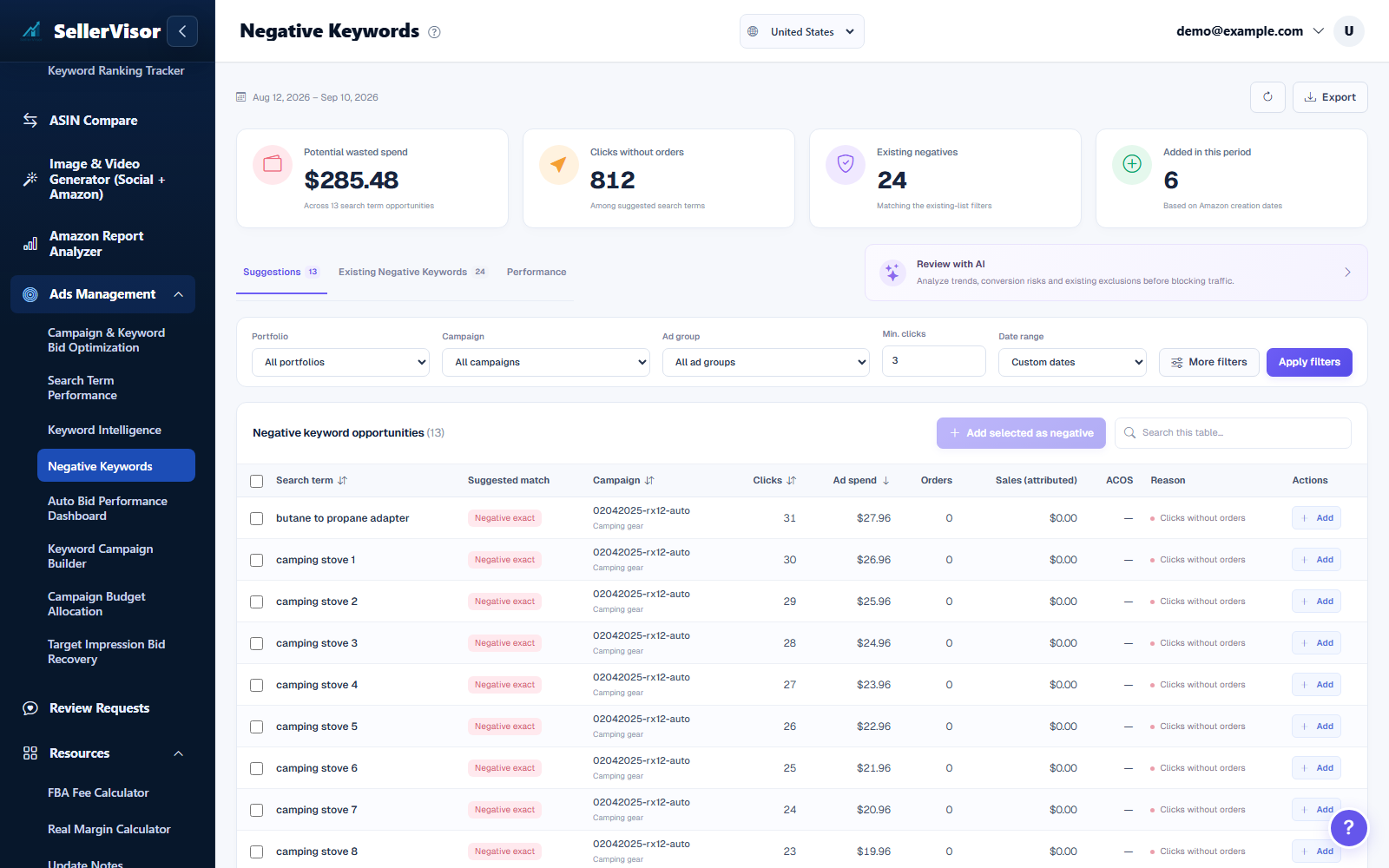
See which negatives were created from Search Term Performance, SQP, or other tools and understand exactly why they were added.
Keep this list tidy and up to date so your campaigns stay focused on profitable traffic instead of repeatedly paying for the same bad searches.

What you can manage on this page
  • Central hub for all negative keywords across campaigns
  • Match type and scope controls (Exact/Phrase and where they apply)
  • Negatives created from Search Term, SQP, and quality tools
  • Regular cleanup workflow to keep targeting efficient
Central negative list

Review every negative keyword in one organized table

  • Use the central table to see all negative keywords in one view, instead of clicking through each campaign or ad group inside Amazon Ads.
  • Filter by campaign, ad group, match type, or creation date to quickly find the negatives that affect a specific product or portfolio.
  • Spot duplicates, outdated terms, or overlapping negatives so you avoid blocking good traffic by accident.
Review every negative keyword in one organized table
From analysis to action

Convert wasted search terms into structured negatives

  • Negatives added from Search Term Performance, SQP, or keyword quality views automatically land here with consistent formatting.
  • The infographic-style view helps you understand the flow: bad search terms → negative suggestions → approved negatives applied to campaigns.
  • Over time you build a strong negative keyword shield that stops unqualified clicks before they consume budget.
How negatives flow into this page
1
Negatives created from Search Term, SQP, and quality tools
Negatives added from Search Term Performance, SQP, or keyword quality views automatically land here with consistent formatting.
2
Match type and scope controls (Exact/Phrase and where they apply)
Filter by campaign, ad group, match type, or creation date to quickly find the negatives that affect a specific product or portfolio.
3
Central hub for all negative keywords across campaigns
Use the central table to see all negative keywords in one view, instead of clicking through each campaign or ad group inside Amazon Ads.
4
Regular cleanup workflow to keep targeting efficient
Over time you build a strong negative keyword shield that stops unqualified clicks before they consume budget.
Simple hygiene cycle for ongoing optimization
1
Ongoing hygiene
Use the hygiene infographic as a reminder to review your negatives regularly, retire those that are no longer needed, and refine themes as your catalog evolves.
2
Regular cleanup workflow to keep targeting efficient
As you remove irrelevant traffic, ACOS stabilizes, click quality improves, and more of your budget shifts toward proven, high-intent searches.
3
Match type and scope controls (Exact/Phrase and where they apply)
Spot duplicates, outdated terms, or overlapping negatives so you avoid blocking good traffic by accident.
4
Central hub for all negative keywords across campaigns
As you remove irrelevant traffic, ACOS stabilizes, click quality improves, and more of your budget shifts toward proven, high-intent searches.
Ongoing hygiene

Maintain a clean negative list to unlock better performance

  • Use the hygiene infographic as a reminder to review your negatives regularly, retire those that are no longer needed, and refine themes as your catalog evolves.
  • As you remove irrelevant traffic, ACOS stabilizes, click quality improves, and more of your budget shifts toward proven, high-intent searches.
  • Turn negative keyword management into a simple, repeatable routine instead of a one-time clean-up that quickly goes out of date.