Search Term Report

Turn your Search Term Report into a clear optimization plan

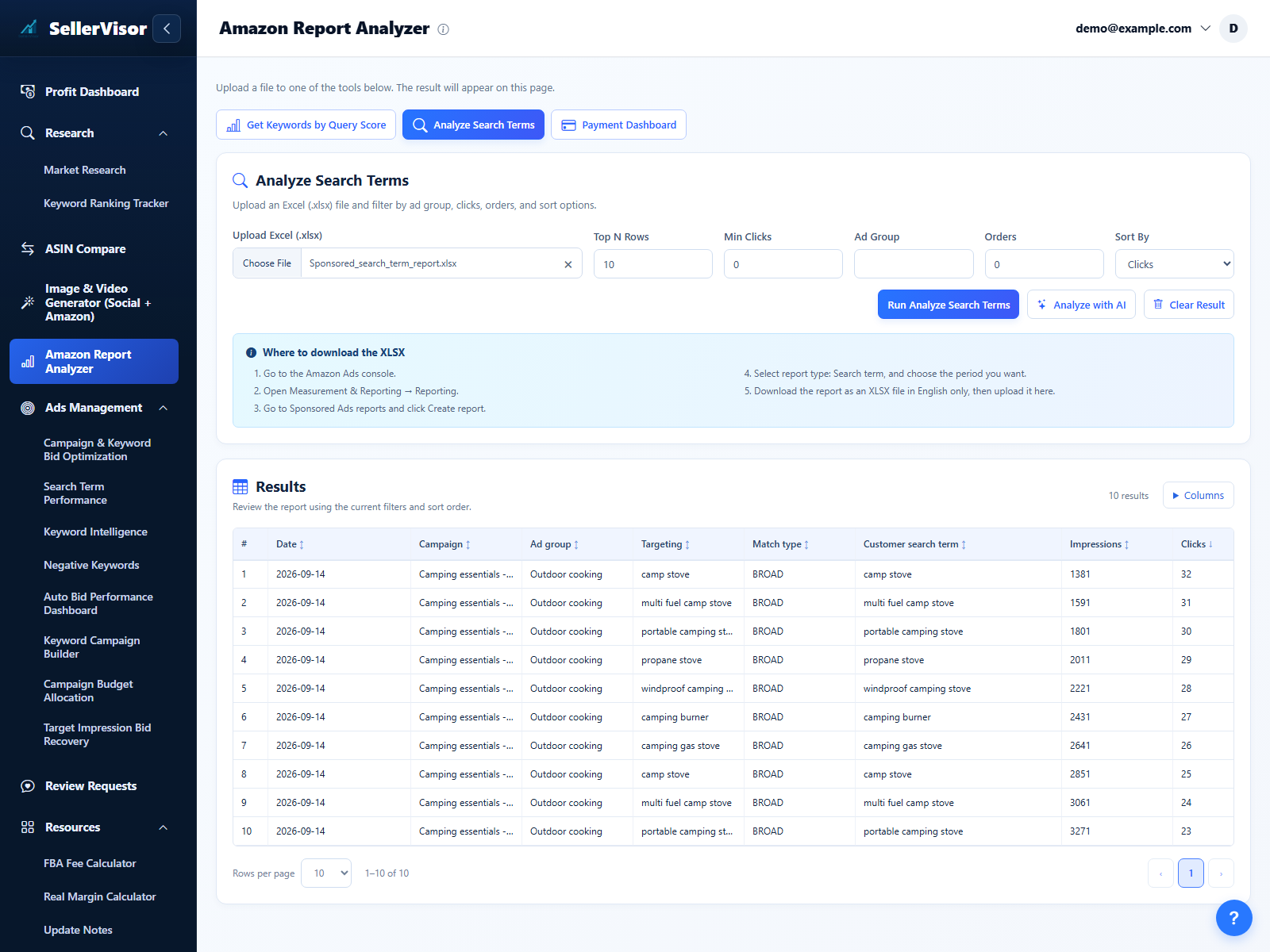
Upload your Search Term Report (STR) and instantly split it into winning and losing search terms so you can see where your ad spend is working.

Good rows show terms that generated at least one order; bad rows show terms with spend but no orders, so waste stands out immediately.
Use this view to discover new keywords, build negative keyword lists, and decide exactly how to adjust bids and campaigns.

What this module helps you do
  • Upload STR files in CSV or Excel format
  • Split results into Good (orders ≥ 1) and Bad (orders = 0)
  • Extract new high-potential keywords for future ads
  • Build a negative keyword list to stop wasted spend
  • Use an AI chatbot to turn STR data into specific actions
Upload and segment your STR

Upload your Search Term Report and split good vs bad

  • Upload your Search Term Report as an Excel (XLSX) or CSV file; the upload wizard checks basic columns so you don’t have to clean the file first.
  • The report is automatically separated into two tables: Good Performance (orders ≥ 1) and Bad Performance (orders = 0), so you can scan winners and wasted terms side by side.
  • Use filters for campaign, ad group, or match type to quickly zoom into the part of the account you are working on today.
Upload your Search Term Report and split good vs bad
Ask the AI chatbot about new and negative keywords
Chat with your Search Term Report

Ask the AI chatbot about new and negative keywords

  • Send the good-performance table into the AI chatbot and ask it to propose new keywords and themes you should turn into separate campaigns or exact-match targets.
  • Feed the bad-performance table to the chatbot to generate a prioritized negative keyword list so you stop spending on irrelevant or low-intent searches.
  • Use follow-up questions like “which terms should I test with higher bids?” or “which phrases look like brand protection terms?” to refine your plan without manual spreadsheet work.
From STR rows to an optimization checklist

Follow a simple workflow from upload to concrete actions

  • Start by uploading your STR and letting the tool split rows into good vs bad terms so your attention goes to the right half of the table.
  • Turn good performers into new keyword ideas or dedicated campaigns, and turn repeat bad performers into negatives at the right level.
  • Use the AI chatbot and workflow view together to leave each session with a clear list of bid changes, keyword additions, and negatives to apply.
STR → Segments → Keywords & Negatives → Actions
1
Upload STR files in CSV or Excel format
Upload your Search Term Report as an Excel (XLSX) or CSV file; the upload wizard checks basic columns so you don’t have to clean the file first.
2
Split results into Good (orders ≥ 1) and Bad (orders = 0)
The report is automatically separated into two tables: Good Performance (orders ≥ 1) and Bad Performance (orders = 0), so you can scan winners and wasted terms side by side.
3
Extract new high-potential keywords for future ads
Send the good-performance table into the AI chatbot and ask it to propose new keywords and themes you should turn into separate campaigns or exact-match targets.
4
Build a negative keyword list to stop wasted spend
Feed the bad-performance table to the chatbot to generate a prioritized negative keyword list so you stop spending on irrelevant or low-intent searches.
5
Use an AI chatbot to turn STR data into specific actions
Use the AI chatbot and workflow view together to leave each session with a clear list of bid changes, keyword additions, and negatives to apply.