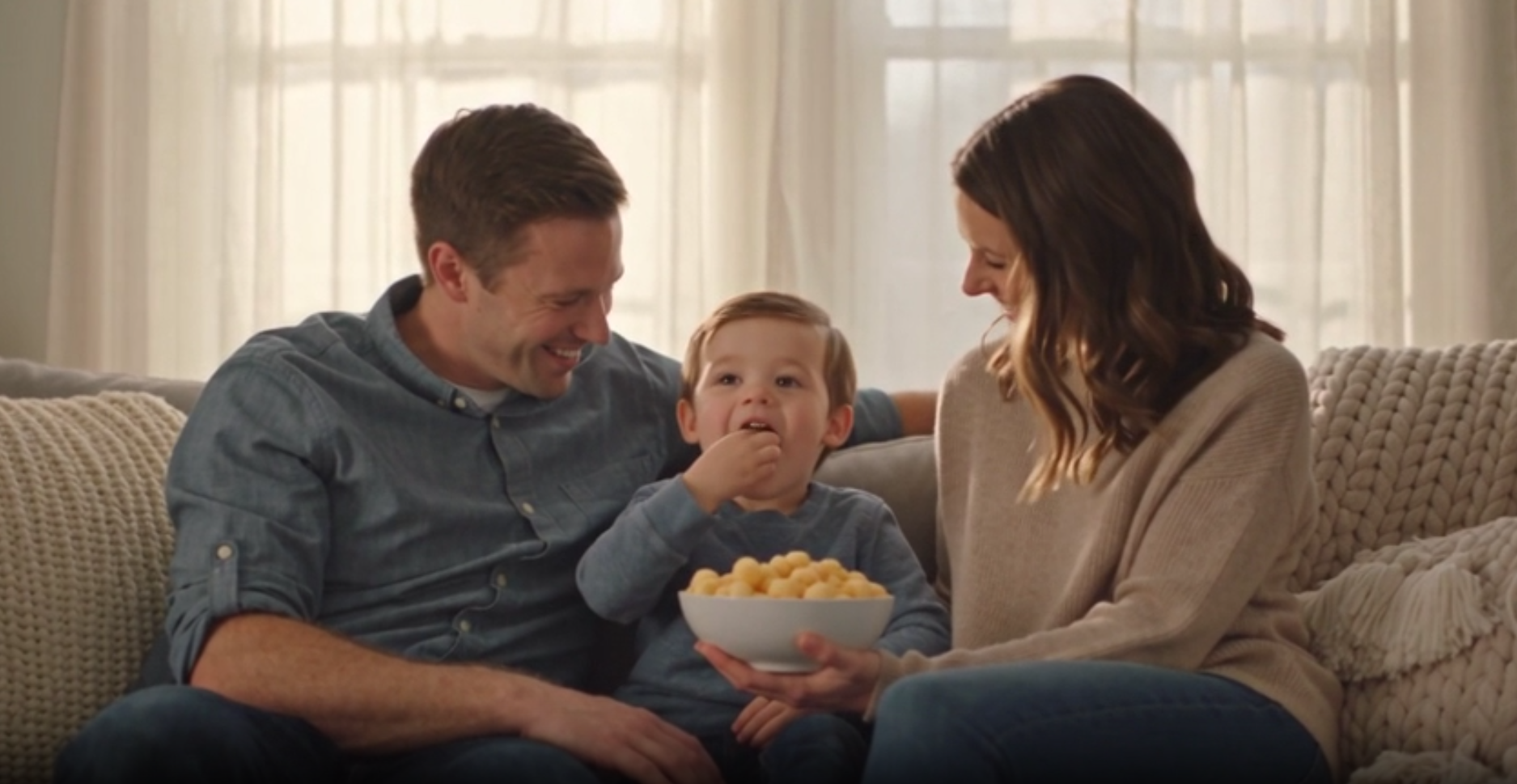
Hello. Thank you to all customers who use SellerVisor.
The proportion of videos in Amazon listings and advertisements is continuously increasing. The problem is production. It takes a considerable amount of time to shoot, edit, and revise a product video.
By selecting the Seedance 2.5 model in SellerVisor's Image & Video Generator, you can create 4-30 second product advertisement videos with just product images or ASINs and a short prompt. Seedance 2.5 creates videos with multiple scenes in a single generation, and supports 1080p output and synchronized audio.
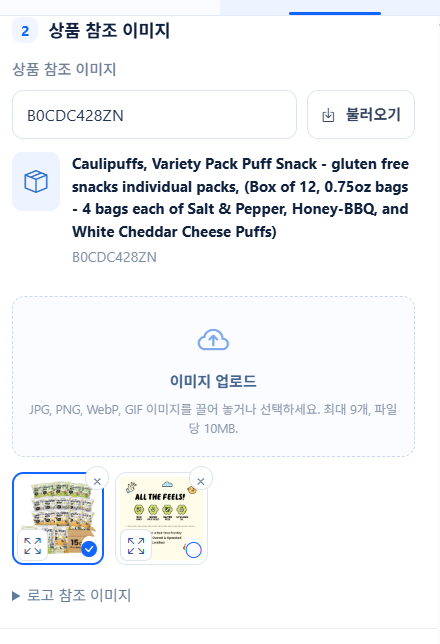
This article is a tutorial that sequentially organizes the process of actually creating a video. The example is Caulipuffs snack (ASIN B0CDC428ZN), and we used 30-second · 720p · 16:9 · TV commercial style settings.
Preparations
- Amazon product ASIN or product image file (JPG · PNG · WebP · GIF, max 9 files, 10MB per file)
- Credits — This example (30 seconds · 720p) uses 48 credits. Credits are not deducted for failed generation requests.
Step 1. Open Image & Video Generator
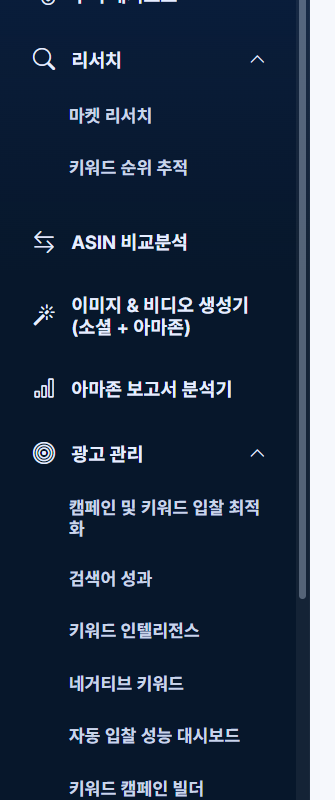
From the left menu, select Image & Video Generator (Social + Amazon), and then navigate to Video Generation from the top tab.
Step 2. Model: Seedance 2.5
Select Seedance 2.5 from the model list. The differences from the 2.0 options are as follows.
- Seedance 2.0 Fast — Suitable for 480p·720p draft generation and iterative work. It consumes the fewest credits for the same resolution.
- Seedance 2.0 Pro — This is the basic 2.0 model. It uses more credits than Fast for the same resolution.
- Seedance 2.5 — Creates 4-30 second videos with multiple scenes in one go, and supports 1080p and synchronized audio.
Based on 2.0 Pro, the cost for 480p is 1.4 times, and for 720p it is 1.6 times. 1080p costs twice the rate of 2.0 Pro 720p.
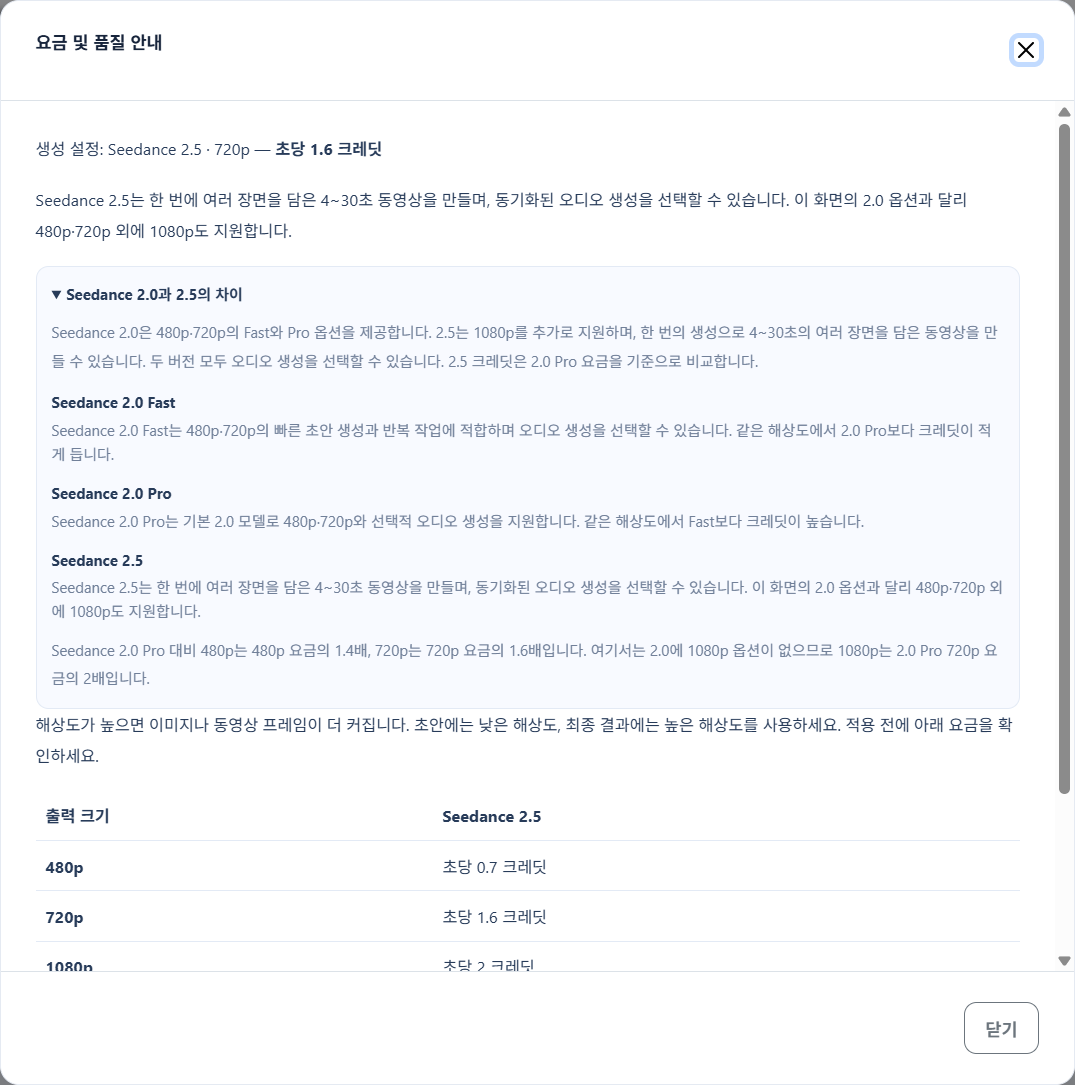
When you change the model, a pricing confirmation window will appear, and you must click apply for it to take effect.
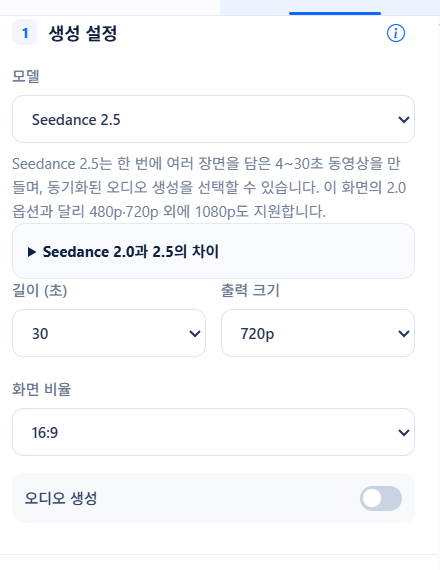
Step 3. Length · Output Size · Aspect Ratio · Audio
- Length — Choose from 5 · 10 · 15 · 30 seconds. This example is 30 seconds.
- Output Size — It is more efficient to check drafts at 480p and only render final results at 720p or 1080p.
- Aspect Ratio — Amazon listing videos are 16:9, while videos for vertical use like Reels or Shorts are 9:16.
- Audio Generation — Turn on if needed. Audio and aspect ratio do not affect the cost.
Step 4. Add Product Reference Images
When you enter an ASIN and click 'Load', Amazon product images are automatically populated. If you want to use your own photos, drag and drop the files into the image upload area. Logo reference images are optional.
Step 5. Select Creative Template
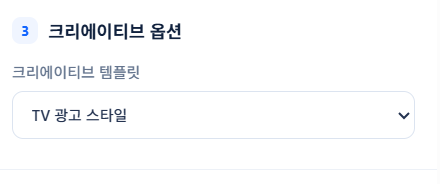
When you choose a template, the basic structure of the video is set. You can choose from unboxing, product review, TV commercial style, or storyboard-based videos. This example uses the TV commercial style.
Step 6. Write Prompt
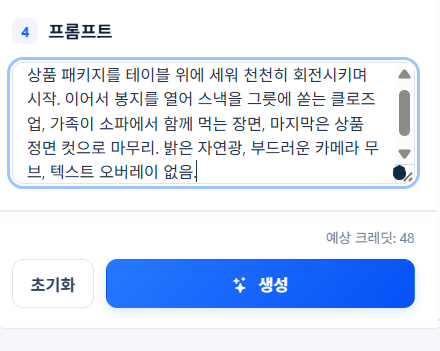
It is most important to write the scenes in order. Writing in the order of opening → usage scene → closing shot, along with lighting, camera movements, and elements not to include, yields stable results.
Here is the prompt used this time.
"Start with the product package standing on a table, slowly rotating. Followed by a close-up of opening the bag and pouring the snack into a bowl, a scene of a family eating together on the sofa, and finally, concluding with a front shot of the product. Bright natural light, smooth camera movements, no text overlay."
Step 7. Check Credits and Generate
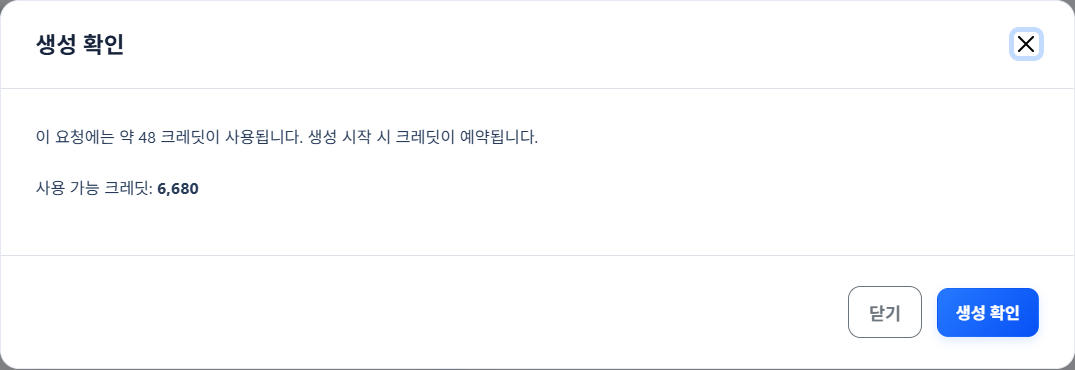
When you click the Generate button, the credits to be used are shown first. This example uses 48 credits, and credits are reserved when generation begins. Credits are not deducted for failed requests.
Step 8. Generating
Generation proceeds in the background. It continues even if you close the screen, and you can check the progress in the generation history. A 30-second video usually takes a few minutes.
Step 9. Check Results and Save
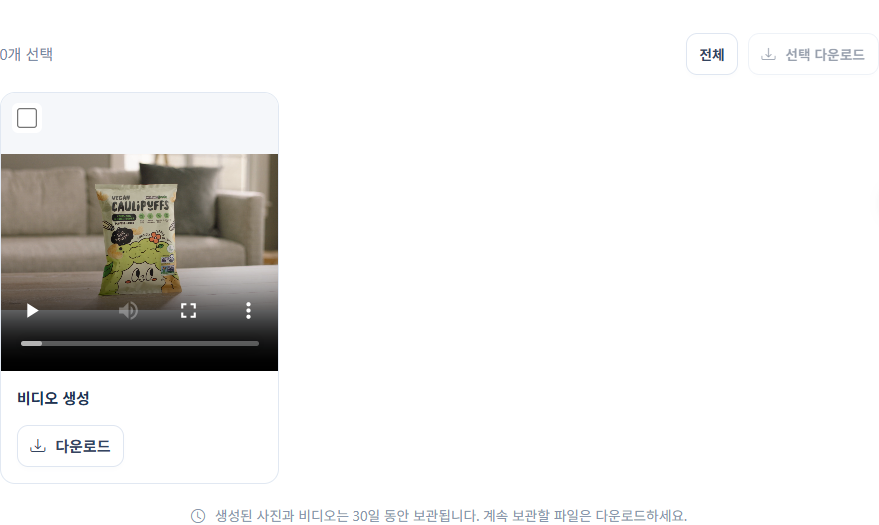
Once complete, you can play it immediately in the results panel. If you like it, download it and use it for listings or advertising material. Generated files are stored for 30 days, so download any files you want to keep using.
Frequently Asked Questions
- How long does it take to complete? Based on 30 seconds · 720p, it took a few minutes. If there are many requests, it may take longer.
- How many credits are used? It's credits per second × length. 10 seconds · 480p was 7 credits, and 30 seconds · 720p was 48 credits.
- Can audio be created? If audio generation is turned on, synchronized sound is created along with it. The cost is the same.
- Are credits deducted if generation fails? They are not deducted. Try again by shortening the length or turning off audio.
Tips to Reduce Failures
- You can save credits by repeatedly generating drafts with Seedance 2.0 Fast 480p and only rendering the final result with 2.5.
- Reference images with simple backgrounds and high resolution yield better results.
- If you request text such as subtitles or logos in the prompt, the text may be distorted. It is safer to add text during the editing phase.
- For a 30-second video, 3-4 scenes are appropriate. If you increase the number of scenes, the length of each scene becomes shorter.
- If a long video fails, try again by shortening the length or turning off audio generation.
The screenshots in this article are direct captures of the actual generation process. Completed videos can be re-checked and downloaded from the generation history.