How to manage wasted money in Amazon ads and search terms that don't generate orders
Posted 11/2/2026 5:22:27 PM
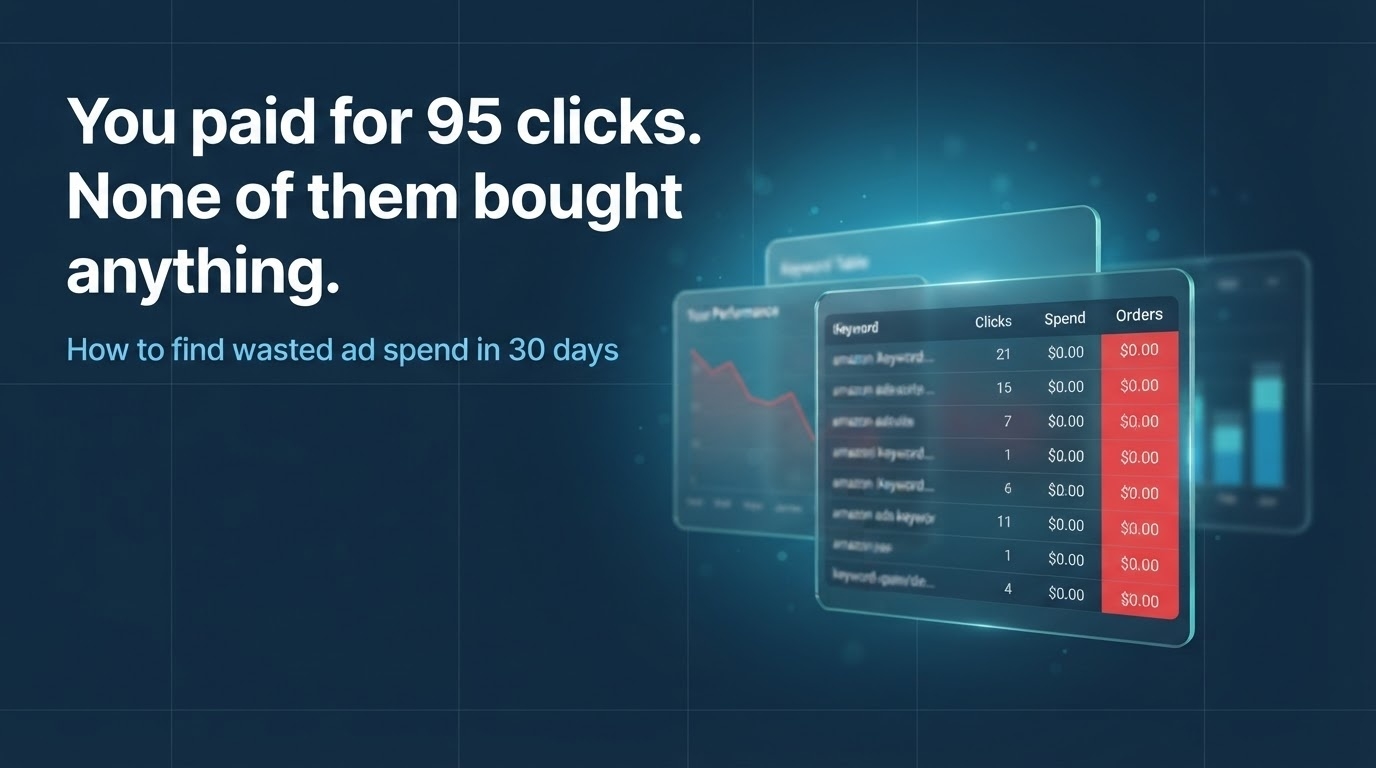
When running Amazon ads, there comes a point where impressions and clicks are consistent, but orders don't increase. Most people adjust bids or budgets first, but where money actually leaks is in search terms that generate only clicks but don't lead to orders. This article covers how to find and organize such search terms, step-by-step on screen.
1. Summary of the last 30 days
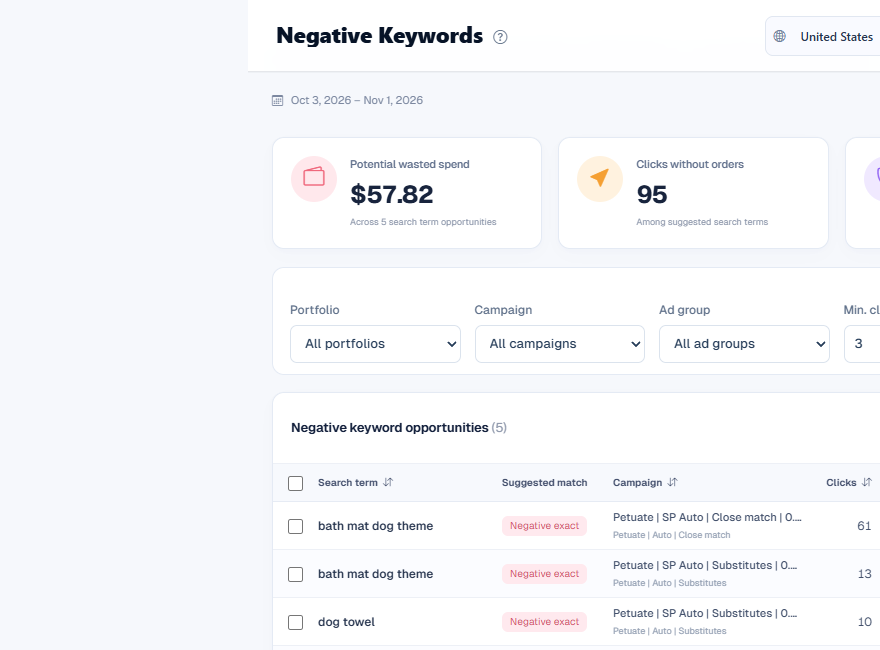
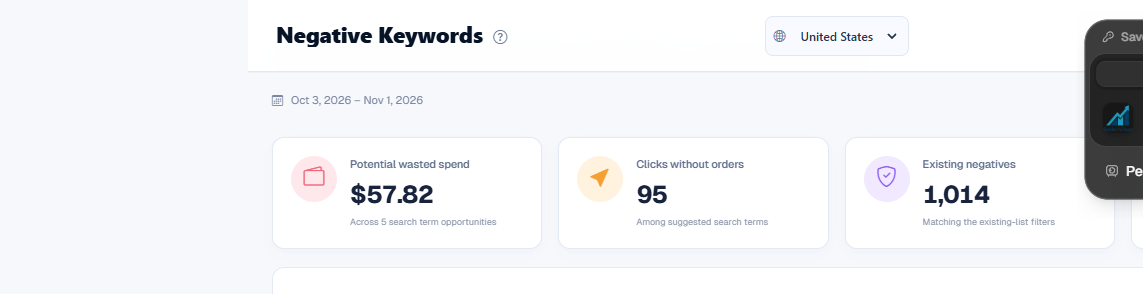
Based on the US market, Sponsored Products for the last 30 days. 95 clicks occurred from 5 search terms, and ad spend was $57.82. There were 0 orders. Among them, one search term alone accounted for 61 clicks and $36.30.
2. Why do such search terms occur?
Automatic targeting and broad matching capture a wide range of seemingly related search terms. In this process, exploratory searches not driven by purchase intent, or even search terms from entirely different categories, are displayed. The same applies to ASIN targeting. Even if our product is displayed on a competitor's product page, if it doesn't meet the demand, only clicks accumulate.
3. How to check on screen
When you open SellerVisor's Negative Keywords screen, potential wasted spend and click counts without orders are displayed at the top. In the table below, click count, ad spend, order count per search term, and the reason why it was suggested as a candidate are displayed together. It is best to sort by ad spend. This is because the amount spent is a more direct loss than the number of clicks.
4. 3 steps to organize
First, set a minimum click count of 3-5 to narrow down candidates. Second, evaluate in order of highest ad spend. Skip search terms that spent $1-2 and start reviewing from those that spent $30 or more. Third, register them as negative keywords. You must distinguish between exact match and phrase match, as blocking with exact match based on a single word could also block search terms that were converting normally.
5. Weekly 5-minute check routine
We recommend a 5-minute routine on Monday mornings. ① Check last week's search terms with no orders and their ad spend. ② Register the top 5 as negative keywords. ③ Compare if spending has decreased 1-2 weeks after registration. ④ For seasonal products, evaluate after the season ends.
6. Points to note when interpreting numbers
Recently listed products need more time to accumulate data. Additionally, attributed sales only count orders that occur within a certain period after an ad click, so they differ from actual total sales. After registering negative keywords, always check that impressions do not decrease excessively.
7. Frequently Asked Questions
Q. How many negative keywords can be registered?
You can register thousands per campaign. What's important is not the number, but distinguishing between exact and phrase matches.
Q. Will my ads stop if I register them?
Impressions are restricted only for those specific search terms. After registration, monitor impressions and sales together for 1-2 weeks.
Q. Does this apply to automatic campaigns as well?
It is particularly effective in automatic targeting campaigns. This is because the search term report is the only clue.
8. Reference
The figures in this article are based on actual account data from the last 30 days and may vary depending on the market and period. The screen is the SellerVisor Negative Keywords page.
Conclusion
Ad optimization yields faster results by preventing leaky spending rather than adding new features. This week, open your search term report once and organize the top 5 search terms without orders.
Request a Live Demo
SellerVisor can be started for free. By linking your ad account, you can immediately identify potential wasted spend candidates, and if needed, you can review the screen together with a 1:1 live demo.