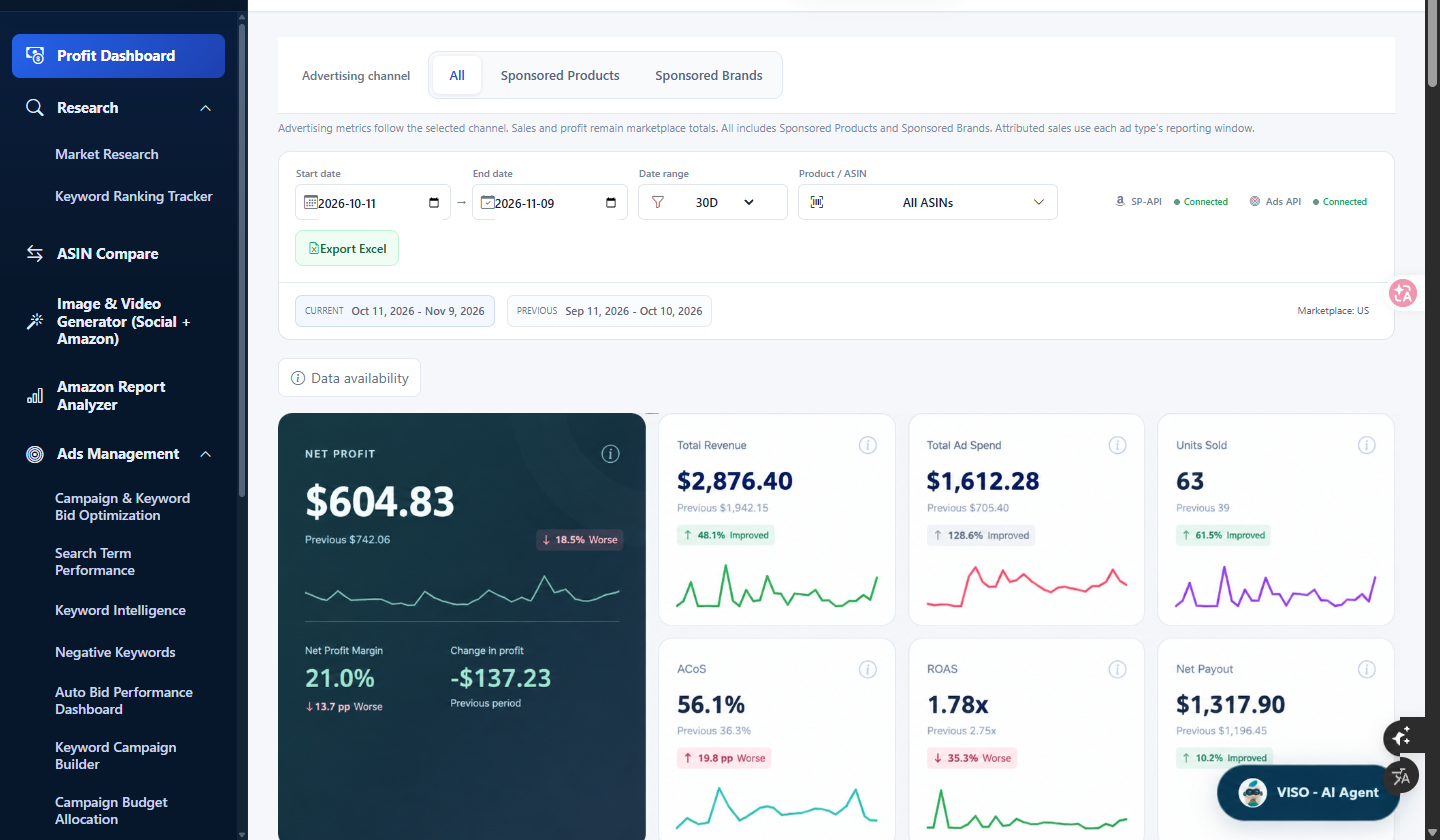
1. Access VISO — Profit Dashboard Bottom Right
After logging into SellerVisor, go to Profit Dashboard from the left menu. The VISO · AI Agent button floating at the bottom right of the screen is the starting point for this update. Pressing the button opens the chat panel to full screen.
2. Reading the Open Screen — Divided into Four Sections
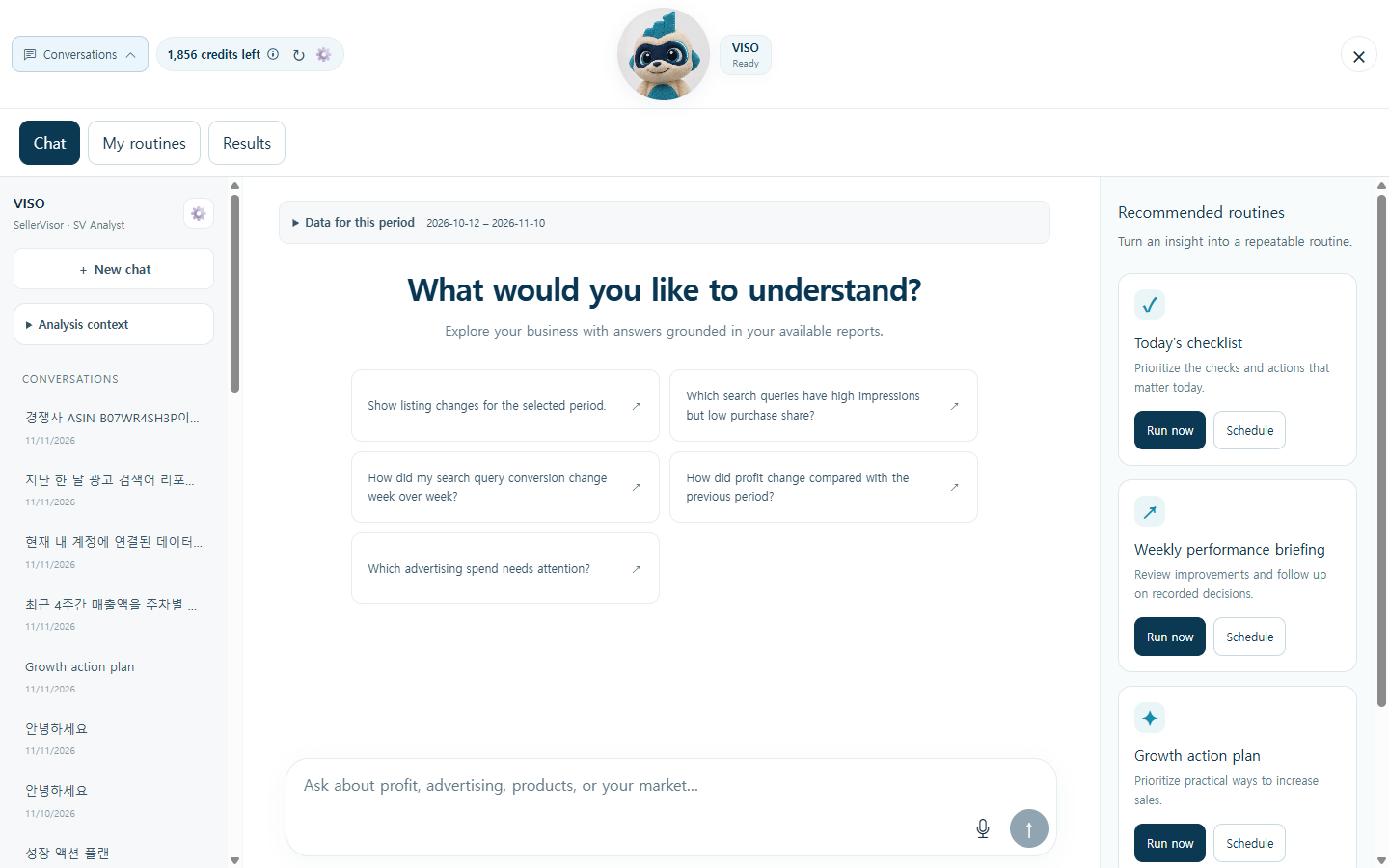
When the panel opens, the screen is divided into four parts. Once you learn it the first time, your hands will instinctively go there afterward.
① Left — Chat History
Past conversations accumulate by date. The cogwheel next to the VISO name at the top left is settings, and below it, + New chat is for a new conversation, and Analysis context shows which account and period the current conversation is based on.
Past conversations accumulate by date. The cogwheel next to the VISO name at the top left is settings, and below it, + New chat is for a new conversation, and Analysis context shows which account and period the current conversation is based on.
② Top Left Tabs — Chat · My routines · Results
These are the three faces of VISO. Chat is for questions and answers, My routines is for frequently used prompts and work routines, and Results is a record of the results when routines are executed.
These are the three faces of VISO. Chat is for questions and answers, My routines is for frequently used prompts and work routines, and Results is a record of the results when routines are executed.
③ Center — Chat Window
The data period you are currently viewing is always displayed at the top of the conversation (e.g., 2026-10-12 – 2026-11-10). Please check the period first before interpreting the numbers. To the right of the input box, there is a microphone, allowing you to give commands verbally without typing.
The data period you are currently viewing is always displayed at the top of the conversation (e.g., 2026-10-12 – 2026-11-10). Please check the period first before interpreting the numbers. To the right of the input box, there is a microphone, allowing you to give commands verbally without typing.
④ Right — Recommended Routines
Pre-made routines are introduced as cards. Each card can be executed immediately with Run now or scheduled regularly with Schedule. When an action is executed, this area changes to an execution/rollback panel.
Pre-made routines are introduced as cards. Each card can be executed immediately with Run now or scheduled regularly with Schedule. When an action is executed, this area changes to an execution/rollback panel.
3. Customizing VISO — Avatar · Name · Response Style
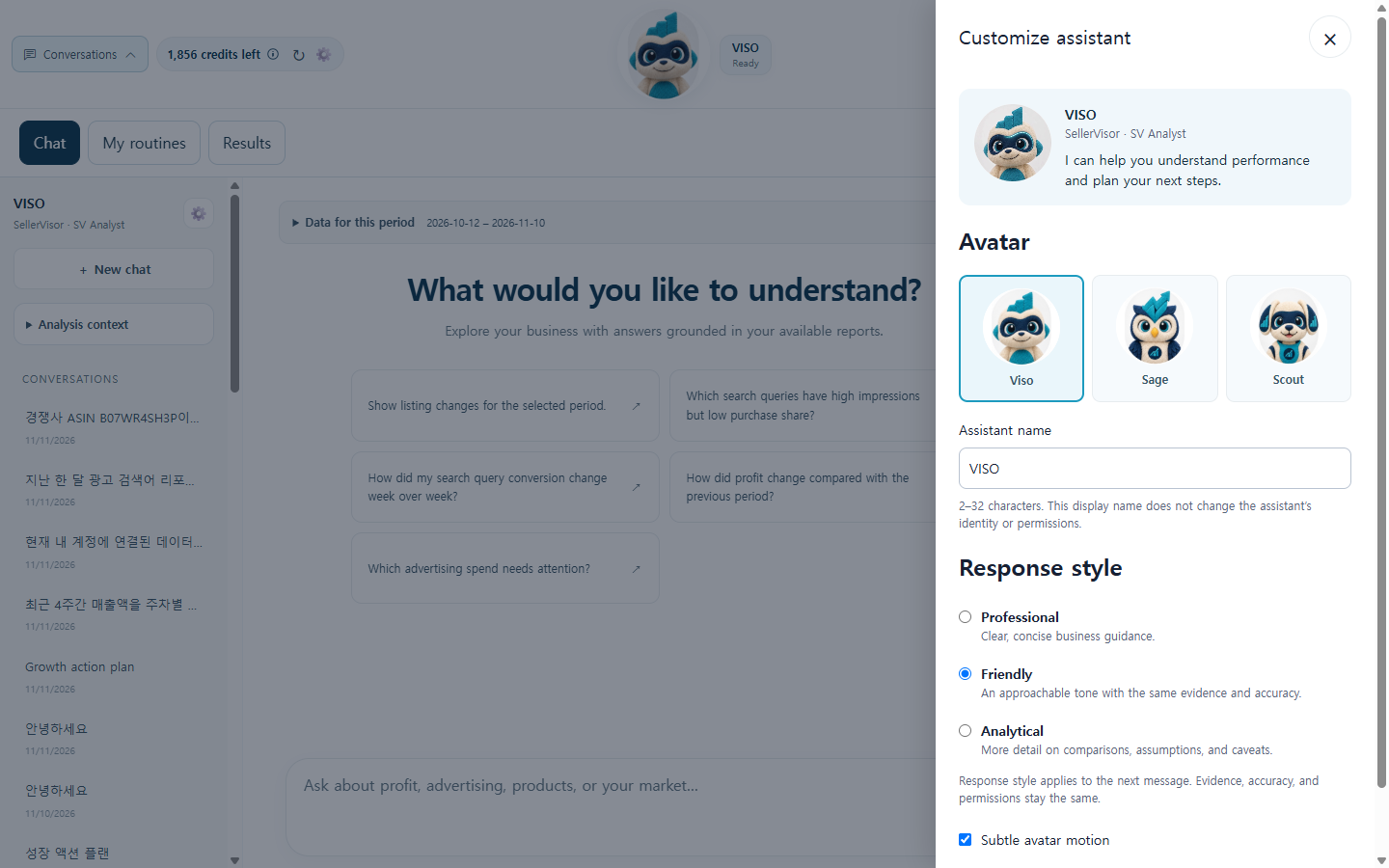
Tapping the VISO avatar at the top of the chat window opens the Customize assistant panel.
You can choose an avatar from Viso · Sage · Scout, and set a name between 2 and 32 characters. For response style, you can choose from Professional (concise business tone) · Friendly (amiable tone) · Analytical (more detailed comparisons, assumptions, and caveats). The style is applied from the next message onwards, and regardless of the style chosen, the basis, figures, and authority remain the same. Only the tone changes.
4. My routines — Turning Repetitive Questions into Tasks
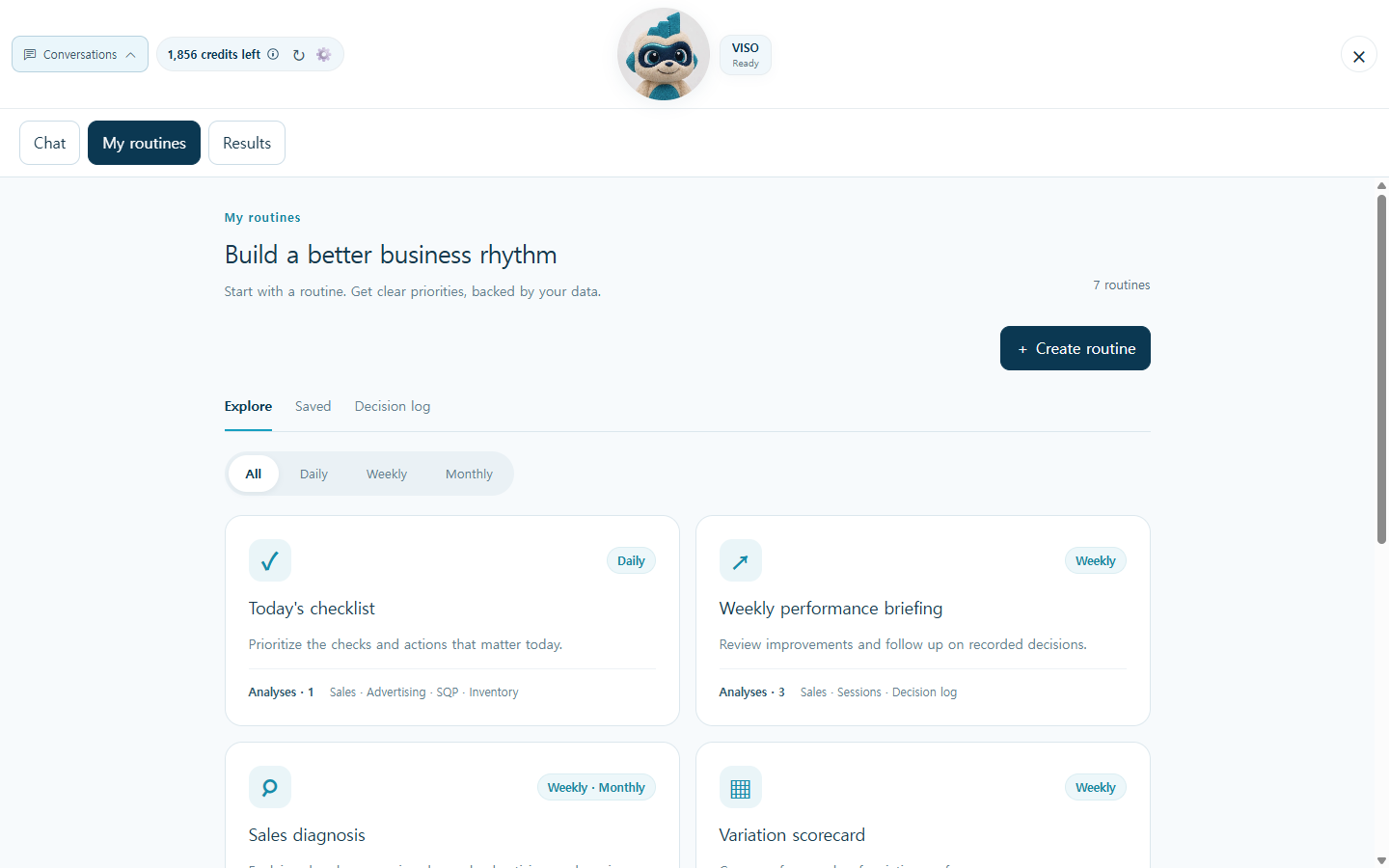
If you find yourself asking the same questions every week, turn them into routines. In the My routines tab, view the Explore list, run a card once with Run now, and then set a schedule with Schedule. Save frequently used questions to your routines with Create routine. You can filter to view only the desired routines using the Explore · Saved · Decision log tabs and the All · Daily · Weekly · Monthly filters at the top.
5. Practice 1 — Creating a Sales Table for the Last 4 Weeks
The first task to try is sales organization. Enter this into the chat window:
"Please summarize sales revenue for the last 4 weeks in a weekly table. Include sales, sessions, conversion rate, ad spend, ACOS, and TACOS in one table."
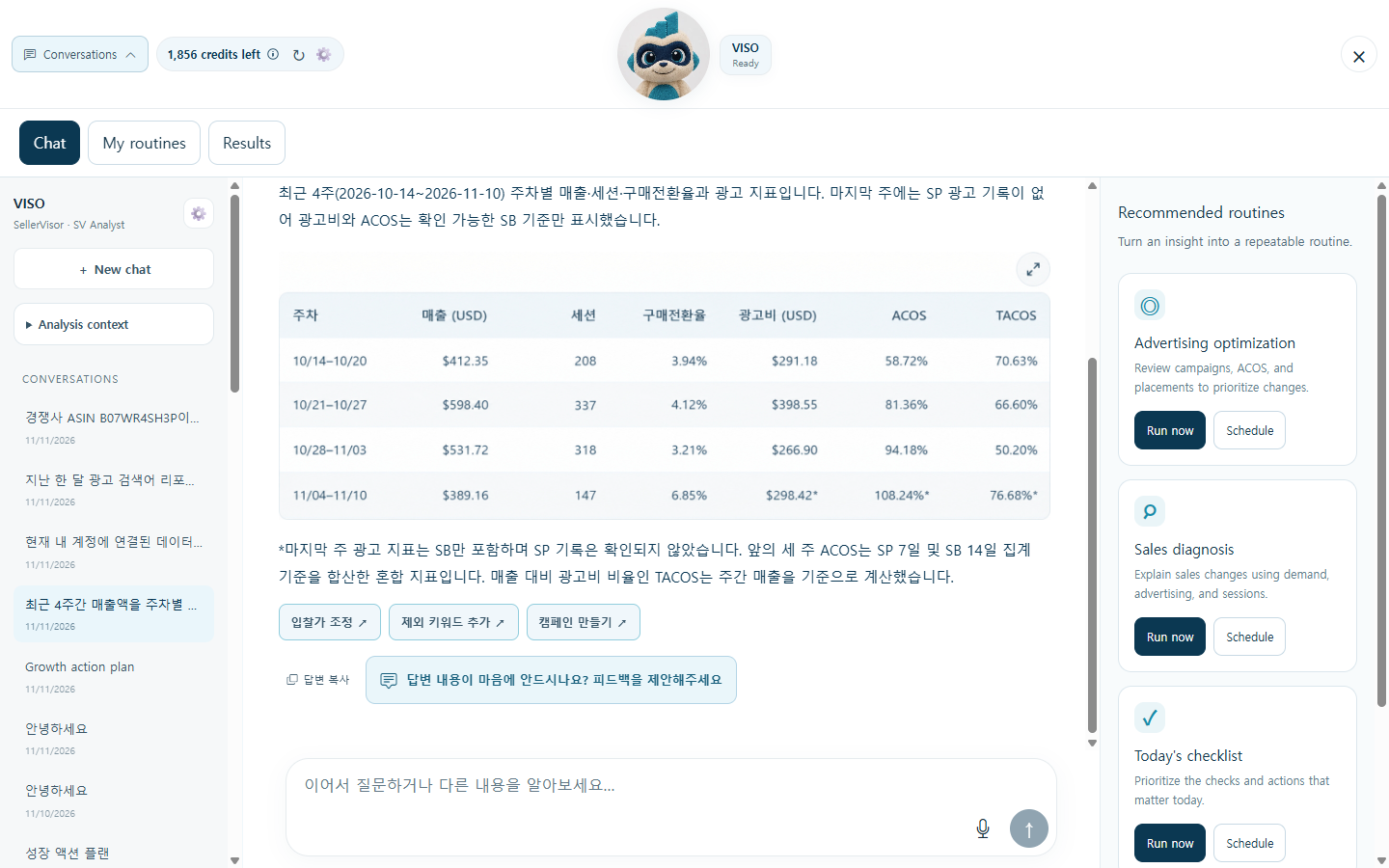
VISO retrieves profit analysis and ad performance data and organizes it into a weekly table. With sales, sessions, and conversion rates aligned on one line, it immediately shows which week saw increased traffic and decreased conversions. Including ad spend, ACOS, and TACOS together also reveals "weeks where sales increased but there was no profit."
Below the table, a "Copy answer" button and a "Not satisfied with the answer? Please provide feedback" button are attached. If the table's criteria are unsatisfactory or the format is different, please let us know immediately here. The fastest way to improve VISO's answer quality is not to ignore strange answers.
6. Practice 2 — Finding Negative Keyword Candidates
The second is finding ad spend leakage. Ask this:
"In the ad search term report from the last month, please find search terms that only incurred ad spend with almost no orders, and compile a list of candidates to be added as negative keywords."
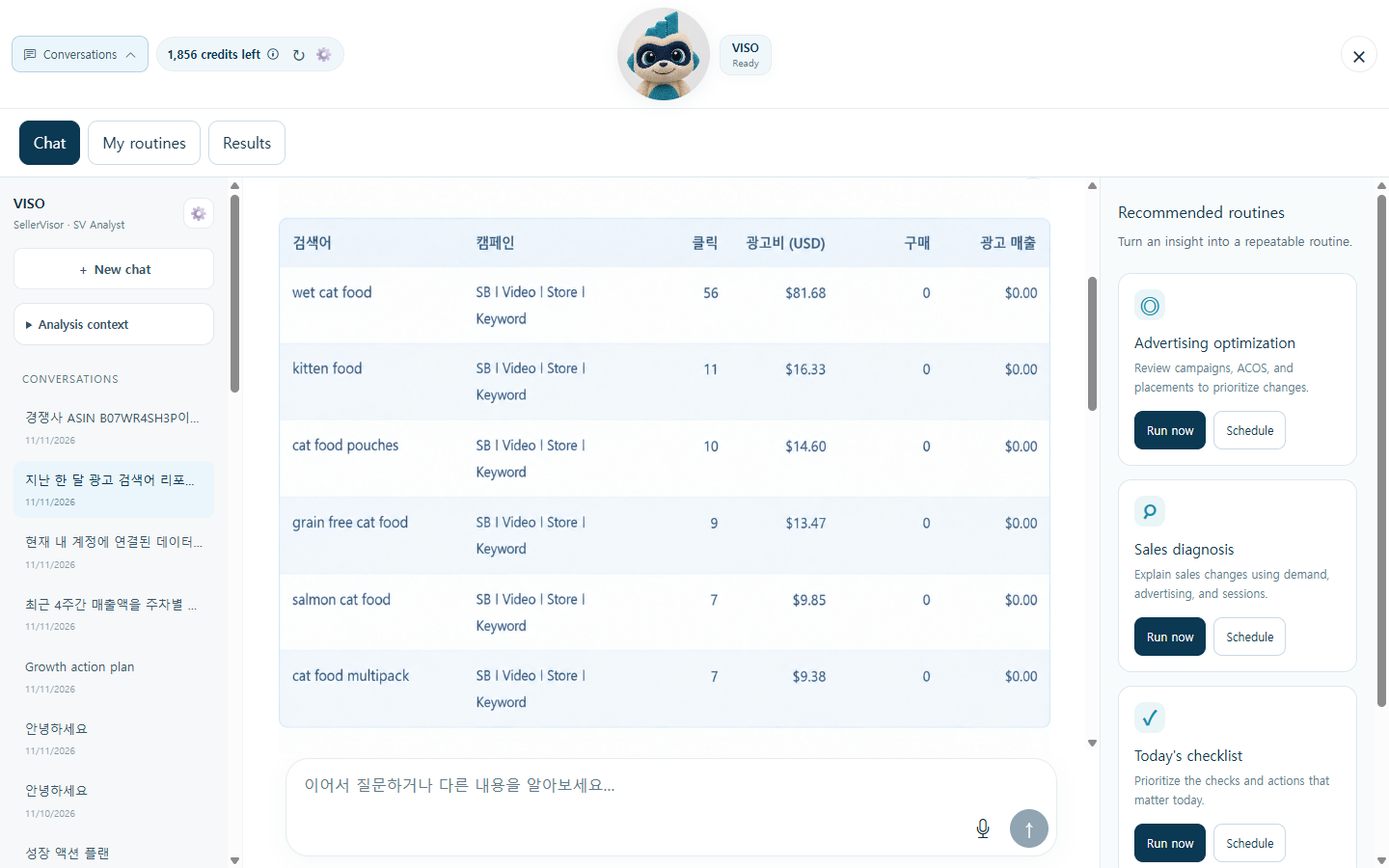
VISO displays clicks · ad spend · orders · ad revenue by search term in a table, highlighting search terms with zero orders first. Below the table, action buttons for Adjust bids · Add negative keywords · Create campaign are attached.
7. Executing Actions — Applying in Ads Workspace
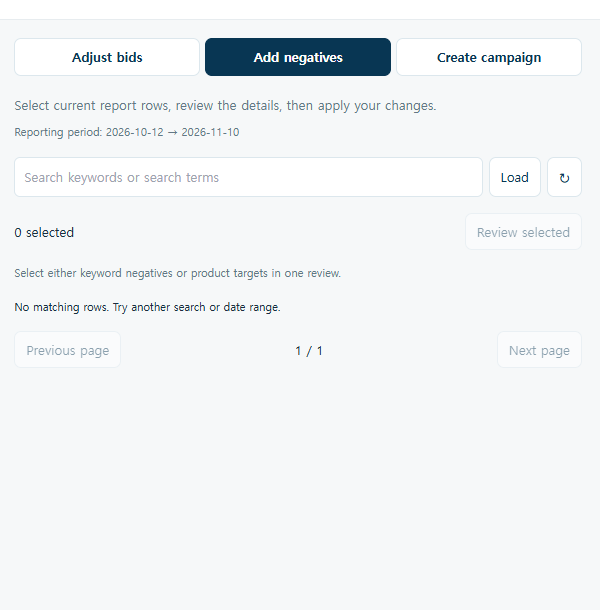
Clicking "Add negative keywords" opens the Ads workspace on the right. It contains three tabs.
Adjust bids is where you view and adjust current bids, Add negatives is where you search for and add search terms as negative keywords, and Create campaign is where you create a new campaign. In Add negatives, check the period, search for terms, then check them → confirm one more time with Review selected and apply. Here, only one keyword exclusion and one product target exclusion should be reviewed at a time.
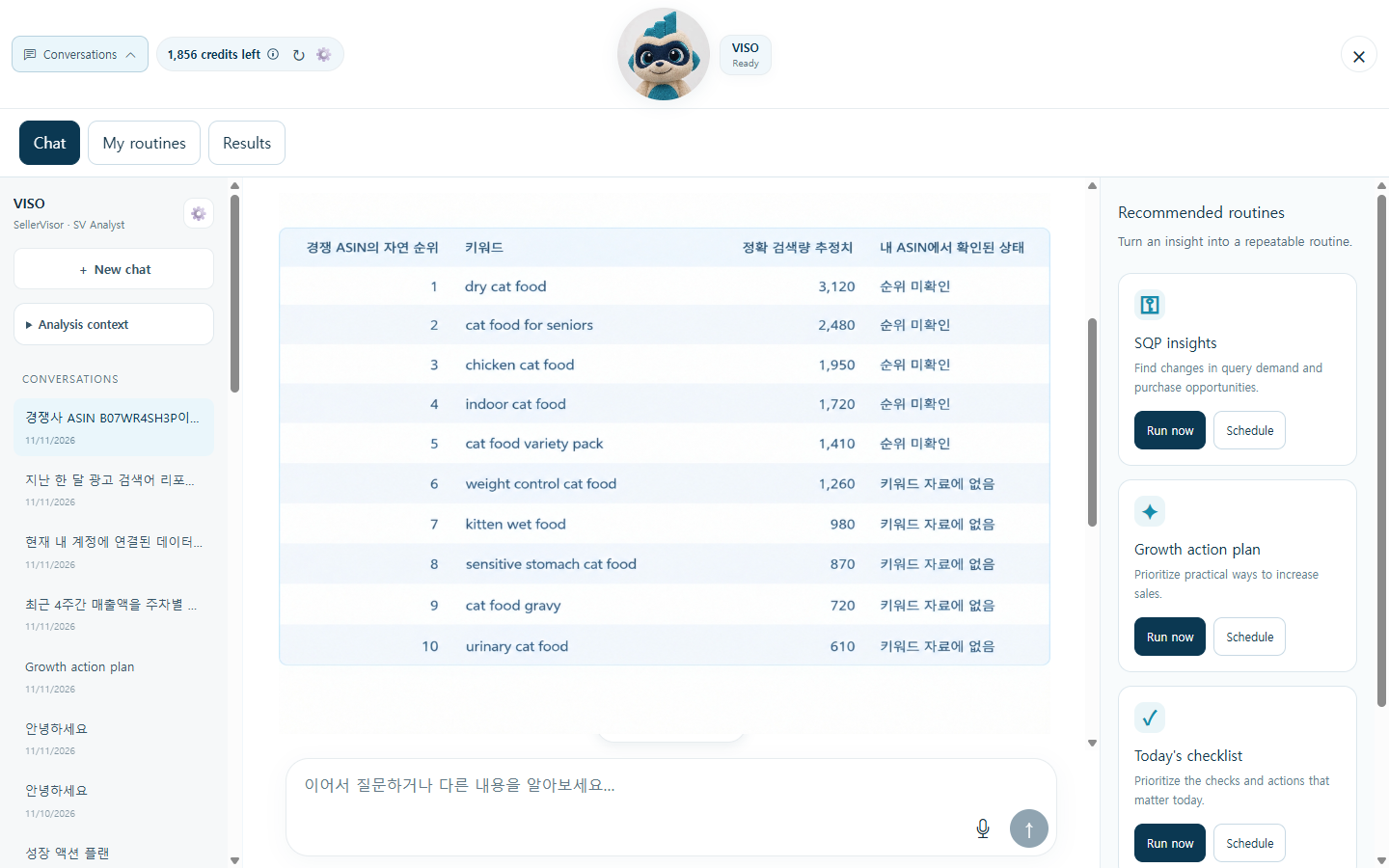
8. Practice 3 — Organic 1st-10th Rank Keywords for Competitor ASINs
The third is competitor keywords. Enter one competitor ASIN and ask this:
"Please analyze keywords where competitor ASIN B0XXXXXXXX is exposed in organic rankings 1-10. Also, compare with my ASIN and organize which keywords should be prioritized for acquisition."
A table of keyword · organic rank · search volume · rank change is displayed, with keywords overlapping with your ASIN highlighted. VISO adds a priority suggestion here. However, it also includes a caveat that a high rank does not necessarily mean it must be acquired. Since rank is only a correlation and not a cause, it is safer to review keywords that have confirmed relevance to the product first.
9. Executed Actions Can Be Rolled Back
VISO's strength doesn't end with analysis. Changes requested via chat are executed as is if all necessary information is provided, and the results of the execution are recorded in Action history. You can check the results in the action history and press Roll back if there is an issue.
Rolling back restores previous bid and placement adjustments, pauses newly created campaigns, and archives newly added negative items. However, expenditure already incurred cannot be canceled. Therefore, the basic principle for actions is "double-check before executing" rather than "execute and then roll back." This does not apply if only a preview was requested.
10. Other Immediately Usable Prompts
You can ask questions like these in the same way:
· "Please calculate this week's break-even ad spend based on TACOS."
· "Please summarize the last 7 days' sales volume and revenue by variation in a table."
· "Please summarize products with decreased conversion rates this week and suspicious metrics."
· "Please summarize ACOS by campaign for the last 30 days in a table and select 3 campaigns that need improvement."
· "Please connect the date listing was changed with subsequent sales changes."
· "Please organize 3 tasks to be done today by priority."
· "Please summarize the last 7 days' sales volume and revenue by variation in a table."
· "Please summarize products with decreased conversion rates this week and suspicious metrics."
· "Please summarize ACOS by campaign for the last 30 days in a table and select 3 campaigns that need improvement."
· "Please connect the date listing was changed with subsequent sales changes."
· "Please organize 3 tasks to be done today by priority."
11. Frequently Asked Questions
Q. The numbers VISO uses in the table are different from the dashboard numbers.
A. The period and criteria may be different. Please check the period displayed at the top of the conversation and the footnotes below the table first. ACOS is based on ad revenue, and TACOS is based on total revenue.
A. The period and criteria may be different. Please check the period displayed at the top of the conversation and the footnotes below the table first. ACOS is based on ad revenue, and TACOS is based on total revenue.
Q. Do routines have to be run daily?
A. No. Selecting only frequently viewed metrics and running them once a week is sufficient. Check the execution history in the Results tab and adjust the frequency.
A. No. Selecting only frequently viewed metrics and running them once a week is sufficient. Check the execution history in the Results tab and adjust the frequency.
Q. What if I don't like an executed action?
A. Clicking Roll back in the action history will restore the previous state. However, ad expenditure already incurred cannot be recovered.
A. Clicking Roll back in the action history will restore the previous state. However, ad expenditure already incurred cannot be recovered.
12. Update Commemoration Coupon Information
To commemorate this VISO update, coupons are provided until November 30th. For monthly payments, use VISO50 (50% off the first month after a 14-day free trial), and for annual payments, use VISO30 (30% off annual payment). Enter the code in the coupon entry field on the payment screen to apply it.
Open VISO at the bottom right of the Profit Dashboard now, and simply ask it one number you were curious about today.