
Hello. Thank you to all customers who use SellerVisor.
Many times, you have product photos but no videos. This is often because people think they need to schedule a new shoot. SellerVisor's Video Studio is a feature that allows you to generate videos by using your existing photos as references. Today, we have organized the setting items one by one based on the actual screen.
1. Questions this screen answers
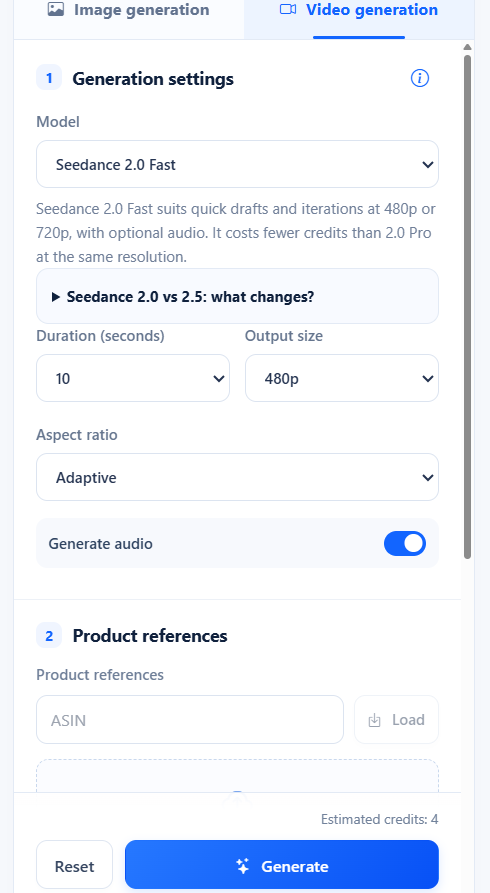
This is the answer to the question, "Can I create videos for advertising using only product photos?" Video Studio is located in the Video generation tab, alongside the Image generation tab. You can choose from marketplaces like US(Amazon.com), CA, JP, and MX.

2. Model Selection
There are three video generation models.
- Seedance 2.0 Fast - For quick drafts and iterative work. 480p or 720p, audio selection available. Costs fewer credits than 2.0 Pro at the same resolution.
- Seedance 2.0 Pro
- Seedance 2.5
3. Duration, Resolution, Aspect Ratio
Set the basic specifications for the video.
- Duration - 5 seconds / 10 seconds / 15 seconds / 30 seconds
- Output size - 480p / 720p
- Aspect ratio - Adaptive, 16:9, 4:3, 1:1, 3:4, 9:16, 21:9 (7 types)
- Generate audio - Can be turned on or off
For vertical ads, choose 9:16; for square feeds, 1:1; for wide videos, 16:9. If you want to follow the original image ratio, use Adaptive.
4. References and Templates
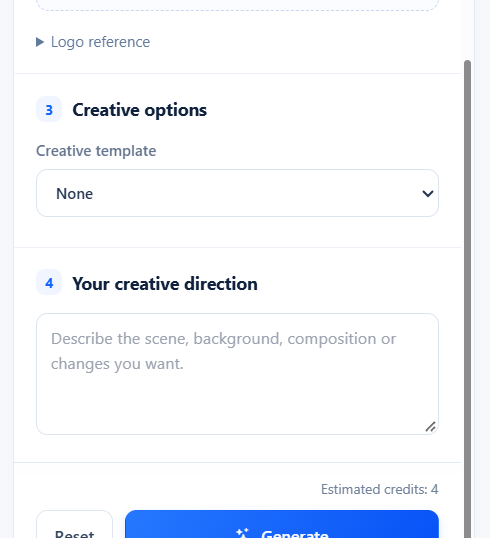
You can upload up to 9 product images, and each file can be up to 10MB. JPG, PNG, WebP, and GIF are supported. You can also add logo references separately.
There are five creative templates.
- None (manual specification)
- Unboxing
- Item review
- TV commercial style
- Storyboard-driven video
Below that, write down the scenes, backgrounds, composition, and changes in sentences in Your creative direction.
5. Credits and Storage Period
When you change the settings, the estimated credits change accordingly. Based on our current account settings (Seedance 2.0 Fast · 10 seconds · 480p · Adaptive), Estimated credits: 4 is displayed, and available credits are 6,536.
There is one important point. Generated photos and videos are stored for only 30 days. If it's a clip for an advertisement, it's safer to download it on the day it's approved.
6. Actual Usage Steps
- Step 1. Choose a marketplace and go to the Video generation tab.
- Step 2. Set the model, duration, resolution, and aspect ratio.
- Step 3. Upload product images (up to 9) and a logo, and select a template if needed.
- Step 4. Write the desired scenes in the creative direction.
- Step 5. Check the estimated credits and click Generate.
- Step 6. Check the results and download anything you want to use within 30 days.
7. Frequently Asked Questions
Q. How many photos are needed?
You can upload up to 9 photos. Each file must be under 10MB.
You can upload up to 9 photos. Each file must be under 10MB.
Q. Which should I use, Fast or Pro?
Fast is suitable for drafts and iterative work. Audio selection is available for 480p and 720p, and it costs fewer credits at the same resolution. It is common to generate the final version with Pro or 2.5.
Fast is suitable for drafts and iterative work. Audio selection is available for 480p and 720p, and it costs fewer credits at the same resolution. It is common to generate the final version with Pro or 2.5.
Q. Which aspect ratio should I choose?
Match it to your ad placement. For vertical short-form videos, use 9:16; for square, 1:1; for wide and YouTube, 16:9; and for maintaining the original ratio, Adaptive.
Match it to your ad placement. For vertical short-form videos, use 9:16; for square, 1:1; for wide and YouTube, 16:9; and for maintaining the original ratio, Adaptive.
Q. How long are the results stored?
30 days. After that, they disappear, so please download necessary files immediately.
30 days. After that, they disappear, so please download necessary files immediately.
Q. How many credits does it cost?
It varies depending on the settings, and an estimate is displayed on the screen. Based on current settings, it costs 4 credits.
It varies depending on the settings, and an estimate is displayed on the screen. Based on current settings, it costs 4 credits.
8. Notes
- Using high-resolution product photos and specifying scenes and compositions in detail leads to more stable results.
- Always review the generated results before publishing. There may be cases where detailed descriptions do not match.
- Model, resolution, duration options, and credit policies may change, so please check the latest values on the screen before generation.
Conclusion
Video creation might be a matter of settings, not shooting. By generating a draft with existing photos and then re-generating only the cuts you like, you can create ad materials without a shooting schedule. Today, we recommend picking just one product and generating a 5-second draft.
To see Video Studio for yourself, you can request a demo. After creating an account at sellervisor.com, you can immediately access it by going to Creative > Video Studio.