1. What is the Campaign Budget Allocation screen?
When operating Amazon ads, most people first worry about "how much should I increase the budget?". SellerVisor's Campaign Budget Allocation changes one question. It's a screen that starts by looking at which campaigns are currently eligible to have their budget reallocated.
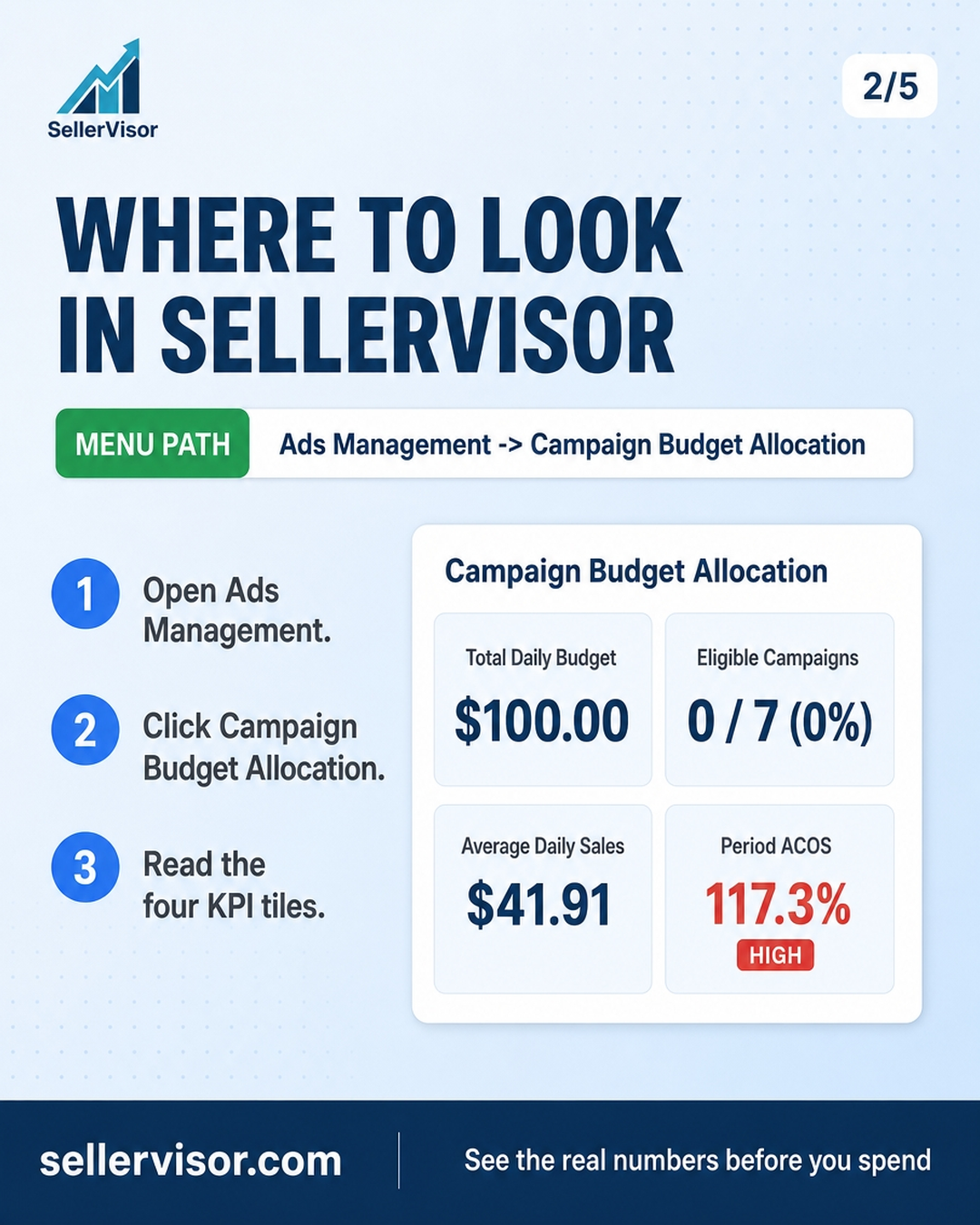
Location: Ads Management → Campaign Budget Allocation. Select the marketplace (US/Canada) and ad channel (Sponsored Products · Sponsored Brands), and set the period, then it will be calculated based on the aggregation of that period.
2. Four Metrics at the Top of the Screen
- Total Daily Budget — Sum of set daily budgets
- Eligible Campaigns — Number and percentage of campaigns that can currently be reallocated
- Average daily sales — Average daily sales generated at that budget level
- Period ACOS — Ad spend ÷ Sales for the entire period
3. Actual Numbers for an Example Account
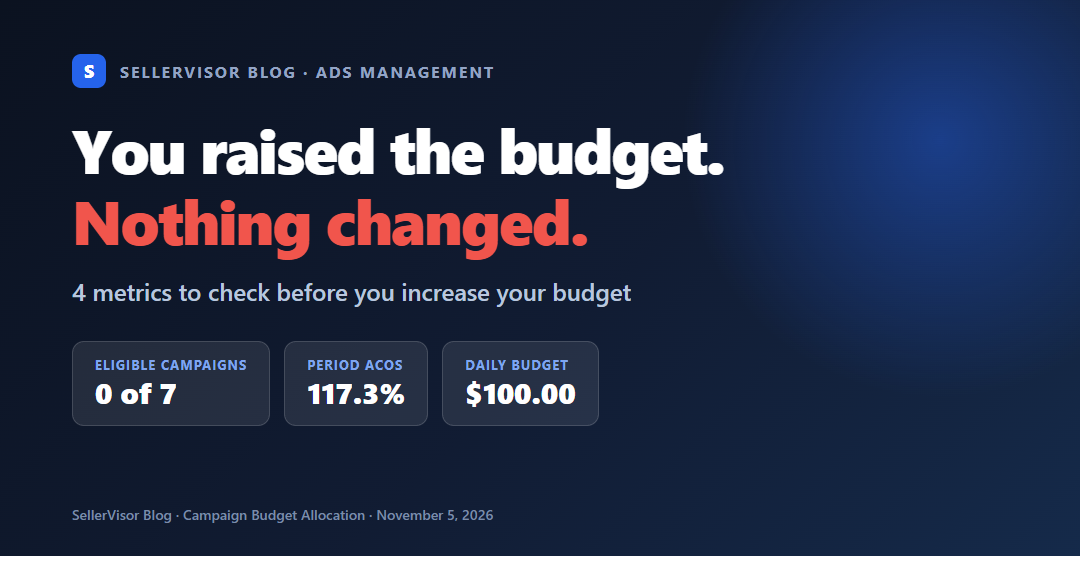
On the example account (US, Oct 22 - Nov 4, latest report Oct 31), the screen read like this: Total Daily Budget $100.00 · Eligible Campaigns 0 / 7 (0%) · Average daily sales $41.91 · Period ACOS 117.3%.
This can be interpreted as follows: There are 7 candidate campaigns to allocate $100 per day, but none of them are currently eligible for reallocation (0/7). A Period ACOS of 117.3% means that during this period, ad spend was greater than sales, so it is actually normal for them to be ineligible.
4. Why is 'Eligibility' prioritized over Budget?
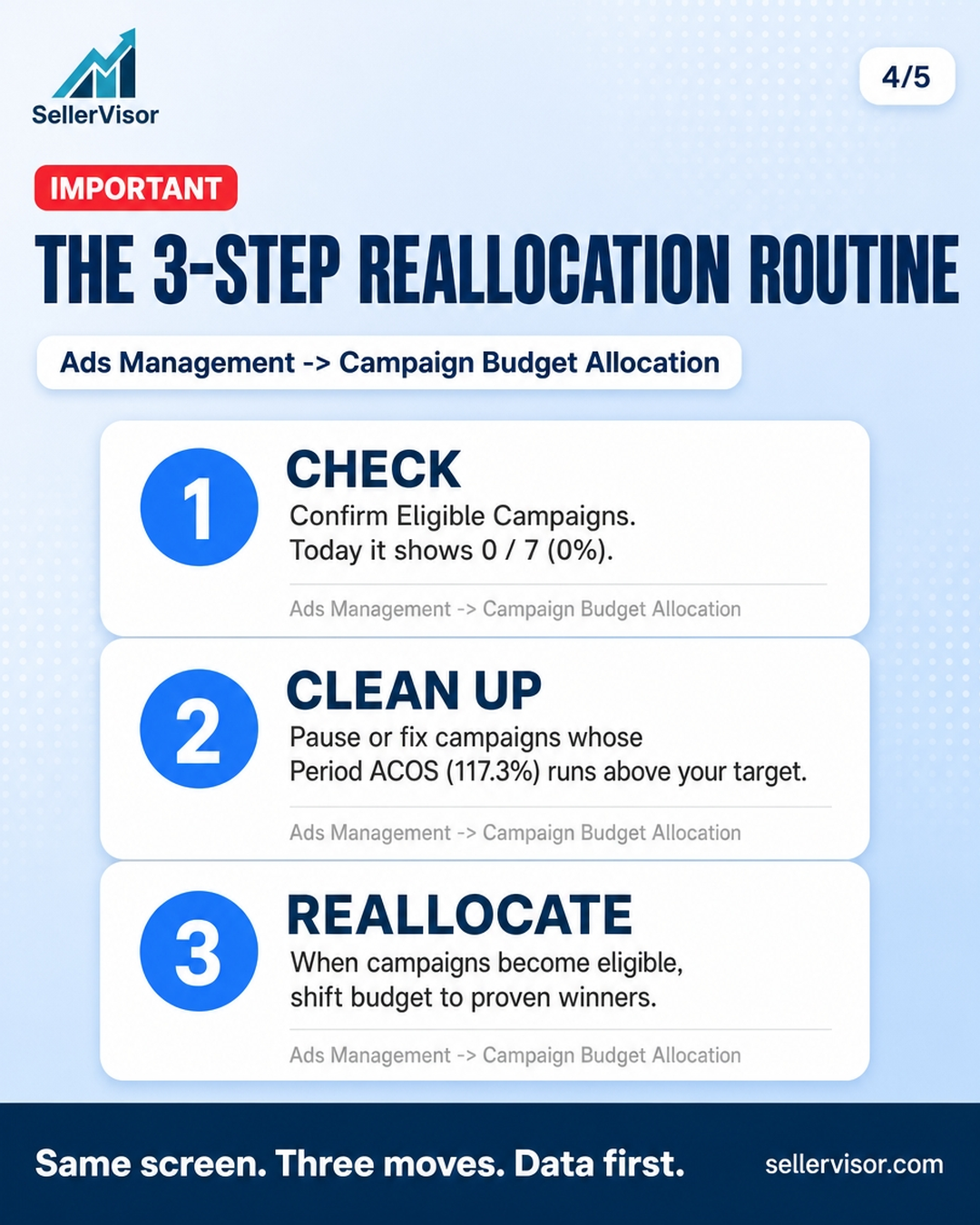
The budget is meaningful only when moved to campaigns with good performance. However, if eligibility is 0/7, there is nowhere to move it. Increasing the budget in this state will result in putting more money into campaigns that are already at a loss. Therefore, the sequence is always Check Eligibility → Clean Up → Reallocate.
5. 3 Steps to Execution
- Check Eligible Campaigns. If eligibility is empty, like 0 / 7, do not move the budget.
- Clean up campaigns where Period ACOS exceeds the target. View the table sorted by ACOS (lowest first), and for campaigns to improve, adjust ad spend/bids or pause them temporarily.
- Once eligibility is established, Preview Allocation → Apply Budgets. Preview and confirm the amount to be applied to the selected campaigns.
6. How to Set Budget Values
At the bottom of the screen, in Budget settings, set the calculation criteria. These are Total / Min / Max Daily Budget, Min Orders Required, Min Clicks Required, Min ROAS, Use CVR Multiplier, Use ACOS Adjustment, Default Lookback Days. It is advisable to set minimum order and click criteria together to prevent the budget from being concentrated on campaigns with insufficient data. After making changes, you must press Save Settings for them to be reflected in subsequent calculations.
7. How to Read the Table and Points to Note
The columns in the table are in the order of Campaign · ASIN · Sales · Cost · Orders · Clicks · Impressions · Current Budget · Budget to apply · Eligible. Below, the number of selected campaigns and Selected budget / Unallocated are displayed, allowing you to check the remaining unallocated budget at a glance.
One point to note is Sponsored Brands. As indicated on the screen, SP's budget rules and bidding history do not directly apply to SB, so SB must be adjusted separately in the campaign budget/bidding screen.
8. Frequently Asked Questions
Q. Will increasing the budget improve ACOS?
No. The budget is not the cause of performance but a value that amplifies results. If ACOS is higher than your target, you should first clean up wasted search terms and campaigns.
No. The budget is not the cause of performance but a value that amplifies results. If ACOS is higher than your target, you should first clean up wasted search terms and campaigns.
Q. If Eligible is 0, can I do nothing?
It means there is still work to be done. Improving campaigns with high ACOS will make them eligible in the next calculation.
It means there is still work to be done. Improving campaigns with high ACOS will make them eligible in the next calculation.
Q. Do the numbers vary by account?
Yes. The values above are for an example account and will vary depending on the period and marketplace.
Yes. The values above are for an example account and will vary depending on the period and marketplace.
Summary
This is a screen that you only need to check once before increasing your budget. In Ads Management → Campaign Budget Allocation, first check if eligibility is 0/7 and if Period ACOS exceeds the target before moving the budget. You can check SellerVisor immediately with a 14-day free trial.