Ad reports show clicks, but what you need is "what sold"
When you open the search term report, hundreds of rows appear: impressions, clicks, spend. But what you actually need for decision-making is one thing. Which search terms actually resulted in purchases over the past month.
SellerVisor's VISO · AI Agent handles this question with a single chat line. No need to open spreadsheets, download CSVs, or manipulate dashboard filters.
1. Just ask in chat like this
Open the VISO · AI Agent in the bottom right of the revenue dashboard and enter it as is.
"Which search terms were actually purchased in the last 30 days? List them with units sold and sales, ranked by sales."
VISO filters only the search terms that generated purchases from the linked ad reports and organizes them by sales rank. Search terms with many clicks but no sales are excluded from the table.
2. The answer returns as a table of purchased keywords
This is an actual response based on the US market from October 21 to November 19, 2026. Search terms that generated purchases, such as dog towels 4 units $278.16, jumbo dog bathmat 1 unit $247.80, dog towel 5 units $209.40, are listed in order of sales. It shows the top 20 out of 592 search terms from the Sponsored Brands report by sales rank, and purchased search terms from the Sponsored Products report are appended.
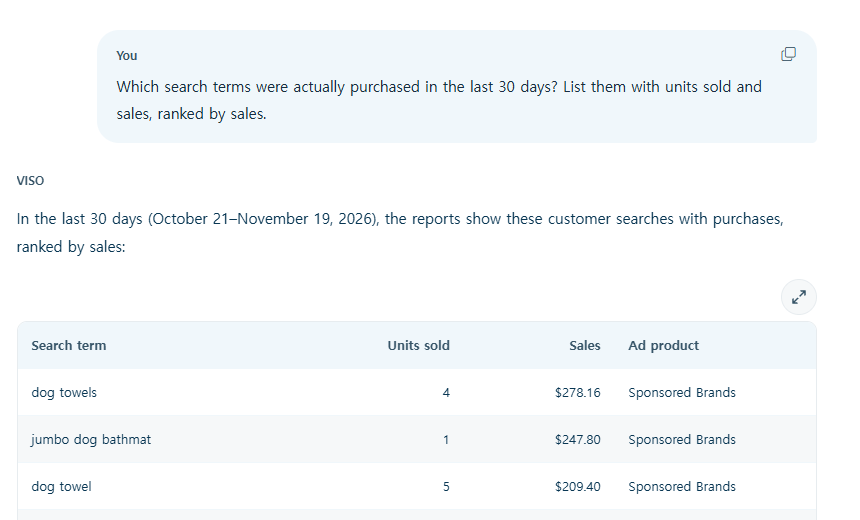
What's important is the sorting criterion of the table: purchases, not clicks. Only search terms that generated revenue, not just traffic from ads, remain.
3. It doesn't end with just viewing the table — three buttons below the answer
At the bottom of the answer, Adjust bids, Add negatives, Create campaign three actions are attached. Based on the same table, you can adjust bids, exclude spend-only search terms as negatives, and create campaigns with the remaining purchased keywords.

4. Create campaign — Campaign draft is automatically filled with selected keywords
Select rows from the table and click Review selected to have VISO create a campaign draft. In the example above, after selecting 'bath mat dog theme' and 'dog bath towel', the campaign name, ad group, ASIN, SKU, daily budget $10, default bid $0.75, match type Exact, bid strategy Down only, Top of search 50%, and Rest of search 10% were automatically filled.
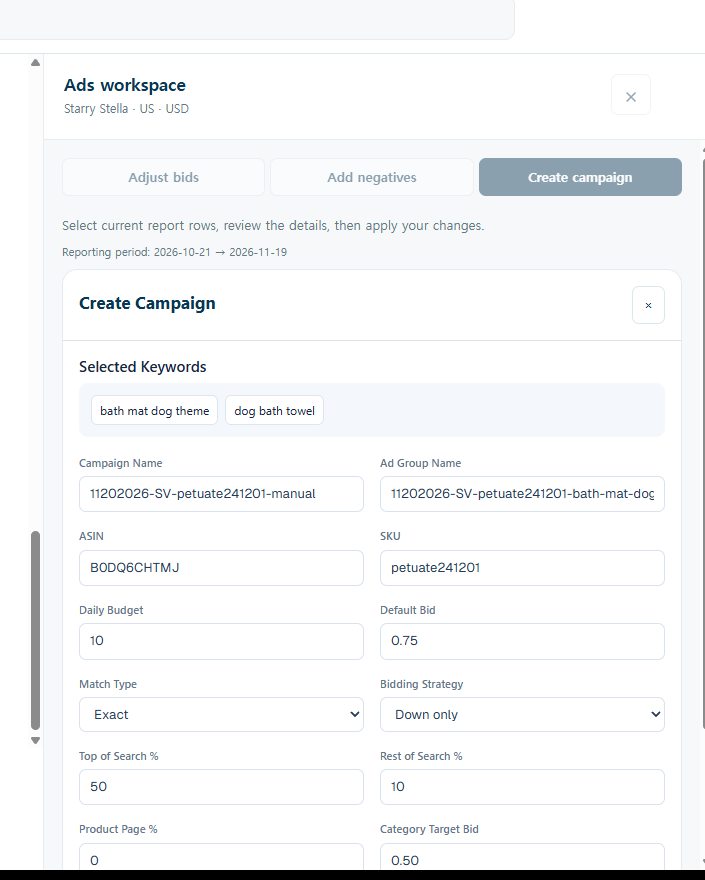
The human task is merely to review and approve. The step of identifying which keywords sold and the step of setting up a campaign with those keywords are seamlessly connected within the same conversation.
5. Steps you can try right away today
① Open VISO · AI Agent from the revenue dashboard. ② Ask, "Show me the search terms that actually resulted in purchases in the last 30 days, ranked by sales." ③ Check the sold search terms in the table. ④ Click Create campaign below the answer, select rows, and check the draft with Review selected. ⑤ Review and approve the budget, bids, and match types.
The previously separated workflow of reading reports and creating ads is now connected by a single question. Experience it for free with SellerVisor.