SellerVisor has launched Viso, an AI agent for Amazon sellers. Viso is a tool that allows you to query connected Amazon sales and advertising data via chat, and then apply the reviewed results to actual campaign changes. Instead of learning another new dashboard, you can simply ask what you're curious about right now.
If you're using it for the first time, we recommend starting by checking search terms that incurred advertising costs but had no orders in the last 30 days. Separating the task of finding candidates from the task of deciding whether to exclude them makes it easier to review results.
1. What is Viso?
Viso is an AI agent that operates within SellerVisor. Instead of accessing a separate chatbot site and copying/pasting your data, it reads and responds based on your already connected Amazon selling account and Amazon advertising account. It calculates metrics like sales, sessions, purchase conversion rate, advertising costs, ACoS, and TACoS based on the user's account, and if necessary, it also considers external data such as keyword rankings and search volume.
2. How is it different from a general AI chatbot?
A typical AI chatbot doesn't know what your product is, what keywords it's shown for, or how much you spent on advertising last month. So, while the answers may seem plausible, they are irrelevant to your account. Viso directly queries sales, advertising, and keyword data, so the basis of its answers comes from your actual numbers. Furthermore, it organizes results into tables and leads to actions like adding negative keywords to campaigns after review.
3. Getting Started: Connecting Sales and Advertising Accounts
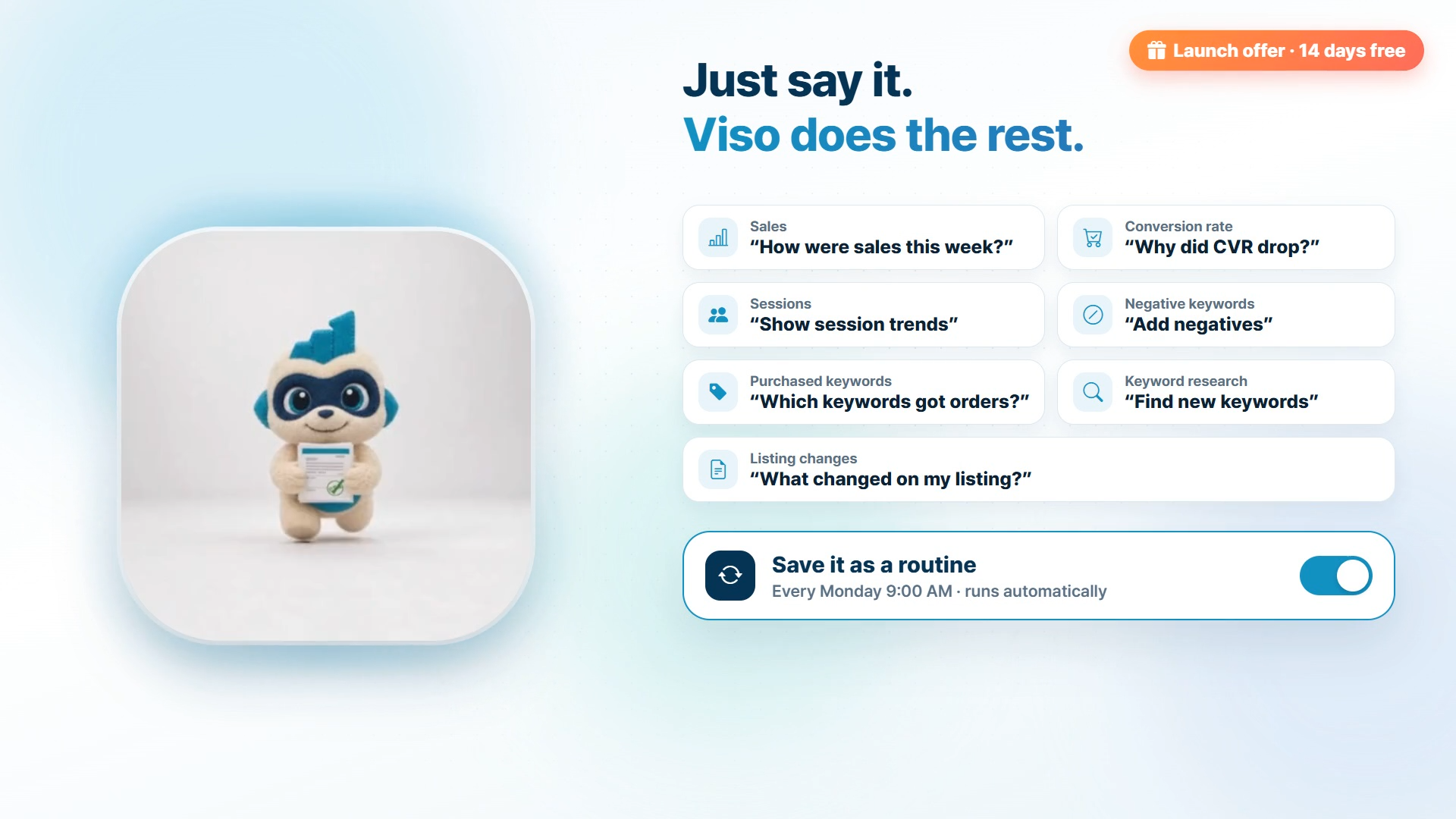
To use Viso, you need to connect your Amazon selling account and Amazon advertising account in SellerVisor settings and confirm the marketplace you'll be working on. Once connected, you can enter questions directly on the Viso screen. Since the answer to the same question will vary depending on which marketplace you are viewing, please check your marketplace selection first after connecting.
4. Practice 1: Finding Search Terms with Ad Spend but No Orders
The first question to try is this:
Show me search terms that incurred advertising costs but had no orders in the last 30 days, by campaign. Please also summarize clicks and advertising costs.
Once you receive the table, check product relevance and clicks, starting with items that have high ad spend. Classify search terms that don't match your product, and those with insufficient data, separately. For items you decide to exclude, confirm which campaign and exclusion type (e.g., exact match) they will apply to, then execute. Following this order can reduce accidentally cutting off search terms that contribute to sales.
5. Practice 2: Comparing Last 4 Weeks' Sales and Ad Performance in One Table
A single table is enough for weekly review.
Please divide the last 4 weeks by week and summarize sales, sessions, purchase conversion rate, advertising costs, ACoS, and TACoS in one table.
ACoS is advertising cost relative to ad sales, and TACoS is advertising cost relative to total sales. If ad spend increased but sales decreased, before changing ad settings, first look at whether sessions or conversion rate also dropped. Checking if prices or inventory status have changed simultaneously will narrow down the items to check next.
6. Save Repeating Questions as Routines
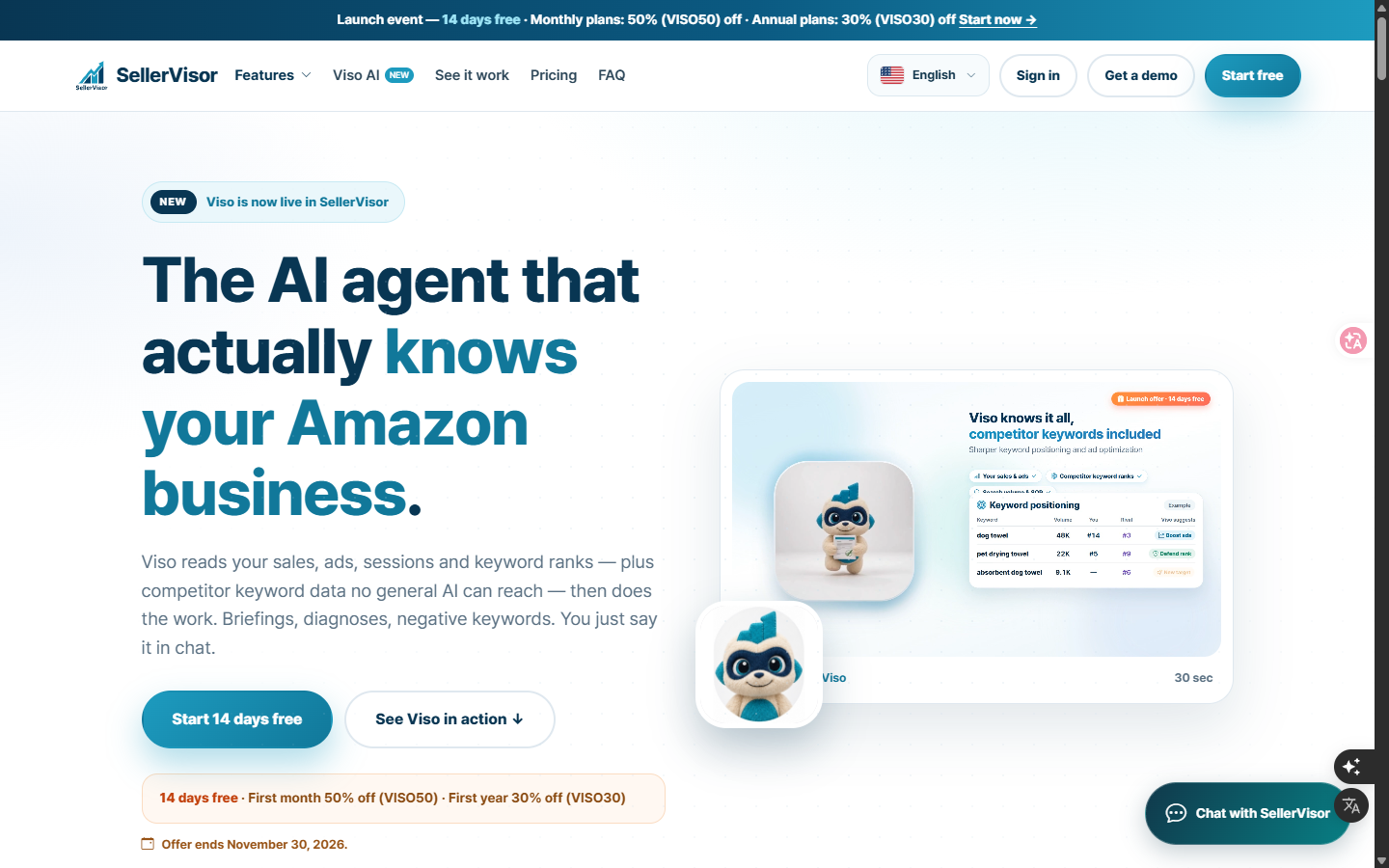
There's no need to re-enter the same questions every week. If you save frequently used requests as routines, Viso will organize them for you at a set day and time. For example, if you set it to receive a summary of last week's sales and advertising every Monday at 9 AM, you won't need to pull the numbers again before your weekly meeting.
7. Launch Benefits: Until November 30, 2026
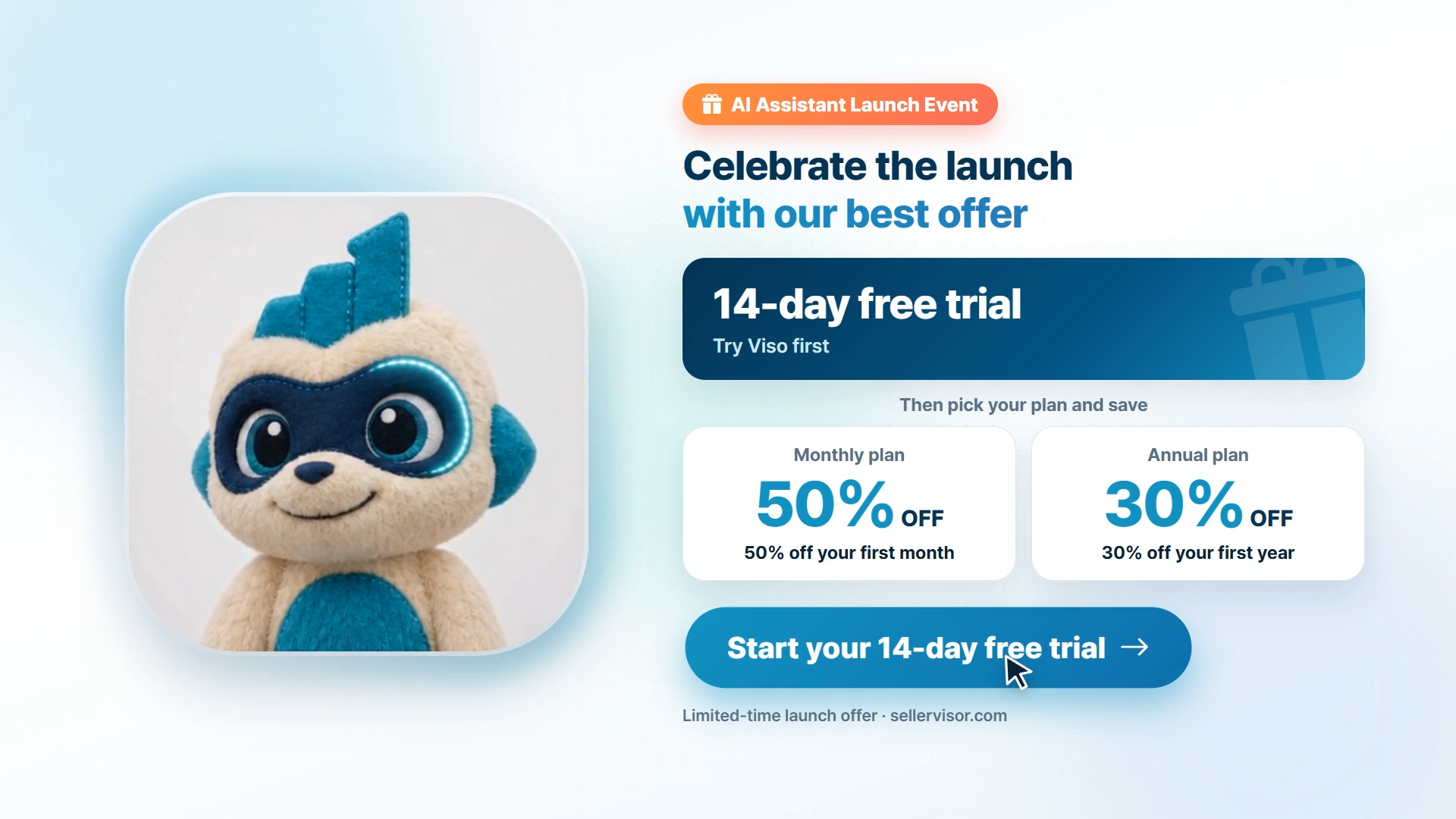
This launch includes a 14-day free trial along with a limited-time discount. Please check the official page for terms and end date.
- VISO50: 50% off the first month of monthly plans
- VISO30: 30% off the first year of annual plans
- 14-day free trial for all plans, no card required
- VISO30: 30% off the first year of annual plans
- 14-day free trial for all plans, no card required
8. 30-Second Summary Video and Full Demo
If you want a quick overview, we recommend the 30-second summary video; if you want to follow the actual usage flow, we recommend the full demo video. The full demo covers everything from account connection to ad search term review and weekly report generation in sequence.
View Full Demo: https://youtu.be/MSFuQoPYRRA
9. Frequently Asked Questions
Q. What do I need to connect to use Viso?
To analyze Amazon sales data and ad data, connect your Amazon selling account and Amazon advertising account in SellerVisor settings, and confirm the marketplace you will be working on.
To analyze Amazon sales data and ad data, connect your Amazon selling account and Amazon advertising account in SellerVisor settings, and confirm the marketplace you will be working on.
Q. Should all search terms with no orders be excluded?
No. The condition of no orders in the last 30 days is merely a starting point for creating a review list. After checking if clicks and ad spend have accumulated sufficiently, if the search term is relevant to the product, and what the campaign goal is, then determine the exclusion items and scope of application.
No. The condition of no orders in the last 30 days is merely a starting point for creating a review list. After checking if clicks and ad spend have accumulated sufficiently, if the search term is relevant to the product, and what the campaign goal is, then determine the exclusion items and scope of application.
Q. Does Viso change ads on its own?
No. The video also shows the process where a person reviews the candidates found by Viso, and then adds the selected search terms as negative keywords to the campaign. It is recommended to confirm the target campaign and exclusion type before execution.
No. The video also shows the process where a person reviews the candidates found by Viso, and then adds the selected search terms as negative keywords to the campaign. It is recommended to confirm the target campaign and exclusion type before execution.
10. Before You Start
The screens in the video and this article are demonstrations to show functionality. For actual decisions, please use the search terms and original reports from your account. It is also safer to apply negative keywords one campaign at a time and check the performance for the following week, rather than applying them in large quantities at once.