VISO is an AI assistant that reads and answers questions about sales, advertising, and keyword data in the SellerVisor Profit Dashboard. If it's a screen you open multiple times a day, it's better if it looks like a tool you use. With this update, you can now directly choose VISO's character, name, and speaking style. Settings are completed within two clicks and reflected in the header immediately upon saving.
1. Preparations
When you enter the Profit Dashboard, there is a VISO · AI Agent launcher in the bottom right corner. If your account shows this launcher, you can use it immediately without a separate application. VISO uses 1 credit per answer, and remaining credits are displayed in the panel header. Avatar settings themselves do not use credits (excluding custom avatar generation).
2. It only takes two clicks to open
Click Profit Dashboard → VISO launcher in the bottom right → Avatar at the top of the panel to open the Customize assistant panel. The avatar is always in the top center of the screen, to the right of the name.
3. 3 Default Characters + Custom Avatar
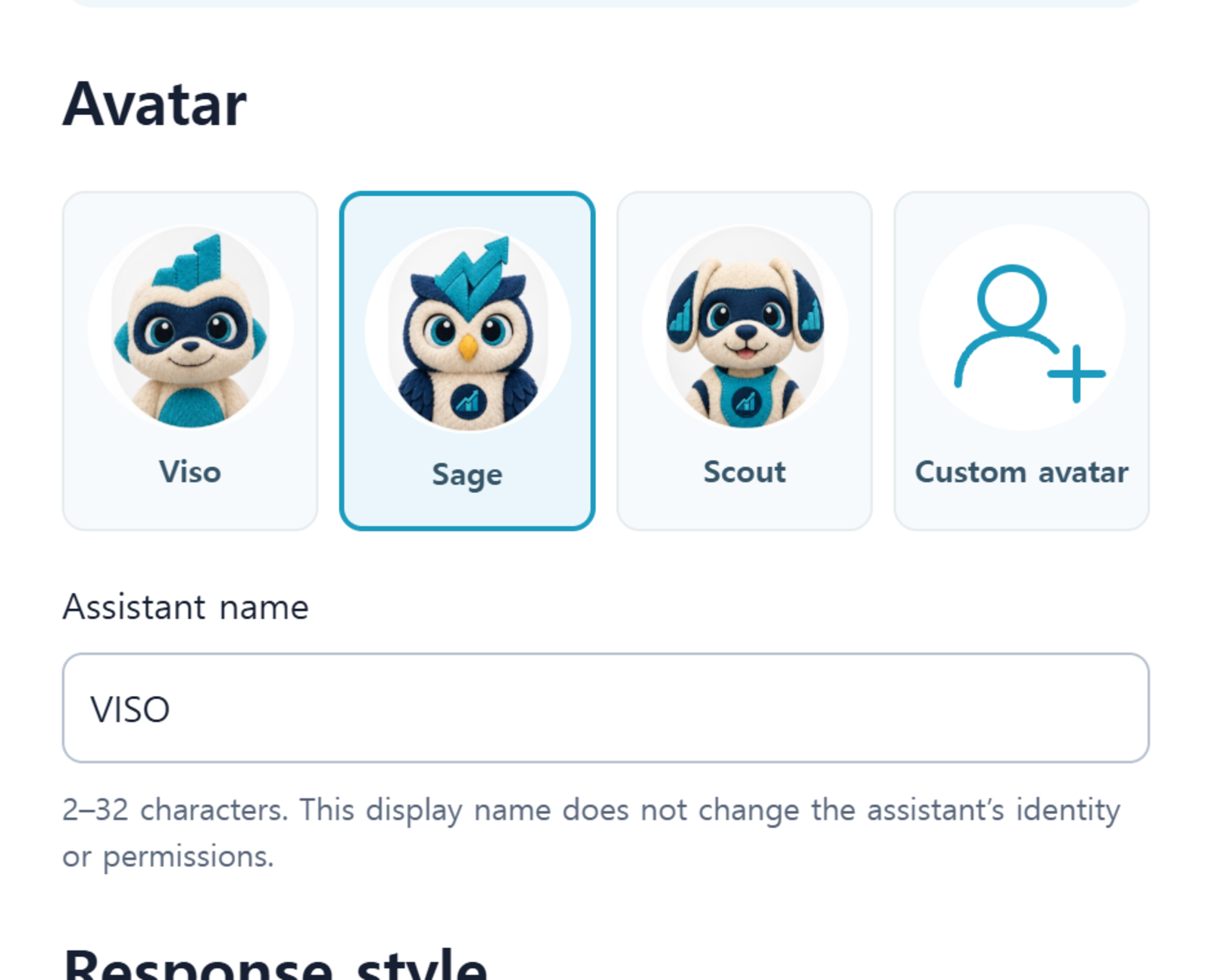
There are four slots in the Avatar row of the panel. They are Viso (default), Sage (blue owl), Scout (dog), and the fourth slot, Custom avatar. Since Viso, Sage, and Scout change the preview with a single click, you can try out your favorite face first and then decide.
4. Custom Avatar: Describe it, and it will be created
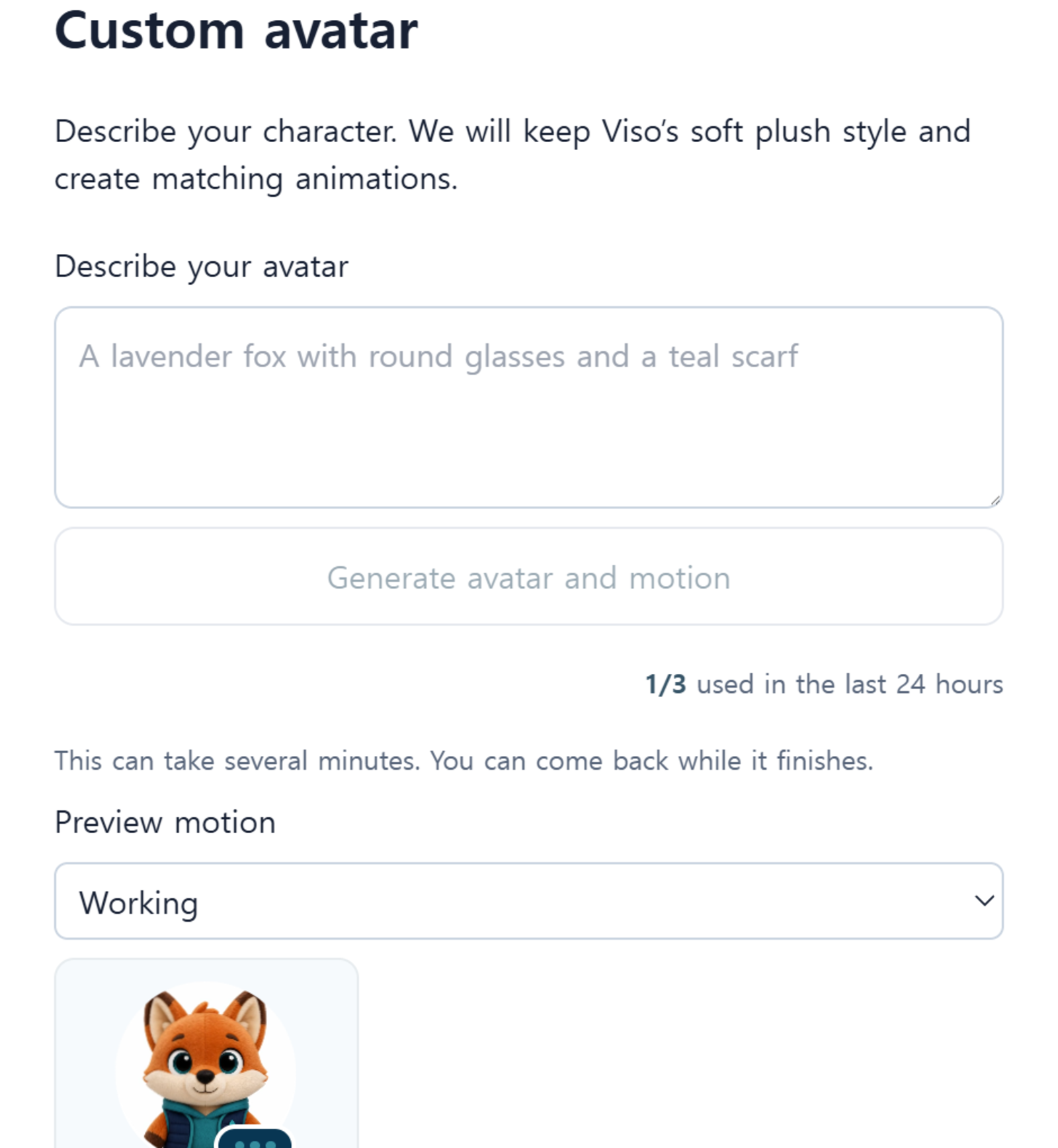
If you choose Custom avatar, a description input field and a Generate avatar and motion button will appear. For example, if you describe your desired character in a sentence, such as A lavender fox with round glasses and a teal scarf, it will generate the character and its motion while maintaining VISO's soft doll-like style. Generation may take a few minutes, and you can check the Ready / Working / Complete status in Preview motion before saving. Generation is possible up to 3 times in 24 hours.
5. Changing Name and Speaking Style
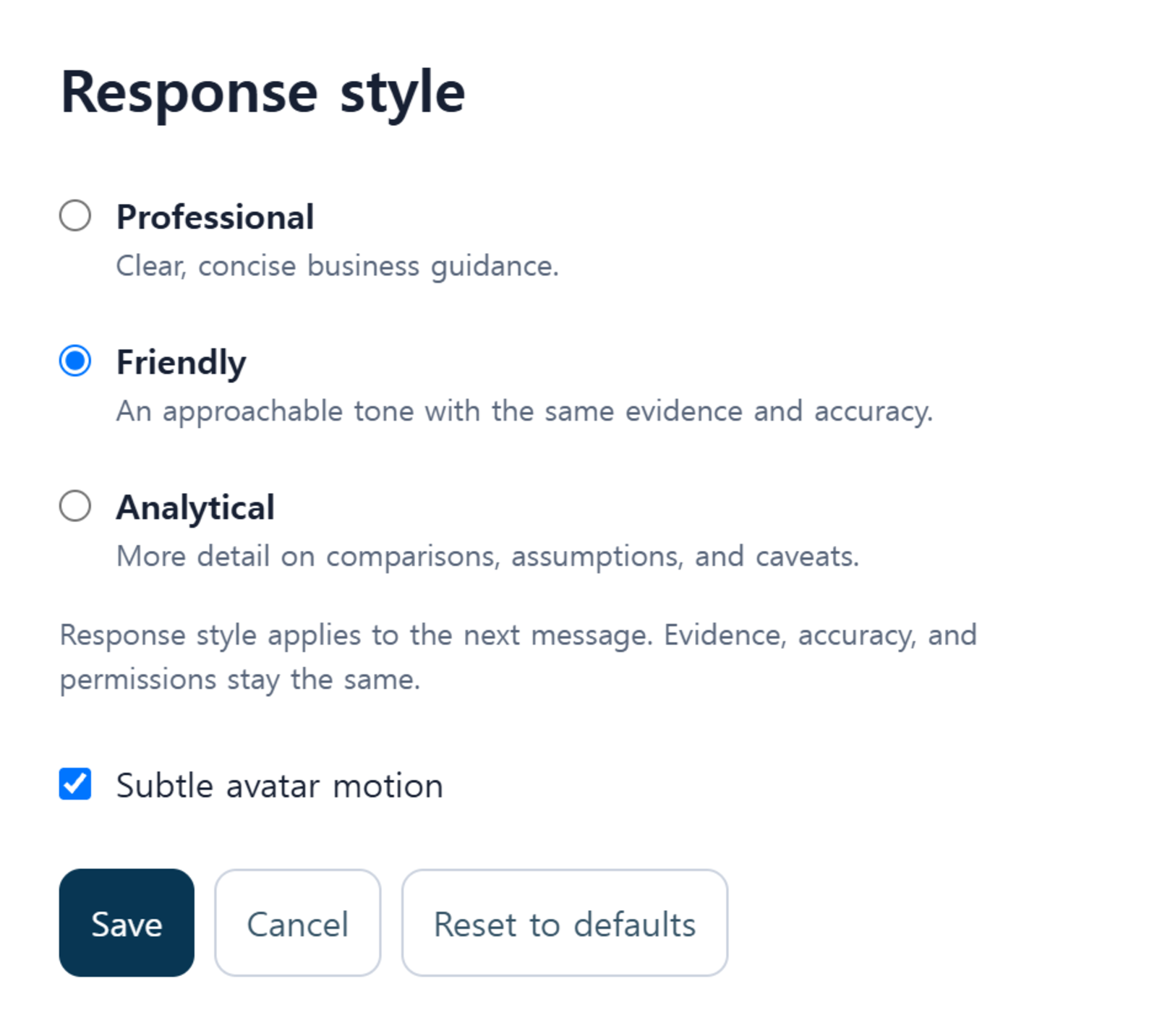
Assistant name can be 2 to 32 characters long. This name is the display name shown in the header and chat list, and it does not change the assistant's identity or permissions. Response style has three options: Professional / Friendly / Analytical, and the selected style will be applied starting from the next message. If the motion is bothersome, you can turn off the Subtle avatar motion toggle.
6. Saves are reflected immediately
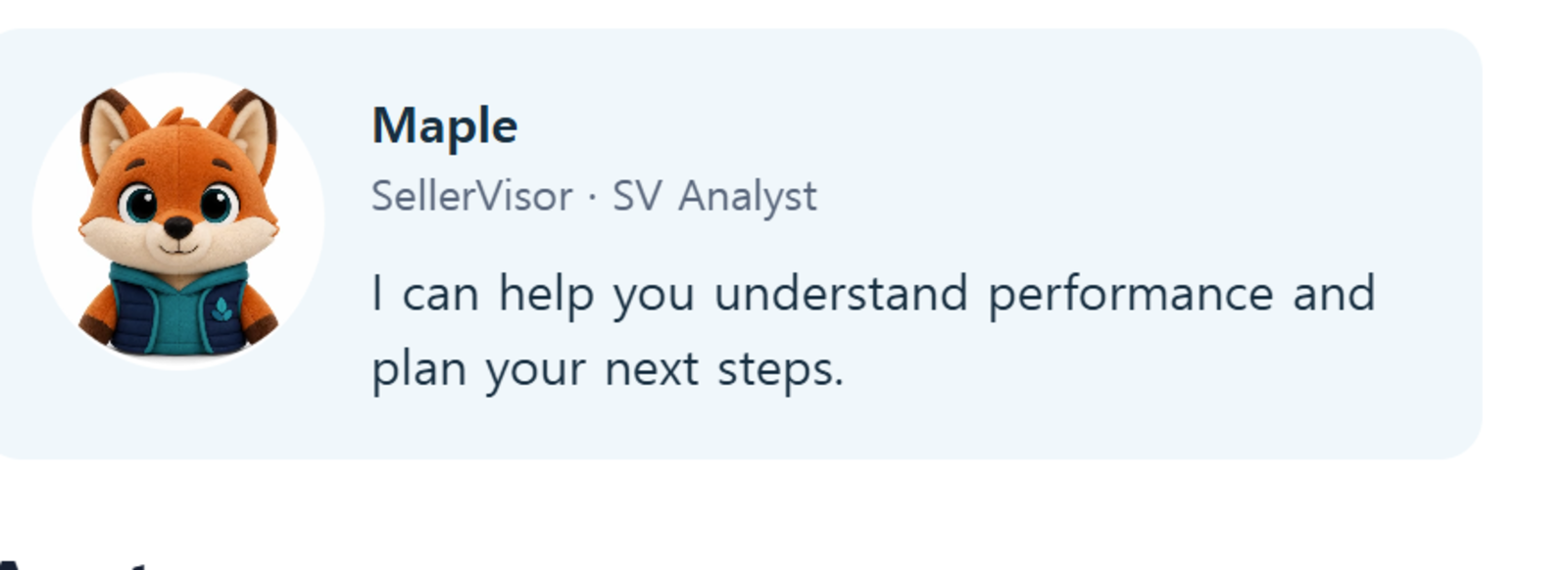
When you click Save below, the header label immediately changes to the new name, and the same name is displayed in the chat list. If you want to revert, click Reset to defaults to return to the default values (Viso / VISO). The example below shows the screen after saving a custom avatar named Maple.
7. How to use it in practice
Even when looking at the same data, different teams need different answers. By setting the CEO's account to Professional, focusing on numbers and conclusions, and the practitioner's account to Friendly, suggesting next actions first, two people can use the same VISO differently. Changing characters also allows you to distinguish at a glance which tab you are viewing and what you are looking at.
8. Frequently Asked Questions
Does changing the name affect the quality of responses? No. The name and avatar are for display purposes, and the data access scope and analysis logic remain the same. Only the tone of the responses follows the Response style.
Can I delete a custom avatar? Yes. If you select a different character in the Avatar row and save, the previous custom avatar will no longer be displayed.
Does it work on mobile? VISO is a web dashboard panel, so we recommend configuring it in a desktop browser.
9. Getting Started
VISO can be used directly within the Profit Dashboard and can be started with a 14-day free trial. Launch celebration coupons are also available until November 30, 2026. The monthly plan is VISO50 (50% off first month), and the annual plan is VISO30 (30% off).