Hello. Thank you to all customers using SellerVisor.
When multiple campaigns and automations simultaneously handle the same product, "keywords that must never be lost for this ASIN" tend to scatter across campaign names and notes. SellerVisor's Protected Keyword Registration is a screen that keeps that list in one place per ASIN.
1. The question this screen answers
The question is one: "What keywords must I protect for this product?" Even if the campaign structure changes or automation settings are altered, the list registered per ASIN remains. Therefore, you can use this screen as a reference point before creating new campaigns or modifying automations.
2. Screen Layout
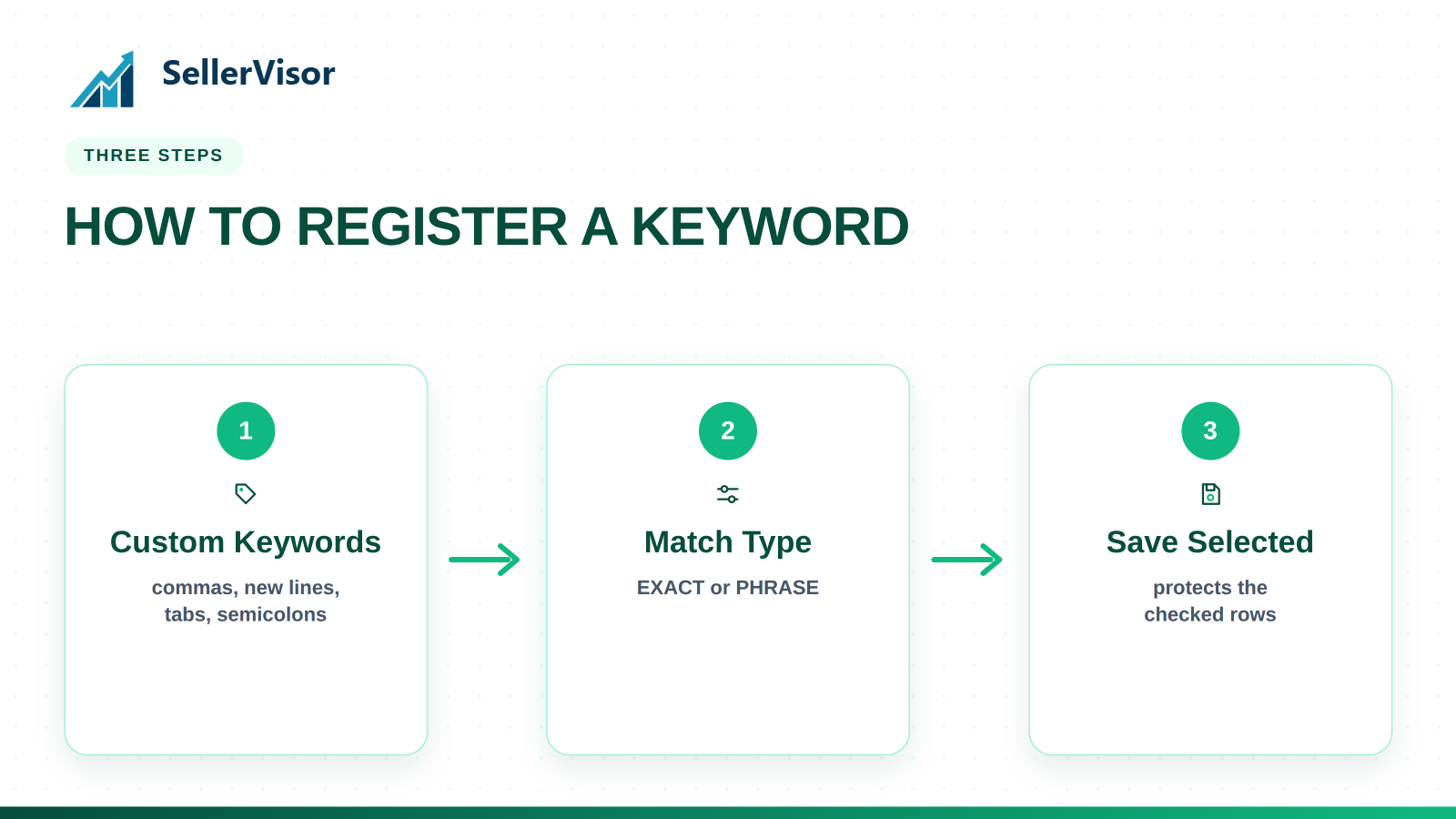
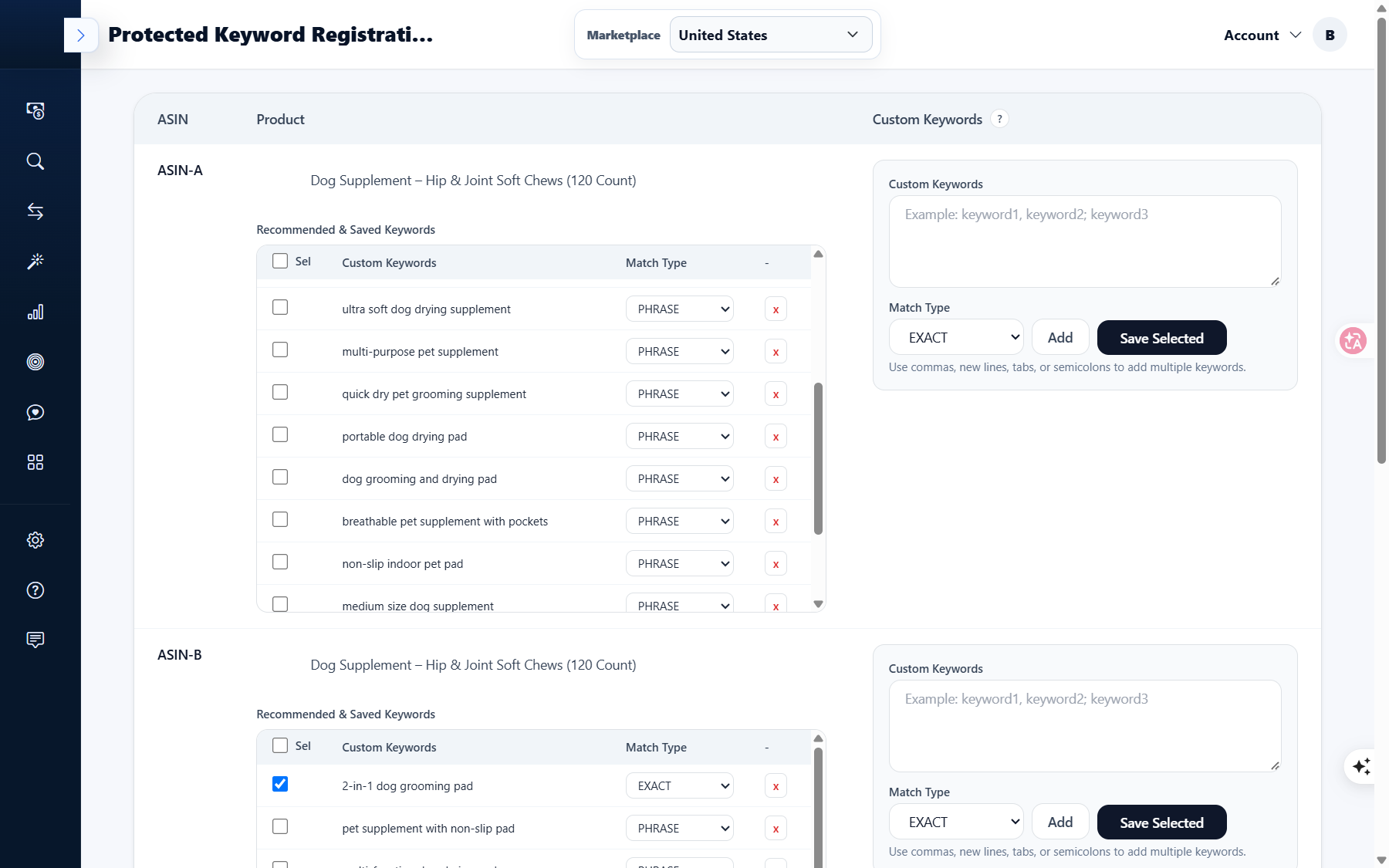
The page is divided into ASIN-unit blocks. The top table has ASIN / Product / Custom Keywords columns, and each product has a Recommended & Saved Keywords list attached. The list has three columns.
- Sel - The box to check keywords to save
- Custom Keywords - Keyword text
- Match Type - EXACT or PHRASE
3. How to Register Keywords
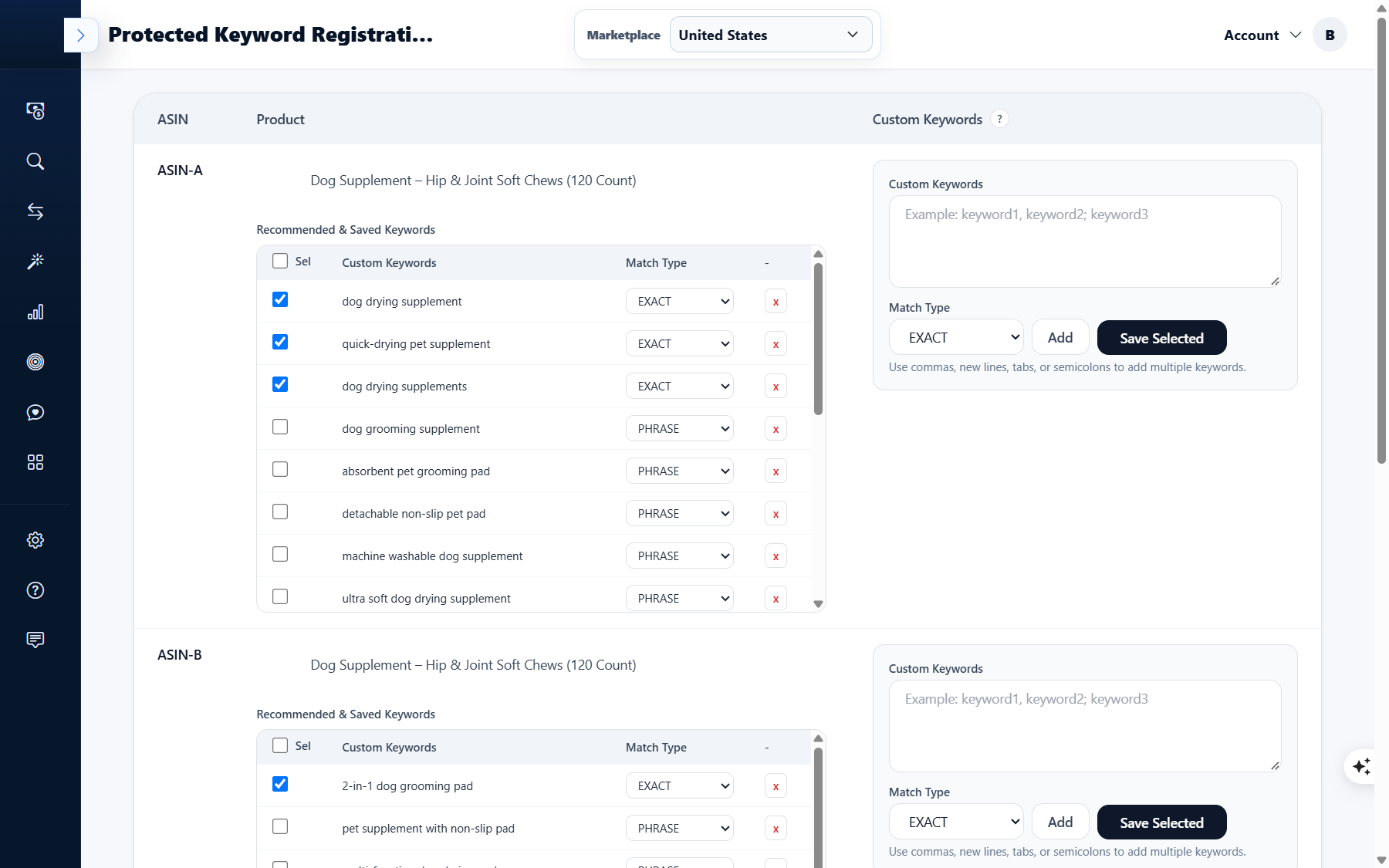
To the right of the list is the registration panel. There are three steps.
- Step 1. Enter keywords in Custom Keywords. When entering multiple keywords at once, separate them with commas, line breaks, tabs, or semicolons.
- Step 2. Select EXACT or PHRASE in Match Type.
- Step 3. Click Add to add them to the list for that ASIN.
4. Saving from Recommended Keywords
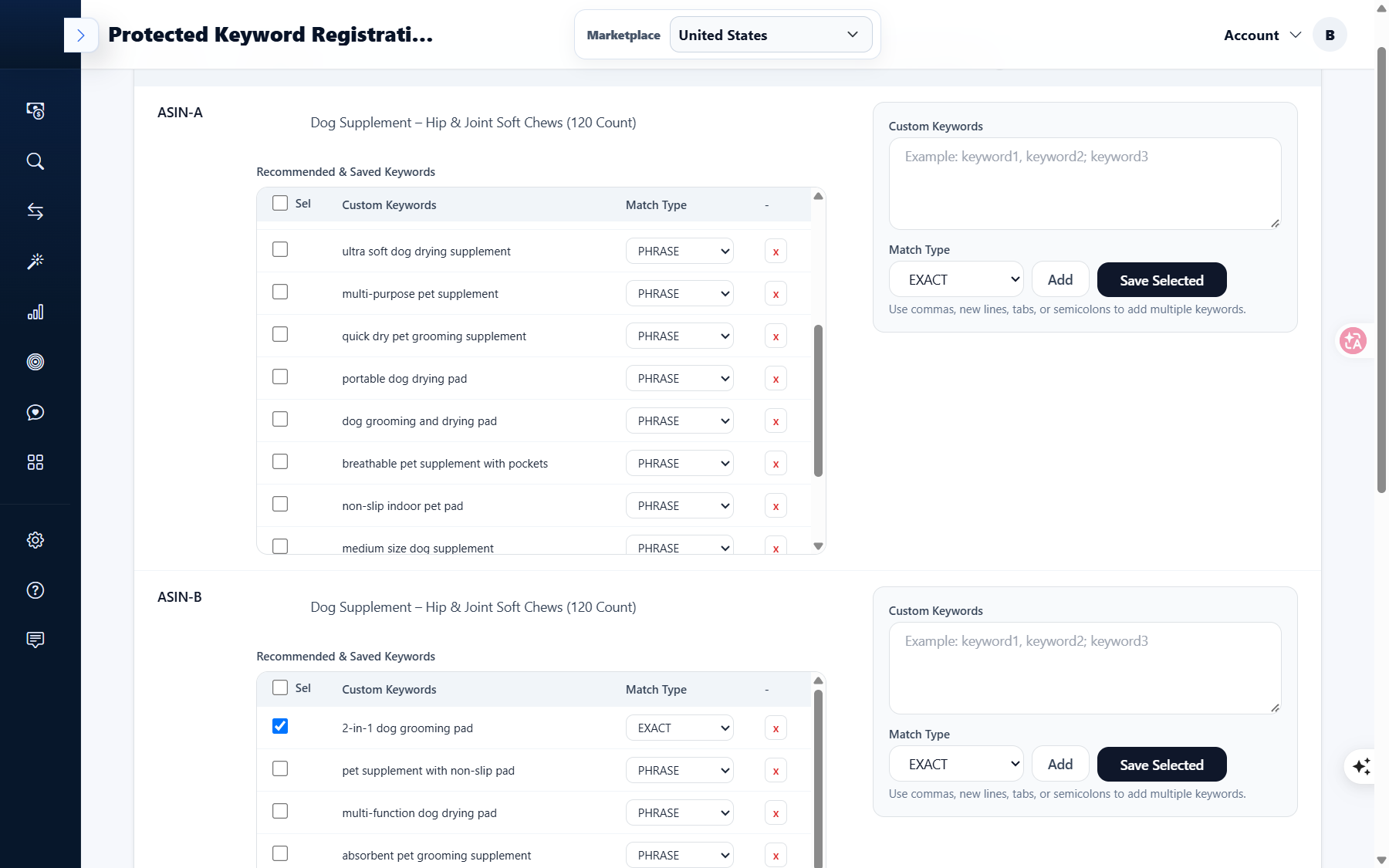
For recommended keywords already in the list, you just need to check them. The on-screen instructions also describe this action.
"Check keywords, then click Save Selected to add them as protected keywords."
That is, ⑴ check the Sel box for the row you want to save, and ⑵ click Save Selected to register them as protected keywords. EXACT and PHRASE can be specified separately for each keyword, so you can differentiate by setting long-tail keywords with narrow search volumes to PHRASE, and core keywords that must match exactly to EXACT.
5. Actual Screen of Our Account
It's not helpful to just write a guide and hide our account. The marketplace is United States, and the screen displays multiple ASIN-unit blocks, each containing recommended and saved keywords. For example, the first block contains keywords such as dog drying supplement, quick-drying pet supplement, dog grooming supplement, machine washable dog supplement, and non-slip indoor pet pad, mixed with EXACT and PHRASE.
The product names and ASINs of the operating account have been masked in this article, and the products are labeled based on "dog supplement".
6. Frequently Asked Questions
Q. Where are protected keywords used?
They are used to collect the list of keywords that need to be maintained per ASIN on one screen. You can use them as a reference list before changing campaign structures or automation settings.
They are used to collect the list of keywords that need to be maintained per ASIN on one screen. You can use them as a reference list before changing campaign structures or automation settings.
Q. How are EXACT and PHRASE different?
EXACT refers to searches that exactly match the keyword, while PHRASE refers to searches that include that phrase. They can be specified separately for each keyword in the list.
EXACT refers to searches that exactly match the keyword, while PHRASE refers to searches that include that phrase. They can be specified separately for each keyword in the list.
Q. Can I enter multiple keywords at once?
Yes, you can. Enter them separated by commas, line breaks, tabs, or semicolons, then click Add.
Yes, you can. Enter them separated by commas, line breaks, tabs, or semicolons, then click Add.
Q. Are recommended keywords automatically registered?
No. You need to check them in the list and then click Save Selected to add them as protected keywords.
No. You need to check them in the list and then click Save Selected to add them as protected keywords.
Q. How do I manage multiple products?
ASIN blocks are separated by product, so you can manage each product's list separately.
ASIN blocks are separated by product, so you can manage each product's list separately.
7. Note
- This screen operates on a marketplace basis. Please check the marketplace such as United States at the top first.
- Registered keywords can be deleted row by row from the list (x).
- If a product's targeting or campaign structure changes, it is advisable to also review the protected keyword list.
Conclusion
Protected keyword registration is not a grand feature, but rather a task of fixing easily scattered criteria on the screen. Once you organize the list per ASIN, you won't have to rethink "what needs to be protected" when creating the next campaign. We recommend choosing just one product from your account today and organizing its list.
If you wish to see Protected Keyword Registration firsthand, you can request a demo. After creating an account at sellervisor.com, you can immediately access the Protected Keyword Registration screen.