Hello. Thank you to all customers who use SellerVisor.
When you open the ad analysis screen and only see "No comparable baseline" or if the value in the growth rate field is empty, it feels as if data has disappeared. Most often, this phenomenon occurs because there is no past data to compare. We have summarized how to fill those empty periods with SellerVisor's Historical Ads Sync.

1. Why "No comparable baseline" appears
Most of SellerVisor's ad and profit screens are structured to compare with the previous identical period. For example, the performance of the most recent 14 days is displayed alongside the value of the immediately preceding 14 days, and the growth rate is calculated. However, if a new account has been connected or if there are no ad reports for the period before the connection, there is no comparison target. In such cases, the screen does not artificially generate numbers but displays No comparable baseline or No comparable previous data.
In other words, it's not a sign that "the screen is broken," but rather a signal that "there's no past data needed for judgment." If you evaluate campaigns in this state, you'll only have one week's worth of data as a basis for judgment.
2. What Historical Ads Sync can fill
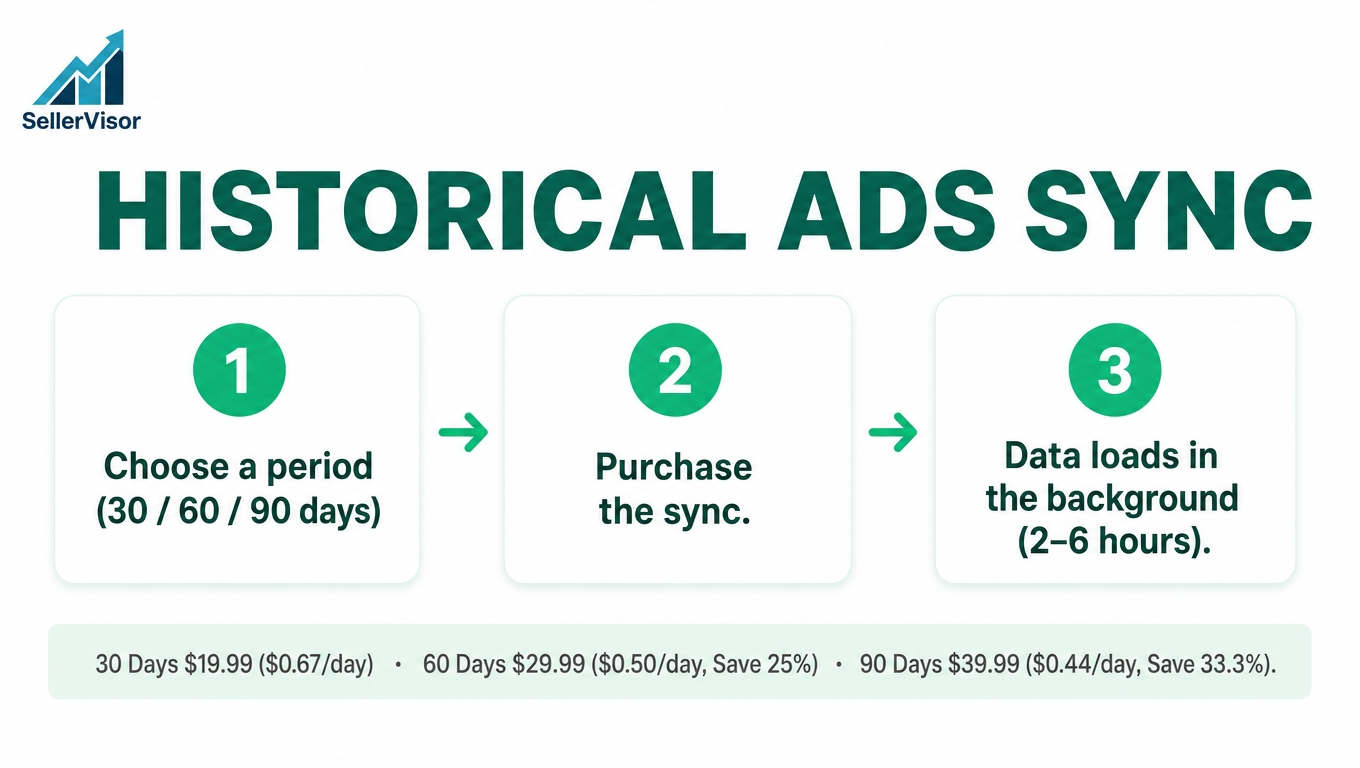
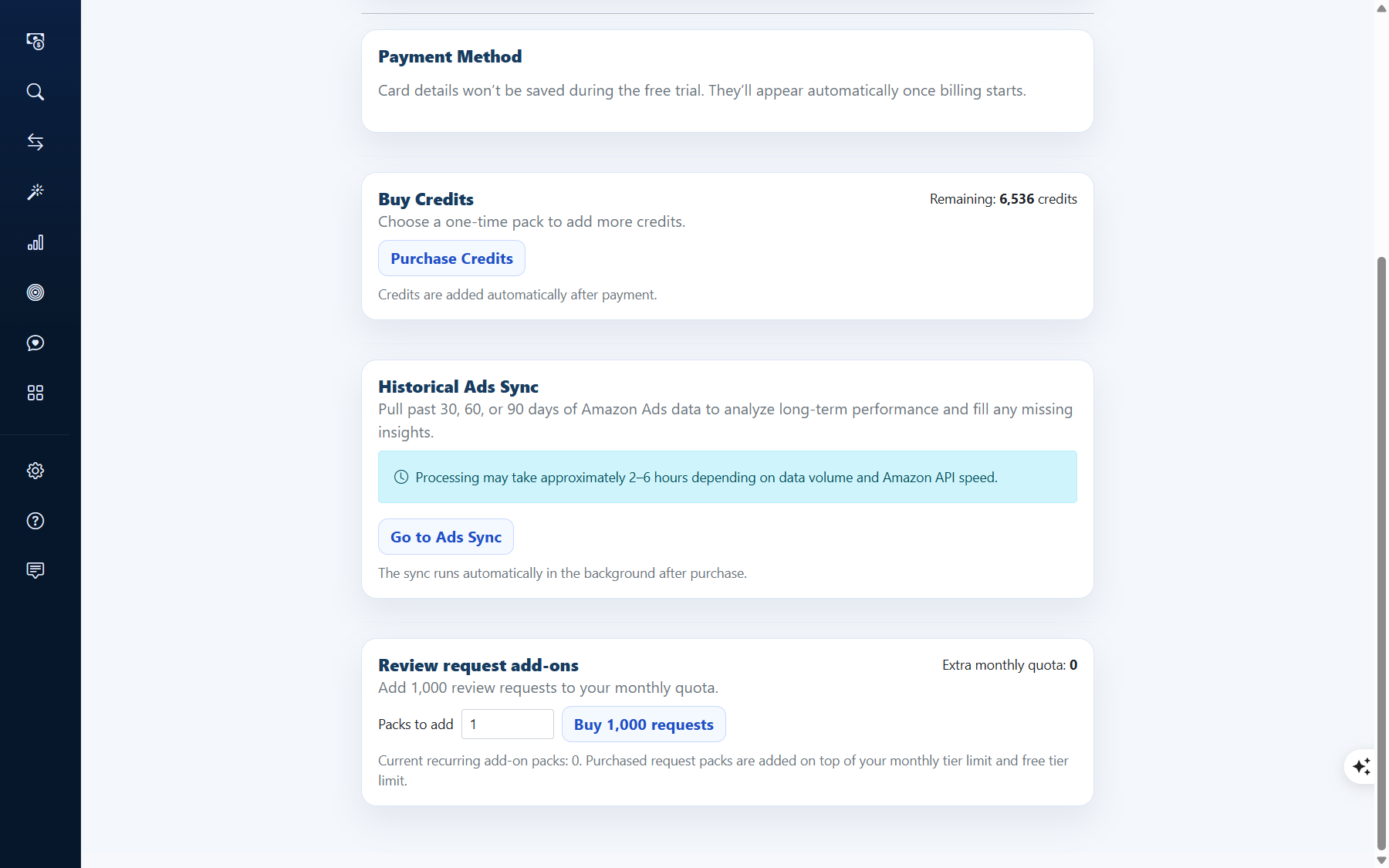
You can import past Amazon Ads data all at once from the Historical Ads Sync card in the Billing menu. As the description indicates, you select one of the last 30, 60, or 90 days, and all ad campaigns and keywords existing within the selected period are included.
- Period: 30 days / 60 days / 90 days
- Scope: All campaigns and keywords within the selected period
- Execution: Automatic execution in the background after payment
- Duration: Approximately 2-6 hours depending on data volume and Amazon API speed
3. Options and Costs
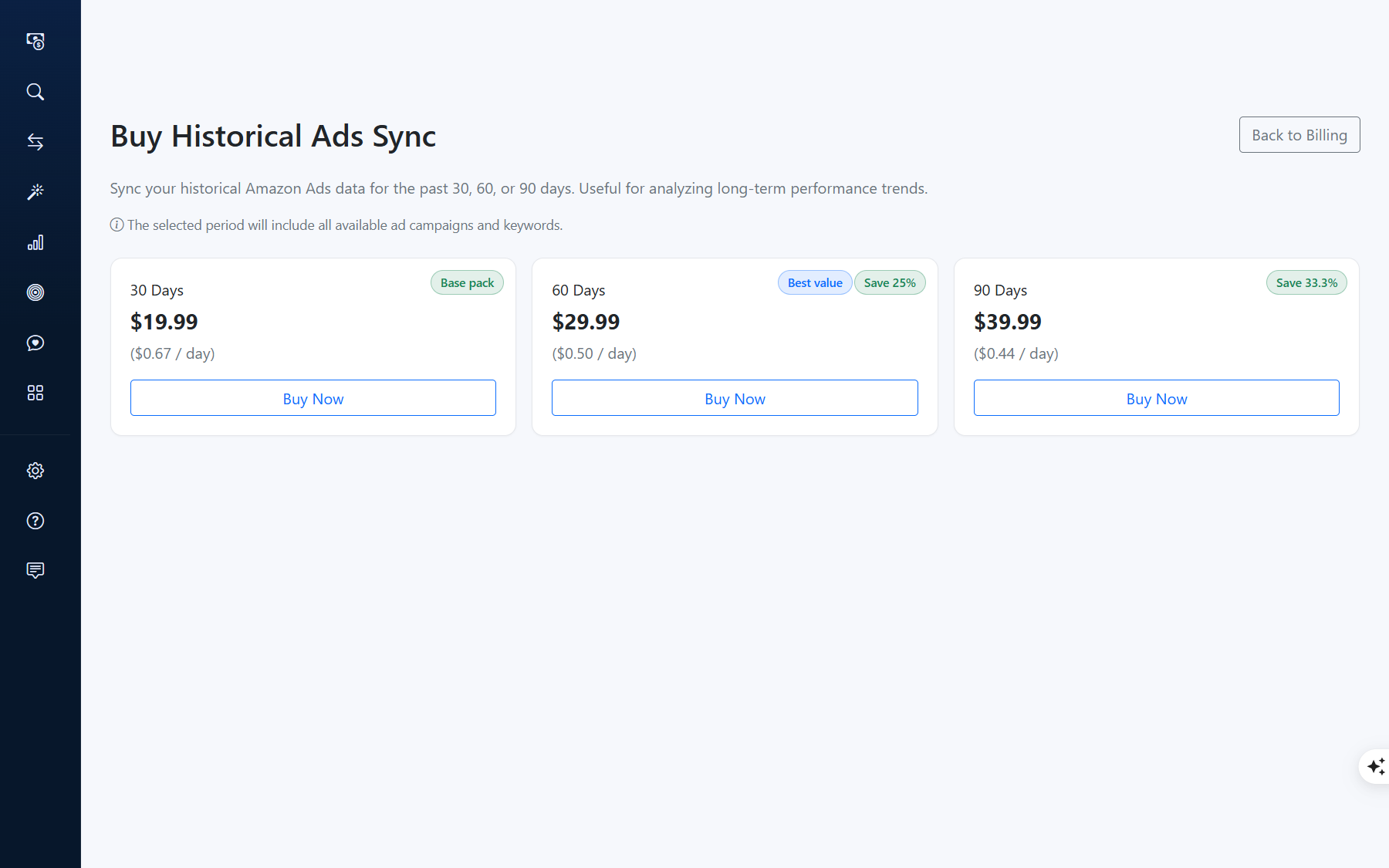
The pricing structure is such that the longer the period, the lower the daily unit cost.
- 30 Days - $19.99 (per day $0.67), Base pack
- 60 Days - $29.99 (per day $0.50), Best value, Save 25%
- 90 Days - $39.99 (per day $0.44), Save 33.3%
Simply calculated, 60 days is 25% cheaper than 30 days, and 90 days is 33.3% cheaper. If you only need a one-month comparison, 30 days is sufficient, but for seasonality or long-term trends, 60-90 days is more advantageous.
4. Actual Usage Steps
The sequence is simple.
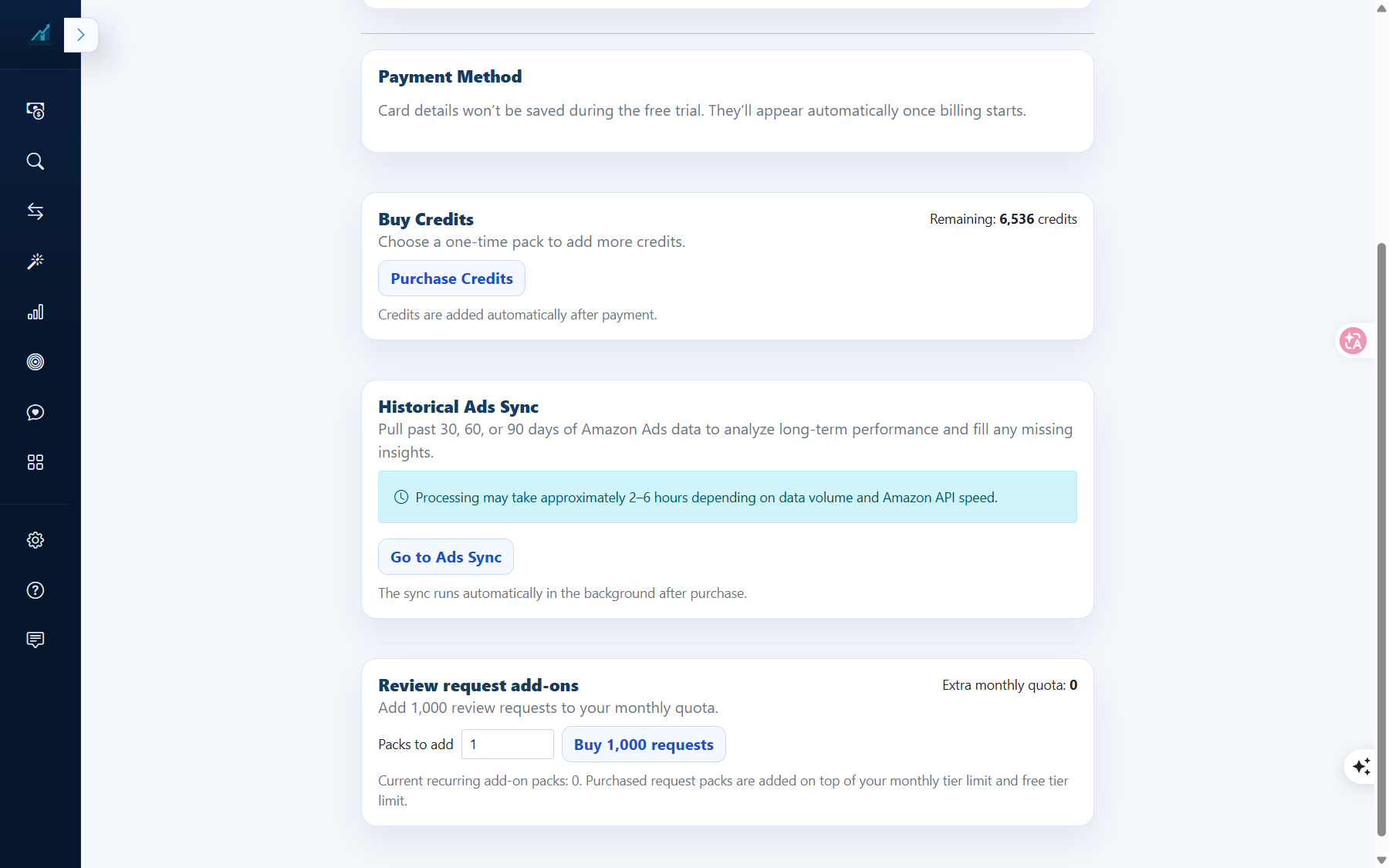
- Step 1. Log in to SellerVisor and go to the Billing menu.
- Step 2. On the Historical Ads Sync card, click Go to Ads Sync.
- Step 3. Select the desired period from 30 days / 60 days / 90 days and proceed with payment.
- Step 4. After payment, synchronization will automatically proceed in the background without any further action (approx. 2-6 hours).
- Step 5. Once synchronization is complete, the ad analysis screen will display previous period comparison values.
5. When is it good to use?
- When you connect a new account and the comparison period is empty
- When you want to check long-term trends before reducing or increasing campaigns
- When you need to compare performance on a quarterly or seasonal basis
Conversely, if you already have enough data accumulated and are only looking at weekly operations, there's no need to purchase it first. It's more rational to first check for missing points on the free screens and use it when a comparison baseline is truly needed.
6. Frequently Asked Questions
Q. What data is imported when synced?
It is Amazon Ads data for the selected period. Based on the description, all ad campaigns and keywords existing during that period are included.
It is Amazon Ads data for the selected period. Based on the description, all ad campaigns and keywords existing during that period are included.
Q. How long does it take?
It can take approximately 2-6 hours depending on the data volume and Amazon API speed. Since it runs automatically in the background after payment, there is no need to keep the screen open.
It can take approximately 2-6 hours depending on the data volume and Amazon API speed. Since it runs automatically in the background after payment, there is no need to keep the screen open.
Q. Which should I choose between 30 days and 90 days?
If you only need to compare with the immediately preceding period, 30 days is sufficient. For long-term trends or seasonal comparisons, 60-90 days is recommended. The daily unit price also decreases as the period gets longer.
If you only need to compare with the immediately preceding period, 30 days is sufficient. For long-term trends or seasonal comparisons, 60-90 days is recommended. The daily unit price also decreases as the period gets longer.
Q. Can I pay multiple times?
You can run it again when needed. However, there's no need to duplicate data for periods that already have it, so it's better to first check which periods are empty on your current screen.
You can run it again when needed. However, there's no need to duplicate data for periods that already have it, so it's better to first check which periods are empty on your current screen.
Q. Can I view analytics without syncing?
Yes. However, previous period comparison values will be empty or marked as 'no comparable baseline,' which limits the ability to determine growth rates or trends.
Yes. However, previous period comparison values will be empty or marked as 'no comparable baseline,' which limits the ability to determine growth rates or trends.
7. Notes
- Prices and available periods may change according to SellerVisor's pricing policy. Please check the latest values on the Billing screen before payment.
- Processing time may vary depending on data volume and Amazon API response speed.
- Synchronization targets ad data linked to the account and may not run if ad account permissions are revoked.
Conclusion
"No comparable baseline" is not an error but a message indicating a readiness state. It is safer to first acknowledge that there is no comparison baseline, then fill in the necessary past data for the required period, and then make judgments. We recommend checking which screens are empty in your SellerVisor account today.
If you want to check Historical Ads Sync and the ad analysis screen together, you can request a demo. You can create an account at sellervisor.com and go to Billing > Historical Ads Sync to check it immediately.