Hello. Thank you to all customers using SellerVisor.
You might think that fixing a listing will make it sell well, but whether profits have actually increased needs to be checked separately. SellerVisor's Profit Dashboard puts these two things on the same timeline. It's structured to record listing changes and compare profits before and after those changes.
1. Screen for Recording Changes
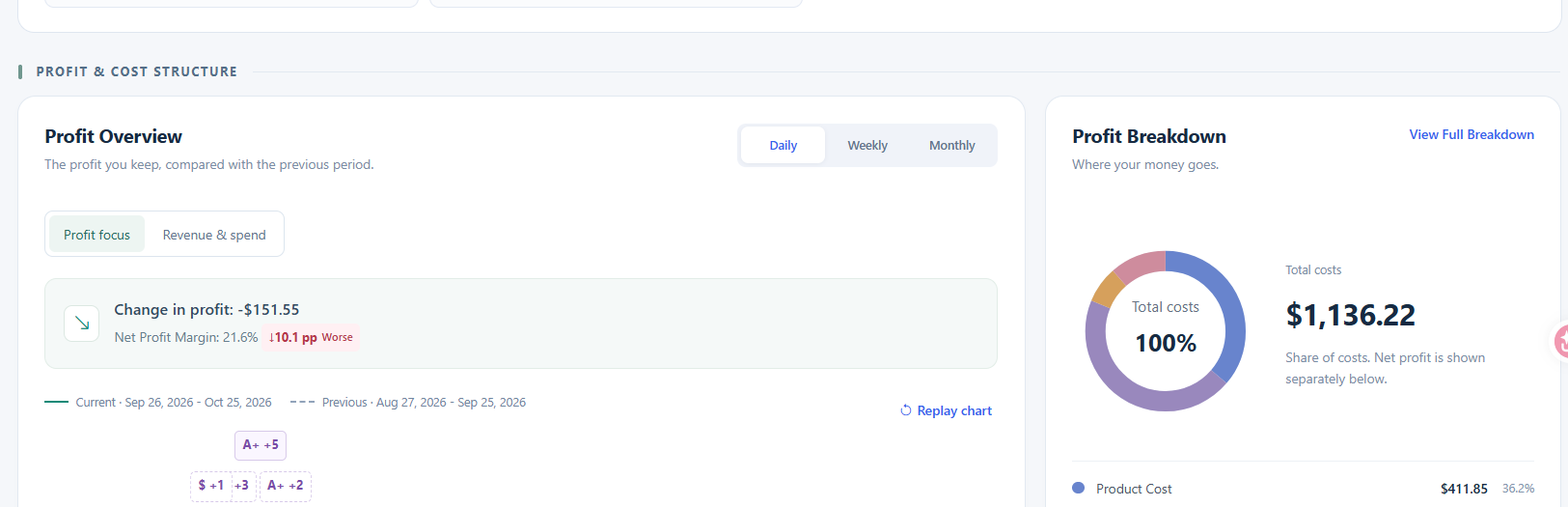
Below the Profit Dashboard, there is a panel titled What changed in your listings? As the phrase suggests, its role is to "connect listing updates with subsequent profits."
- 7 change types: Title, Bullet point, Description, A+ content, Image, Video upload, Price
- Show listing changes on graphs: Display change points on the chart
- Log a change: Add a change record
An important clue is written alongside. "Stars mark relevant metrics, not proven effects." This means that stars only indicate relevant metrics, not proven causality. Graphs show timing, and sellers make the judgment.
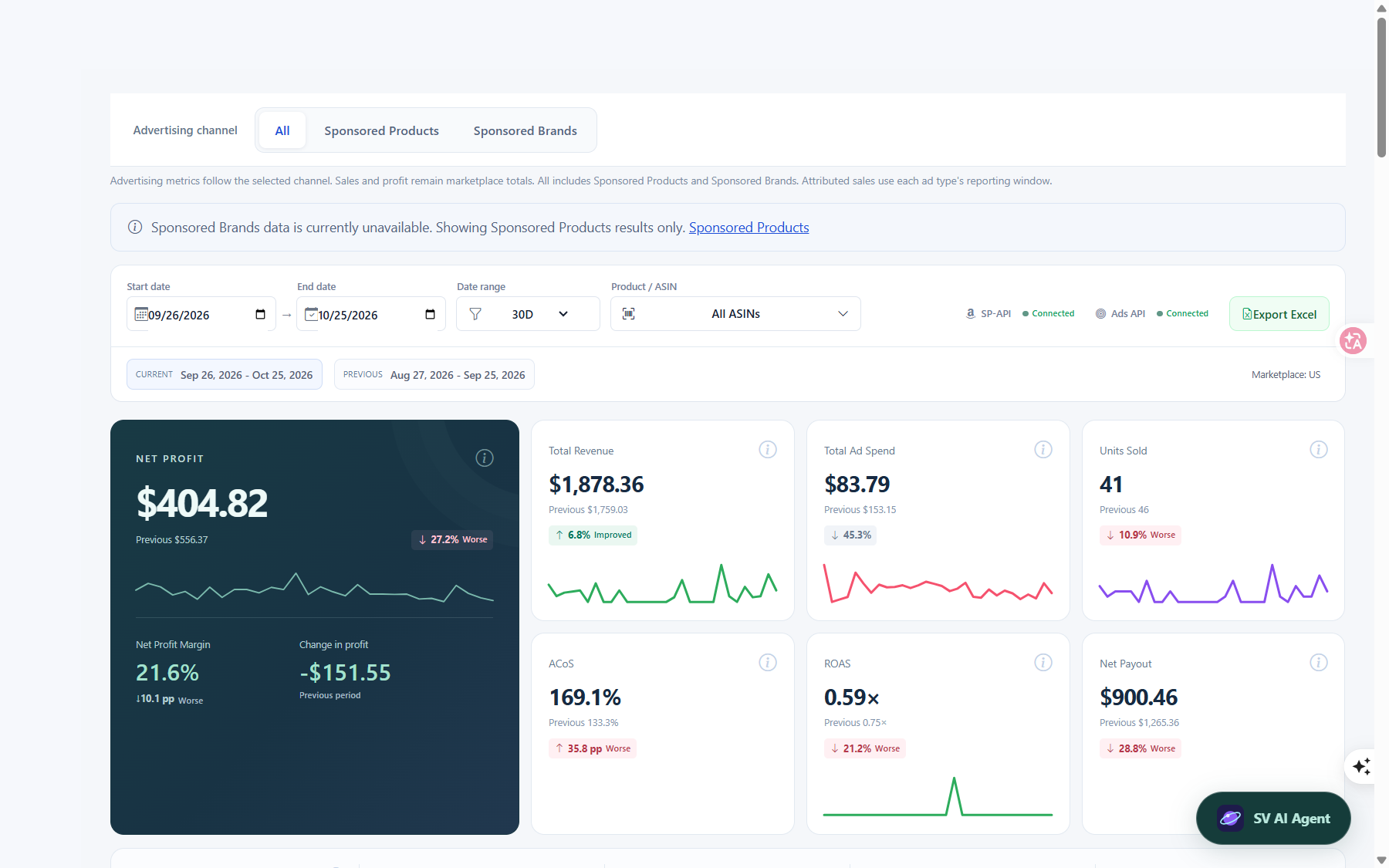
2. This 30-day Figure
As of October 26, 2026, the period is 2026-09-26 ~ 2026-10-25 (US).
- Net Profit: $404.82 (Previous 30 days $556.37, -$151.55)
- Net Profit Margin: 21.6%
- Total Revenue: $1,878.36 (Previous $1,759.03, +6.8%)
Revenue increased, but profit decreased. When this combination appears, you need to look at the cost structure.
3. Cost Structure
Proportion based on Total costs $1,136.22.
- Amazon Fees: 45%
- Product Cost: $411.85 (36.2%)
- Refunds & Returns: $129.48 (11.4%)
- Ad Spend: $83.79 (7.4%)
Net Profit Margin for the same period is 21.6%. The cost proportion is against total costs, and the margin is against revenue, so the denominators are different. You need to be aware of this difference to avoid misinterpreting the numbers.
4. Advertising Figures
- Ad Spend $83.79, Ad Sales $49.56
- ACoS 169.1% (Ad Spend ÷ Ad Sales)
- ROAS 0.59×
Although the proportion of ad spend is small at 7.4%, ad sales did not cover ad spend in this period. This is why changes in ad spend must also be considered when looking at the effects of listing changes.
5. Reading Order
- Check the period. The current values are from Sep 26 – Oct 25, and the comparison is with the previous 30 days.
- Check for missing data. In this query, Settlement & fees were missing for 4 days (10/3, 10/10, 10/16, 10/18). The total can only reflect synchronized dates.
- Look at the change points. Compare the period before and after the starred date for the same duration.
- Check for outliers. The highest day in this period was $141.50 on 10/9, and the lowest was -$52.34 on 10/21.
6. Frequently Asked Questions
Q. Do stars prove causality?
No. The screen also states "not proven effects." They are reference indicators for observing timing.
No. The screen also states "not proven effects." They are reference indicators for observing timing.
Q. Do I have to record changes?
They must be recorded to be displayed on the graph. Without a record, it's difficult to reconstruct the timing later.
They must be recorded to be displayed on the graph. Without a record, it's difficult to reconstruct the timing later.
Q. What types are recorded?
There are seven types: Title, Bullet point, Description, A+ content, Image, Video upload, Price.
There are seven types: Title, Bullet point, Description, A+ content, Image, Video upload, Price.
Q. How should I view days with missing data?
In this query, Settlement & fees were missing for 4 days, and the dashboard informs you directly. Please consider this when viewing the totals.
In this query, Settlement & fees were missing for 4 days, and the dashboard informs you directly. Please consider this when viewing the totals.
Q. If revenue increased but profit decreased, what should I look at first?
The cost structure. Check major items like Amazon Fees 45% and Product Cost 36.2% first.
The cost structure. Check major items like Amazon Fees 45% and Product Cost 36.2% first.
7. Reference
- Figures vary depending on the query time and period.
- Cost proportion is based on total costs, while margin is based on revenue.
- The values in the main text are based on a query on 2026-10-26, for the period 2026-09-26 ~ 2026-10-25.
Conclusion
Listing changes become an asset only when recorded. If you made changes today, just leave the type. Next month, by comparing before and after that star, you can make judgments based on numbers, not intuition.
To check the Profit Dashboard yourself, you can open it after creating an account at sellervisor.com.