Hello. Thank you to our customers using SellerVisor.
The point where ad spend is leaking is not the campaign total, but the search terms actually entered by customers. SellerVisor's Search Term Performance shows impressions, clicks, cost, and sales at the search term level, allowing you to clean up unprofitable search terms on the spot.
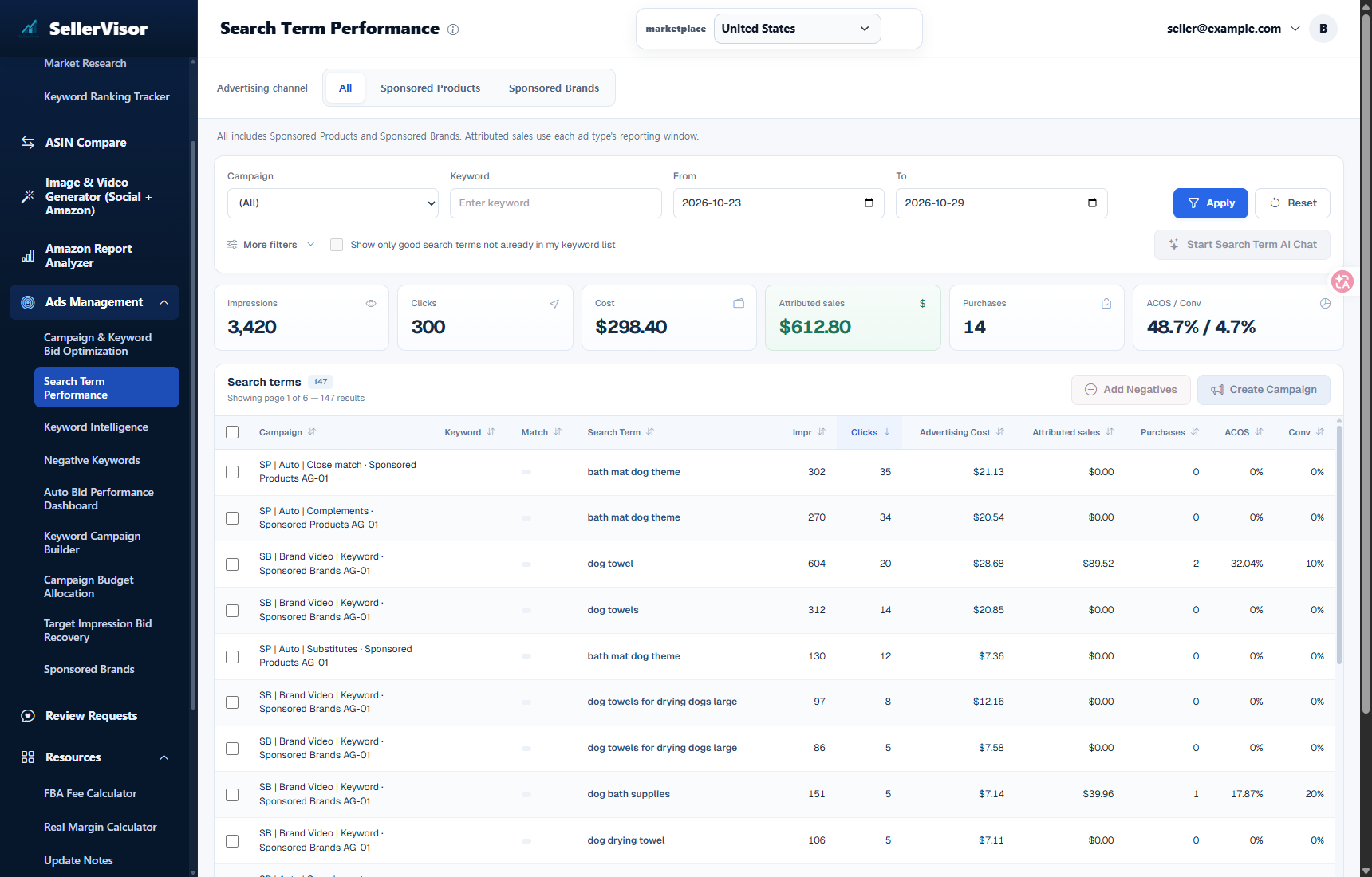
1. This 7-Day Summary
This is based on data viewed on October 30, 2026, for the past 7 days, across all campaigns.
- Impressions: 3,420
- Clicks: 300
- Ad Spend: $298.40
- Ad Attributed Sales: $612.80
- Purchases: 14
- ACoS 48.7% · Conversion Rate 4.7%
- Collected Search Terms: 147
On the surface, these numbers don't look bad. However, 286 out of 300 clicks went to search terms with no orders. This distinction is not available in campaign-level tables.
2. Campaign Numbers and Search Term Numbers Are Different
Campaign reports aggregate all search terms. The sales from well-performing search terms cover the costs of unprofitable ones. Search term performance recalculates the same period at the search term level, revealing where the leaks are.
- Search Term · Impressions · Clicks · Ad Spend · Ad Attributed Sales · Purchases · ACoS · Conversion Rate
- The Campaign · Ad Group · Keyword · Match Type that generated the search term
- Sort and filter all 147 items by page
3. Take Action Directly from the Same Screen
The core of Search Term Performance is that the viewing screen and the action buttons are the same.
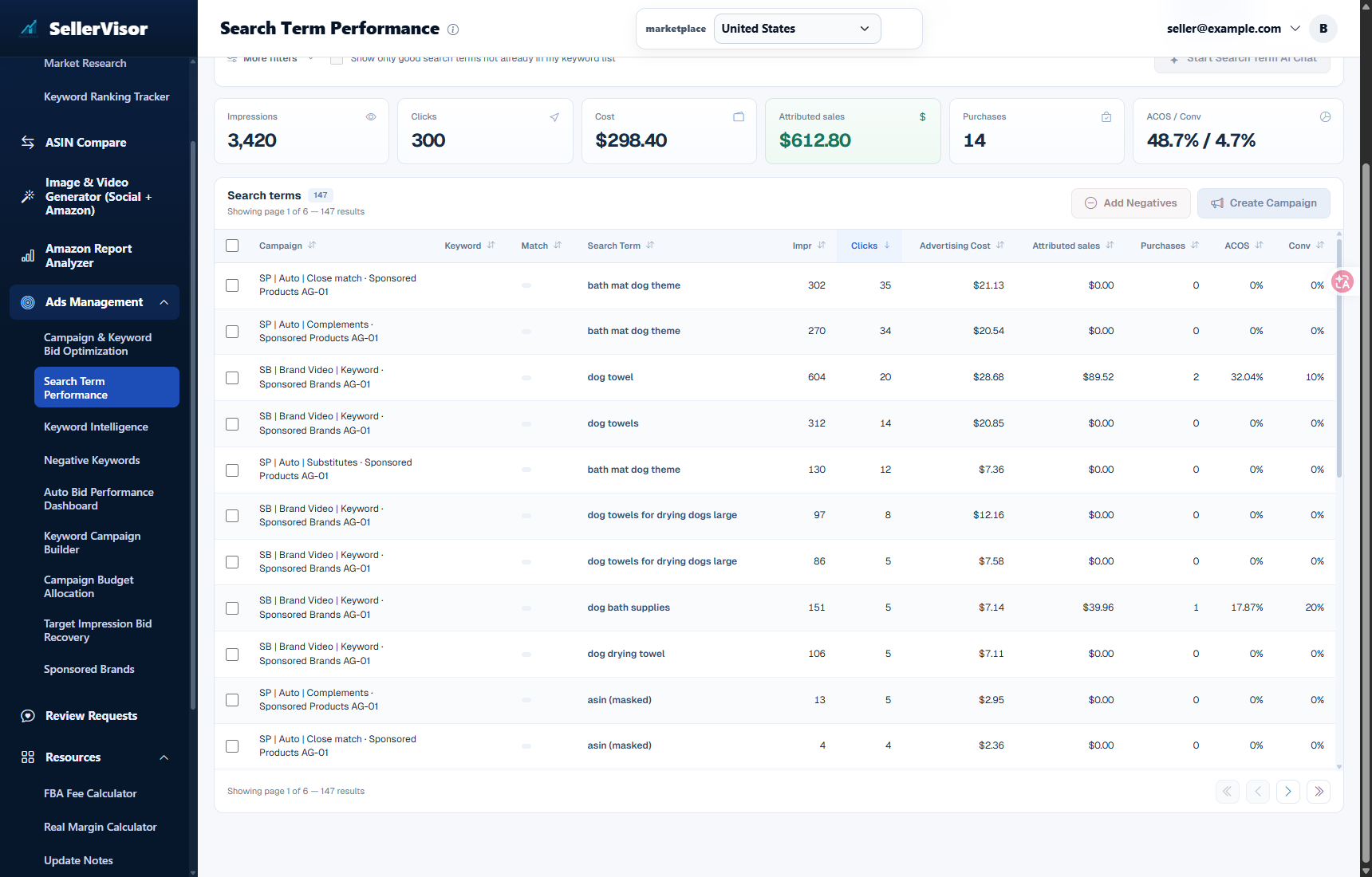
- Add Negatives: Select search terms with no orders and add them as negatives at once
- Create Campaign: Expand well-performing search terms directly into new campaigns
- Show only good search terms not already in my keyword list: Filter out excellent search terms not yet added to your keyword list
- Search Term AI Chat: Analyze search terms in the current filter with AI
4. 5-Minute Weekly Routine
- Set the period to the last 7 days and sort by ad spend.
- Check search terms with clicks but 0 purchases from the top.
- Check only irrelevant search terms and click Add Negatives.
- Check unregistered search terms using the "Good Search Terms" filter, and if necessary, expand them with Create Campaign.
- Verify if the same search terms have disappeared next week.
5. Points to Note When Interpreting Numbers
- Ad attributed sales follow the attribution window of each ad type. They differ from total sales.
- The total includes both Sponsored Products and Sponsored Brands.
- Zero purchases are observations for that period. This can change in the next period depending on seasonality, inventory, and price.
- There are also search terms displayed as ASINs. First, verify if they are impressions directly targeting the product page.
6. Frequently Asked Questions
Q. If I add negatives, will those search terms completely disappear?
They will be excluded from the scope of the respective campaign/ad group. It also checks if there's any overlap with already registered exclusions.
They will be excluded from the scope of the respective campaign/ad group. It also checks if there's any overlap with already registered exclusions.
Q. Should I always exclude search terms with 0 orders?
No. This applies when there are no orders despite a sufficient number of clicks. If clicks are low, the data is insufficient.
No. This applies when there are no orders despite a sufficient number of clicks. If clicks are low, the data is insufficient.
Q. How is this different from Keyword Intelligence?
Keyword Intelligence operates at the keyword level you set, while Search Term Performance operates at the search term level actually entered by customers.
Keyword Intelligence operates at the keyword level you set, while Search Term Performance operates at the search term level actually entered by customers.
Q. How often should I check it?
Once a week is sufficient. Immediately after launching a new campaign, it's advisable to check every 2-3 days.
Once a week is sufficient. Immediately after launching a new campaign, it's advisable to check every 2-3 days.
7. Reference
- The figures in this document are based on data viewed on October 30, 2026, for the past 7 days, across all campaigns.
- Figures vary depending on the viewing time, period, and campaign selection.
- Account, campaign, ad group identification information, and ASIN search terms have been obscured in the images.
Conclusion
You have one task this week. Open Search Term Performance, sort by ad spend, and check just 5 search terms that have clicks but 0 orders. Most can be cleaned up with a single click.
To check it yourself, create an account at sellervisor.com and open Ad Management → Search Term Performance.