Hello. Thank you to all customers who use SellerVisor.
Advertising budget is not a number that is newly set every day. A structure where rules set once evaluate campaigns each period and allocate budget only to campaigns that pass the conditions is much safer. SellerVisor's Campaign Budget Allocation processes this in one screen.
In this article, we will sequentially outline the screen location, rule setting items, judgment results from actual accounts, and points to note when reading.
Where to view it
From the left menu, open Ad Management → Campaign Budget Allocation (/ads/campaign-budget). The screen is divided into three parts.
- Top Summary: Daily total budget, eligible campaigns, daily average sales, view period ACOS
- Left Budget Settings: Rule values to use for allocation
- Right Date Filter and Allocation Preview Table: Set a period to check campaign-specific evaluation results
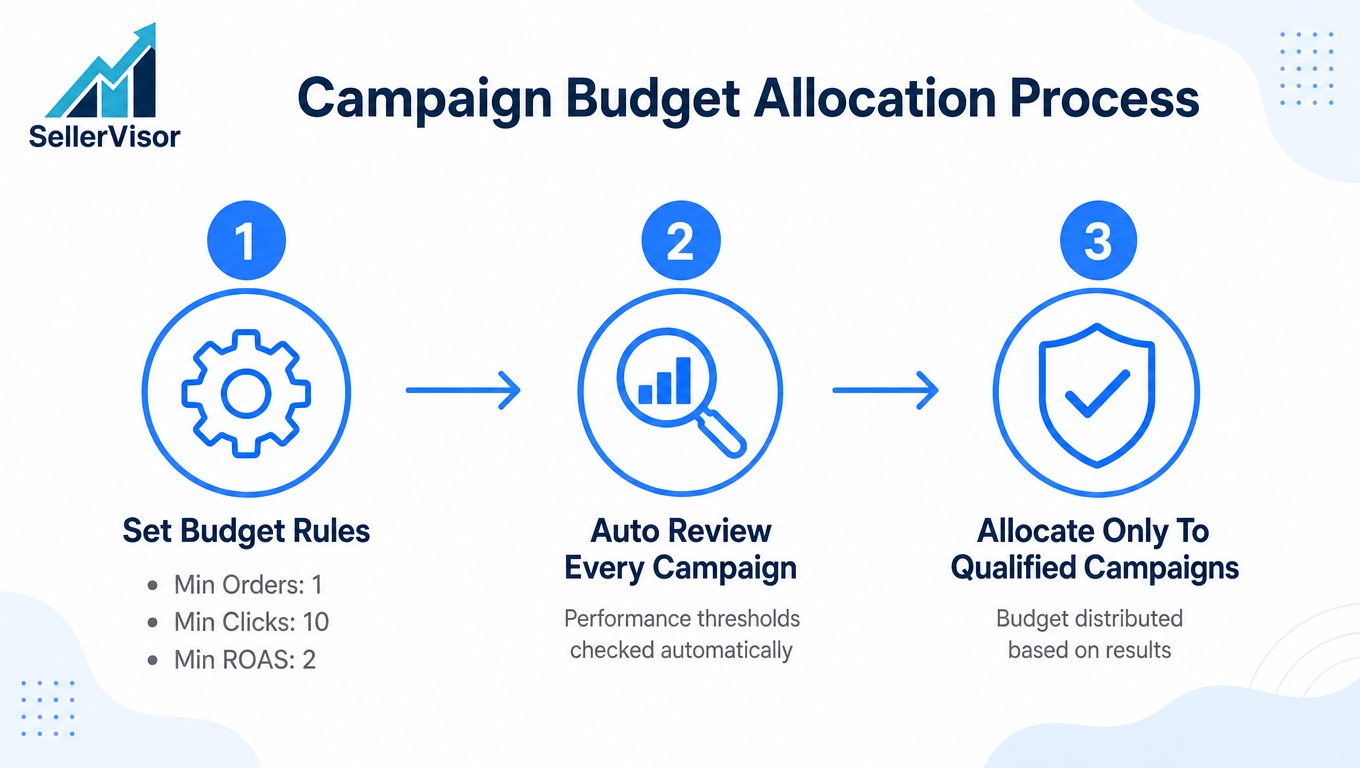
Step 1. Set Allocation Rules
Enter values in Budget Settings. The current settings for the example account are as follows.
- Daily Total Budget: US$100.00 — Total amount to allocate per day
- Minimum Campaign Budget / Maximum Campaign Budget: US$5 / US$20 — Minimum and maximum amount to be allocated to one campaign
- Minimum Orders: 1
- Minimum Clicks: 10
- Minimum ROAS: 2
- Use CVR Multiplier / Use ACOS Adjustment: Default is off
- Default View Period (Days): 14
CVR Multiplier manages the baseline value as a ratio (0.2 = 20%). If the order/click ratio is above the baseline, the multiplier is applied, and if the actual ACOS exceeds the baseline, an adjustment factor is applied to the budget. Both options are off by default, so it is safer to turn them on when the account's conversion rate and ACOS patterns appear stable.
After changing the values, click Save Settings to save them per marketplace.
Step 2. Automatically Evaluate Campaigns
Set the start and end dates in the date filter, and if necessary, narrow down the tracking ASINs to specific products. The sorting criteria can be Sales Order (default) or Lowest ACOS. Clicking Allocation Preview generates a table, showing the following items for each campaign.
- Sales · Cost · Orders · Clicks · Impressions
- Current Budget
- Applied Budget (Amount to be allocated when rules are passed)
- Eligible (Yes / No)
If even one condition is not met, 'Eligible' will be displayed as 'No', and 'Applied Budget' as '—'.
Step 3. Confirm Results and Apply Budget
At the top of the table, 'Selected 0', 'Selected Budget Total US$0.00', 'Unallocated Budget US$100.00' are displayed. When you select campaigns to allocate (select all eligible items or individual selection), the selected budget total changes, and clicking 'Apply Budget' reflects this in the actual campaign daily budget.
Actual Account Example (September 26 ~ October 9, 2026)
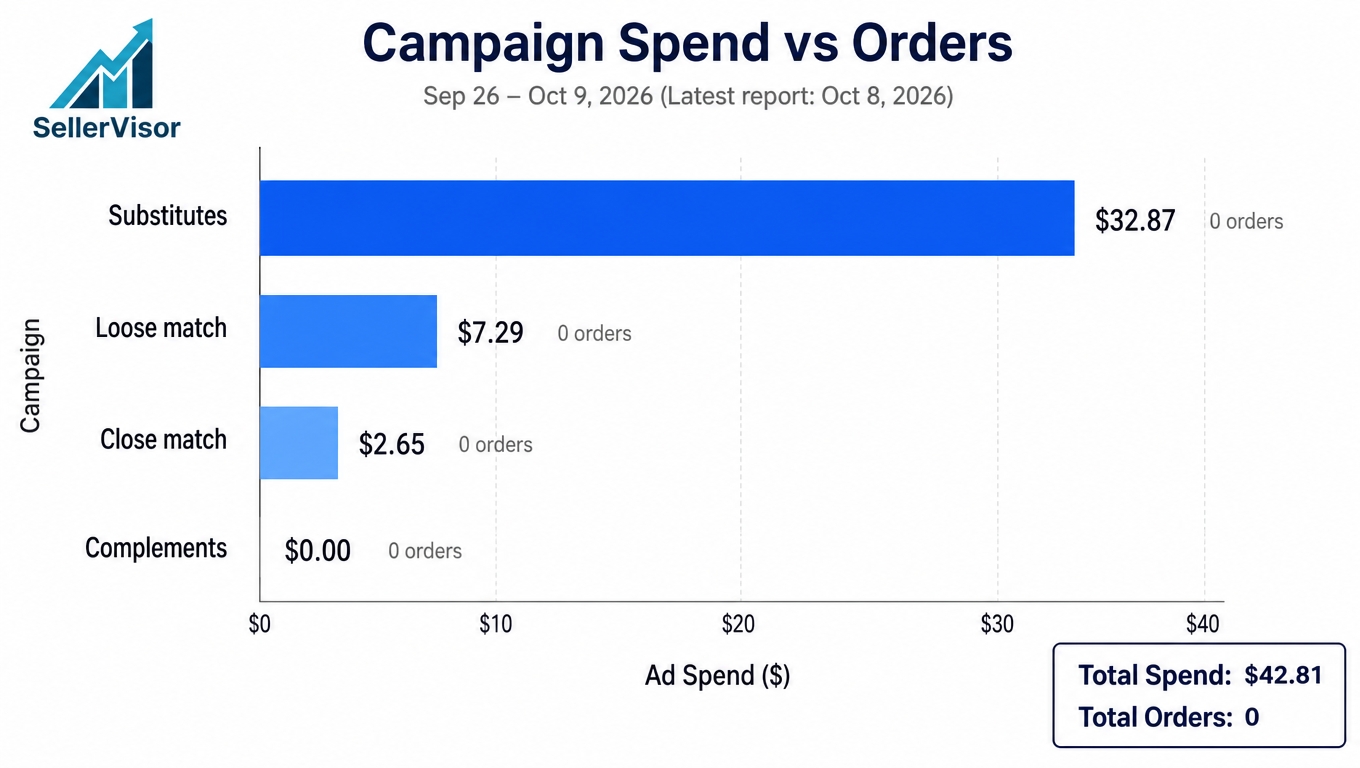
This is the actual screen for this period. The latest report is as of October 8, 2026.
- Daily Total Budget: US$100.00
- Eligible Campaigns: 0 / 4 (0%)
- Daily Average Sales: US$0.00 (100% decrease compared to previous period of same length)
- View Period ACOS: — (No previous comparison data)
- Unallocated Budget: US$100.00
All 4 campaigns shown in the table had US$0.00 sales and 0 orders.
- Substitutes — Cost US$32.87 · Clicks 50 · Impressions 8,819 · Current Budget US$3.00 · Applied Budget —
- Loose match — Cost US$7.29 · Clicks 7 · Impressions 769 · Current Budget US$0.00 · Applied Budget —
- Close match — Cost US$2.65 · Clicks 8 · Impressions 1,018 · Current Budget US$3.00 · Applied Budget —
- Complements — Cost US$0.00 · Clicks 0 · Impressions 19 · Current Budget US$3.00 · Applied Budget —
Since the minimum number of orders was 1, all four campaigns with 0 orders were excluded from the evaluation. Even Substitutes, which had 50 clicks, had no orders, so 'Eligible' is 'No'. As a result, no amount was allocated during this period, and US$100.00 remained.
Where to use this feature
- Use it as a safety measure to prevent budget from being automatically allocated to campaigns with no sales.
- Use it as a standard when there are too many campaigns, making it difficult for a person to set daily budgets one by one.
- Once performance starts to appear, the budget is automatically allocated upon passing the conditions, so users only need to manage the rule values.
- By changing the period and ASIN and running the preview, you can immediately check if more budget can be allocated to this product now.
Frequently Asked Questions
If 'Eligible' is 0/4, does the ad stop? No. What this screen does is reallocate daily budgets per campaign. If there are no campaigns that passed the conditions, the 'Applied Budget' in the table will simply be empty ('—'), meaning there is no amount to be allocated during this period.
How should I set the minimum conditions? It is safer to start conservatively, such as Minimum Orders 1, Minimum Clicks 10, Minimum ROAS 2, and then lower the conditions if allocation rarely occurs. For new campaign stages with no sales at all, it is better to set the minimum orders to 0 and apply only click and ROAS criteria.
What period is used for evaluation? The start and end dates of the date filter. The allocation preview is calculated based on this period and the tracking ASIN filter. If 'View Period ACOS' is displayed as '—', it means there is no previous period data for comparison.
When should I turn on CVR Multiplier and ACOS Adjustment? The default is off. The CVR Multiplier applies a multiplier when the order/click ratio is above the baseline (ratio, 0.2 = 20%), and ACOS Adjustment applies an adjustment factor to the budget when the actual ACOS exceeds the baseline. It is recommended to turn them on after sufficient account data has been accumulated.
Where does the unallocated budget go? The unallocated amount is not applied to the campaign budget. It means there were no eligible targets during this period, and it will be allocated when campaigns pass the rules.
Points to note when reading
- Eligible 0/4 does not mean the feature failed, but that there were no campaigns that passed the rules.
- Even high-cost campaigns will not pass if there are no orders. The order of cost and eligibility are different.
- If 'View Period ACOS' is '—', it indicates that there is no comparison period data. The value will be populated as previous periods accumulate.
- The applied budget in the table is a preview value. The actual reflection occurs when 'Apply Budget' is clicked.
Conclusion
It is safer to have a structure where a budget is not set by intuition every day, but rather rules set once make judgments each period. Like this example account, during periods with no sales, the screen holds the budget, and it is allocated when campaigns pass the conditions. By only managing the rule values, the rest is automatically recalculated each period.
Request a Live Demo
If you would like to see Campaign Budget Allocation with your own account data, please request a live demo. We will open the screen together and show you by changing the period and tracking ASINs.