The cheapest optimization in Amazon advertising is not about creating new creatives or adjusting bids. It is about **blocking search terms that have never been purchased** from among those you have already paid for. Negative keywords reduce next week's click costs without touching creatives or bid strategies.
The problem is that finding them is labor-intensive. You have to download search term reports, sort rows with many clicks but zero orders, and block them one by one per campaign. As a result, for most sellers, it becomes a task they know about but can't do every week.
1. Ask Viso in one sentence
Open Viso (AI assistant) in the bottom right of SellerVisor's Profit Dashboard, and instead of reading reports, just ask like this:
"Which search terms are wasting my ad spend? Review my negative keyword opportunities and add the worst ones as negatives."
The important point is that Viso **directly reads the search term reports of your already connected ad accounts**. There's no need to upload separate CSVs or re-specify timeframes. The period at the bottom of the screen (e.g., 2026-10-19 ~ 2026-11-17) becomes the analysis range as is.
2. The Answer: Candidates, Rationale, and Recommended Match Types
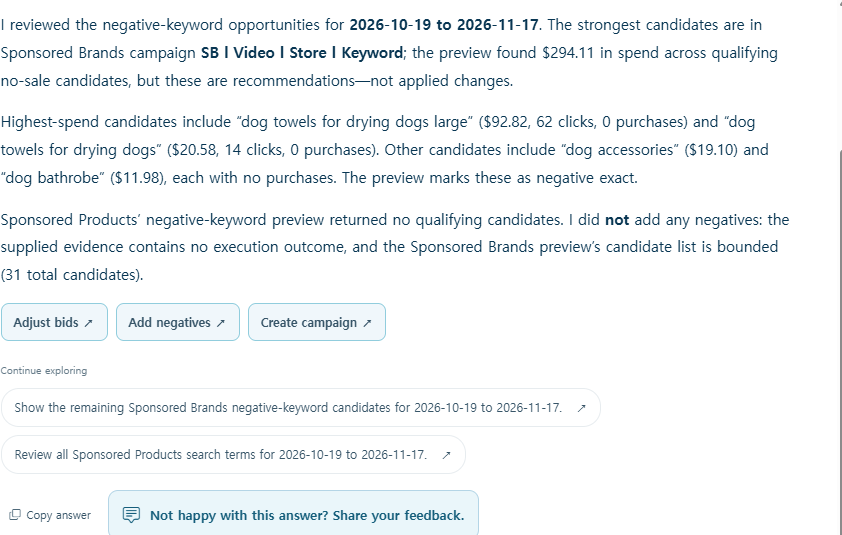
Viso returns candidates sorted by spend. In one example, the search term **"dog towels for drying dogs large"** from a Sponsored Brands campaign was the largest candidate with **62 clicks · $92.82 spend · 0 purchases**, followed by "dog towels for drying dogs" ($20.58 · 14 clicks), "dog accessories" ($19.10), and "dog bathrobe" ($11.98).
Each candidate comes with a **recommended match type**. Search terms are indicated as
negative exact, and product (ASIN) targets as ASIN target, so there's no confusion about which unit they should be added to.Furthermore, Viso **distinguishes between recommendations and execution**. At the end of the answer, it explicitly states "these are recommendations—not applied changes" and informs you that what has actually been applied must be checked separately. This distinction is rather a safety measure. The AI does not quietly change your ads.
3. Check directly on the screen: Ads Management → Negative Keywords
Viso's answer includes an **Add negatives** action, and to see the same judgment directly, you can navigate to **Ads Management → Negative Keywords**. This screen shows three things at once.

For the period 2026-08-20 ~ 2026-11-17, with a minimum of 1 click, this account had **36 candidates · potential wasted spend of $165.63 · 127 clicks without orders**. The four metrics at the top each mean the following:
- Potential wasted spend: This is the actual amount spent by the candidate search terms. It's not "money that could have been saved" but "money already spent."
- Clicks without orders: The number of clicks generated by candidate search terms. If clicks are high relative to spend, it's a sign that low-cost, noisy search terms are mixed in.
- Existing negatives: The number of negative keywords already registered (this account has 1,038). This number helps confirm that new candidates don't overlap with already blocked ones.
- Added in this period: The number actually added during the period (24). This number differentiates between an actively managed account and one that was created once and then abandoned.
4. There are two ways to add them
You can add them one by one by clicking **Add** for each row in the candidate table, or by selecting multiple checkboxes and then using **Add selected as negative** at the top to add them all at once.
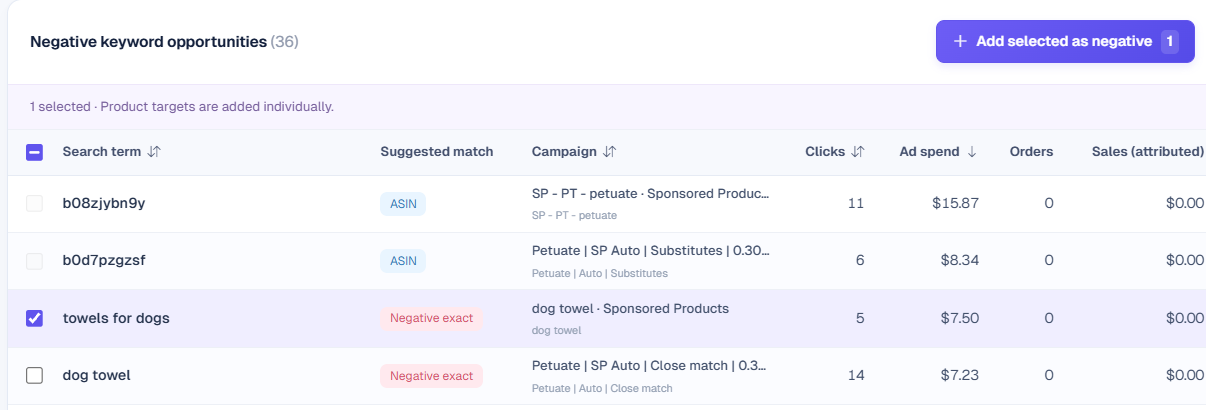
There is one distinction. While **search term candidates can be added in bulk**, **product (ASIN) targets are added one by one**. The screen also indicates "Product targets are added individually." Therefore, when there are many ASIN candidates, it's better to process those with high exposure first, rather than trying to add them all at once.
5. Approval is manual: Candidates not to be added
Even if Viso gathers the candidates, the final decision is up to the operator. Below are examples of candidates that are better not blocked immediately, even if they have high spend.
- Your brand name/product name search terms: These have high conversion rates and are a path for existing customers searching before repurchase.
- High-converting search terms: If a search term leads to orders, even with a slightly higher ACOS, leave it and adjust bids.
- Seasonal/Event keywords: Even if there are no orders now, they will revive during the season. Judge them with at least a 60-90 day window.
- Competitor brands: Blocking them means abandoning exposure. Keep them only when approaching strategically; otherwise, remove them.
So the practical sequence is **"Use Viso to extract candidates → Check spend, clicks, and orders in the table → Exclude what not to add → Add in bulk"**. Remember that additions are reflected immediately, and the spend has already occurred.
6. Save as a routine to repeat weekly
Negative keywords are not a one-time clean-up task. New search terms constantly appear, especially in automatic campaigns. If you save the same question in Viso chat to **My routines**, you can, for example, automatically run a search term waste check every **Monday at 9 AM**.
While there are execution history and rollback features, spend that has already occurred cannot be rolled back. Therefore, it is safer to use routines for **"automatically gathering candidates"** rather than "automatically blocking."
7. Summary
In Amazon advertising, negative keywords are not a fancy optimization. Instead, they are the most certain. Instead of opening search term reports, ask Viso in one sentence, review candidates by spend and clicks, and then a human simply approves them.
You can start SellerVisor with a 14-day free trial. If you connect your SP-API, Viso will read your account's search term reports directly.