Not 'Plausible Answers' but 'Answers Calculated with My Data'
If you ask AI, "How are this month's ads doing?", it usually gives plausible advice. The problem is that you don't know which account, which period, or which report that answer is based on. A seller's decisions can immediately lead to wrong conclusions if those three things are misaligned.
SellerVisor's AI assistant VISO first checks the Analysis context before generating an answer. It calculates only within the defined scope of these four elements: marketplace, seller account, ad account, and search period.
Four Elements Defined by Analysis Context
When you click the VISO · AI Agent button at the bottom right of the Profit Dashboard, the chat panel opens, and the Analysis context block is at the top of the left sidebar.
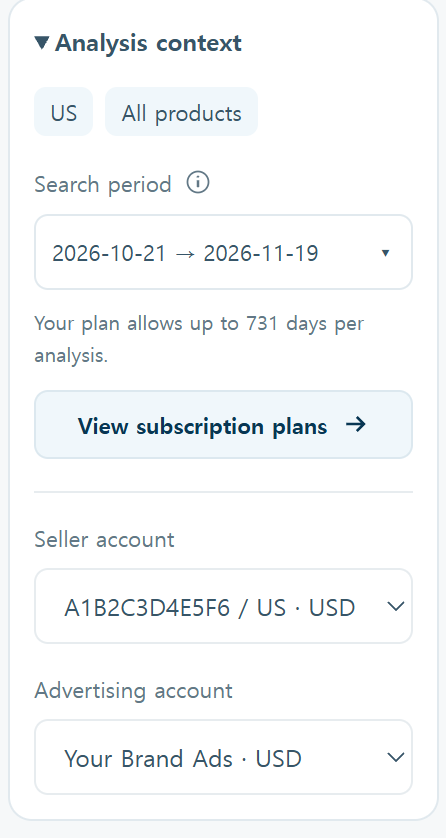
① Marketplace and Product scope are displayed as badges, like US·All products. ② For Search period, you directly specify the start and end dates, and you can analyze up to 731 days depending on your plan. ③ Seller account is the sales account connected via SP-API, and ④ Ad account is the account that provides the source for ad spend and search term reports.
That is, if you ask "negative keywords for the last 30 days," VISO reads the search term report from the account you specified, for the period you specified. This is precisely where general-purpose AI cannot imitate.
The Period Remains On Screen for Each Answer
The Data for this period chip is always visible at the top of the chat. You can confirm which data range this conversation is currently viewing along with the answer, reducing errors caused by mixing 'this week' and 'last month'.

There's also this message in the sidebar: "Each conversation keeps its own account and date selection." Since each conversation remembers its own account and period separately, criteria do not get mixed even if you continue a diagnosis from last month and then switch to this month's conversation.
Three Steps to Open
① Log in to the Profit Dashboard. ② Click the VISO · AI Agent button at the bottom right. ③ After checking the account and period in the Analysis context, enter your question.
The first screen shows "What would you like to understand?" along with example questions you can use immediately. These are questions frequently checked in practice, such as profit comparison with the previous period, products that contributed most to profit, changes in traffic and conversion rates, and listing modification history within the period.
How It's Used in Practice
When viewing a weekly briefing, set the period to last 7 days and ask "What should be fixed first this week?". When organizing negative keywords, extend the period to last 30 days and receive candidates based on the search term report. If you have multiple ad accounts, switch between accounts and ask the same question to compare which one has poor efficiency.
The order is important. Defining the scope before asking the question — this is the fastest way to get better answers from VISO.
Summary
VISO is not an all-purpose AI, but an AI attached to your seller account. Users directly set the account and period that form the basis of the answer, and that scope remains on the screen. If you've opened VISO today, check the Analysis context before changing your question.
You can start SellerVisor with a 14-day free trial. During the launch period, a 50% discount for the first month of the monthly plan (VISO50) and a 30% discount for the first year of the annual plan (VISO30) will be applied until November 30, 2026.