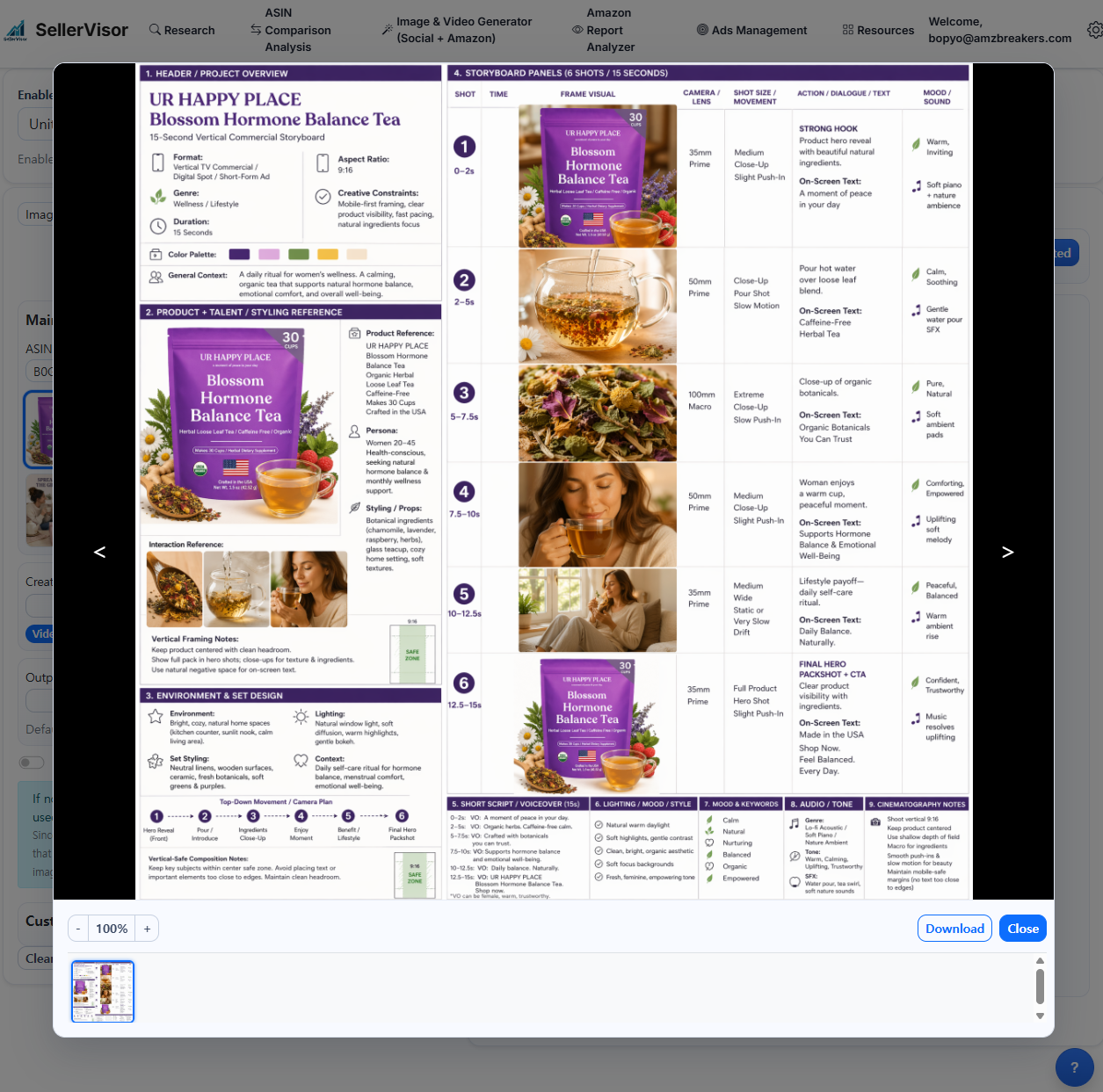
You can now create product advertisement videos from a storyboard template without prompts
Hello, SellerVisor customers
How much are you using AI video production for product videos? In Part 2 we introduced a workflow in SellerVisor that creates a storyboard based on product images and then uses that storyboard to produce product advertisement videos. The key point was not simply feeding product images to create AI videos, but first creating an advertising storyboard and producing the video based on that storyboard yields much more stable results.
But in this Part 3, that process has become one step easier.
Previously, you had to enter long prompts manually to create a storyboard.
But now SellerVisor has added a storyboard generation template.
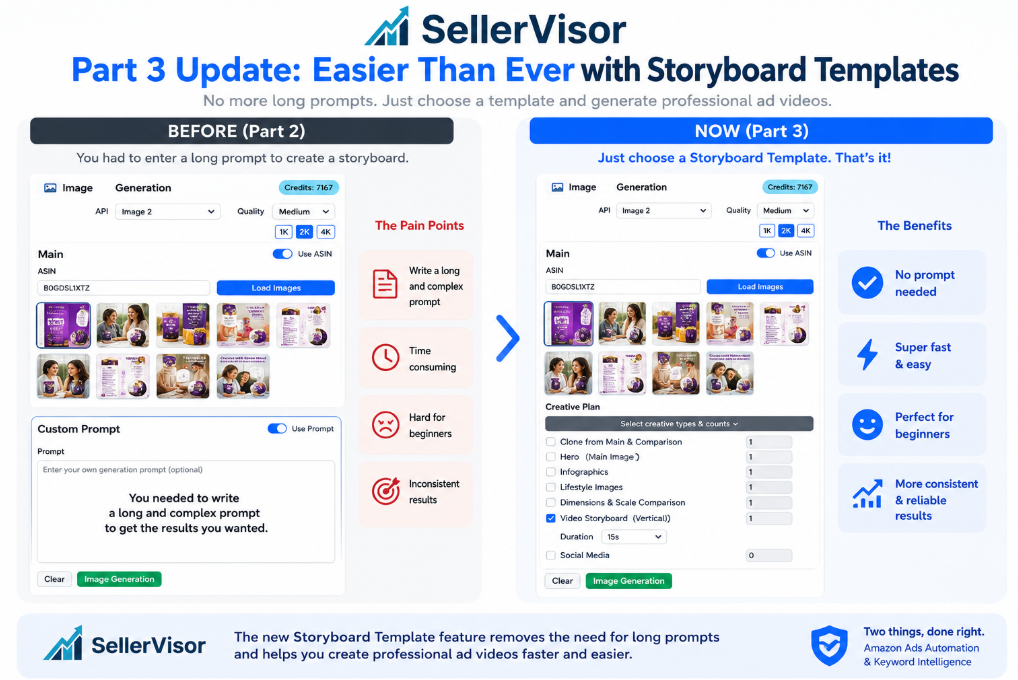
In other words, users no longer need to input complex prompts separately.
Upload product images and, in the image generation step, select the storyboard template, and SellerVisor will generate a storyboard suitable for making advertisement videos.
Then download this storyboard, and in the video production step upload the main product image together with the storyboard images and select the storyboard in the template.
This way, AI does not create videos randomly, but produces more stable commercial product advertisement videos based on the product images and the storyboard.
Why is storyboard-based video more stable?
The biggest problem with AI videos is randomness.
Even with the same product images, the results can differ every time.
Some videos make the product look too large.
Some videos make the product look too small.
Some videos change the package color.
Some videos have awkward product usage scenes.
Some videos show the product nicely but lack an advertising flow.
So for product advertisements, simply writing good prompts is not enough.
You need to structure the video.
A storyboard serves to create that structure.
Providing storyboard images that include scene flow is much clearer than merely telling the AI “make it like this” in words.
A storyboard contains the flow of the advertisement.
When the product should appear
In which scenes it should be used
Where to do close-ups
What mood and lighting suit it
How to show the product at the end
With these criteria, the direction of the video becomes stable.
This difference is especially significant for commercial product advertisements.
You shouldn't leave advertising to chance.
Advertising must be designed.
Now I will reveal the workflow for how to easily generate it.
It's easy, so follow along now!
Overall workflow
The updated Part 3 workflow of SellerVisor is as follows.

Step 1. Prepare the main product image
The first thing you need is a product image.
If possible, use a main image where the product is clearly visible.
An image that clearly shows the product name, logo, package color, shape, and category impression is preferable.
This image will serve as the product reference in later video generation.
Put simply, it's the reference image that tells the AI “this product must be preserved.”
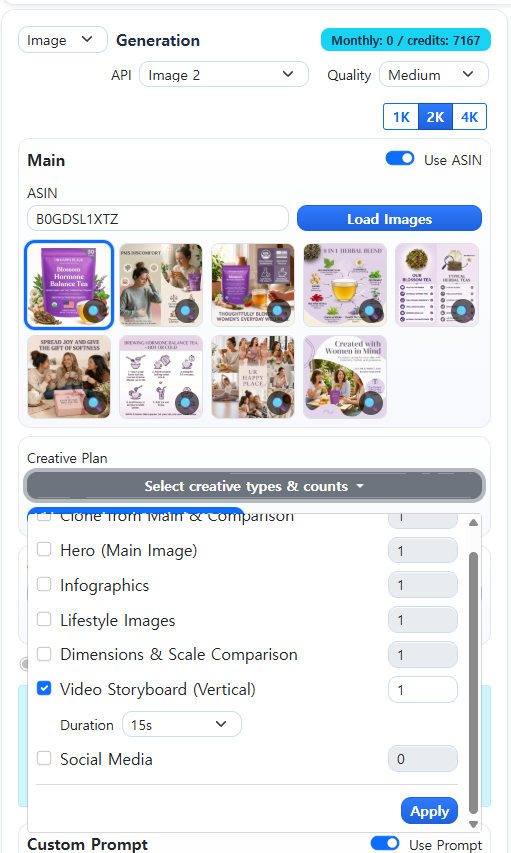
Step 2. In SellerVisor image generation, select the storyboard template
Now you don't need to enter long prompts manually.
Just select the storyboard template in SellerVisor's image generation feature.
SellerVisor will generate a storyboard suitable for advertisement video production based on the uploaded product images.
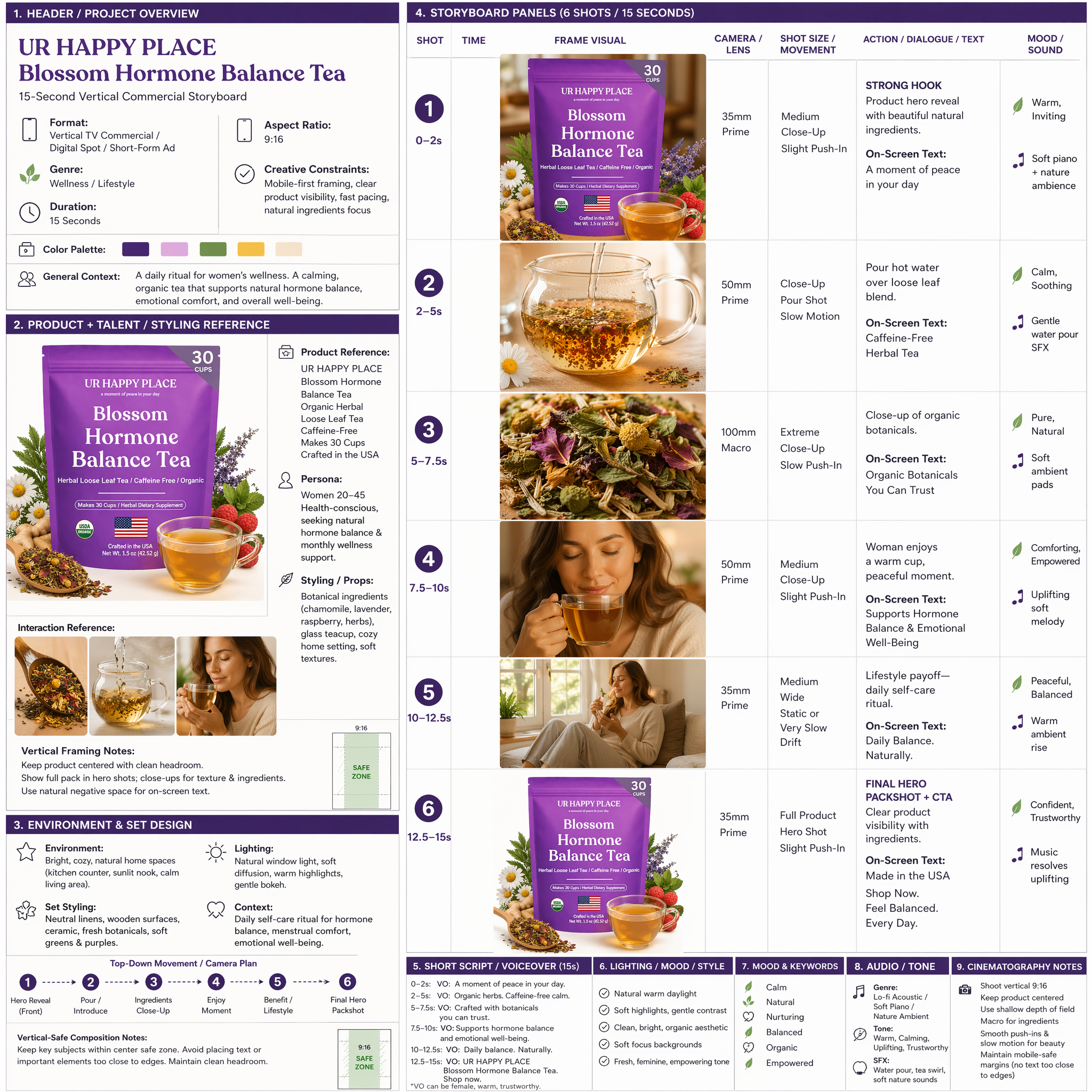
Step 3. Download the generated storyboard
Once the storyboard is generated, download it.
This image will be used as the reference image for video production in the next step.
The important point here is that the storyboard is not the final product.
The storyboard is a planning draft for video production.
Therefore, it is recommended to review it before moving directly to video production.
Step 4. Review the storyboard
Look at the generated storyboard and check the following items.
Is the product properly reflected?
Is the advertisement flow natural?
Is the first scene strong enough?
Do the usage scenes match the product?
Are there scenes that show product details?
Is the final product hero cut clear?
Does it match the brand's atmosphere?
If you are not satisfied with the storyboard, it is recommended to regenerate or edit it.
Getting the direction right at this stage increases the quality of the final video.
What if you don't like the storyboard?
A storyboard is not the final video.
It is a planning draft.
So it doesn't need to be perfect the first time.
In fact, the reason to view the storyboard first is to check the direction before making it into a video.
You should edit or regenerate in the following cases.
If the first scene is weak
If the background is stronger than the product
If usage scenes don't match the product
If the product appears too small
If a model appears too often when the product doesn't require one
If it doesn't match the brand atmosphere
If the product's core advantages are not well highlighted
If the final product cut is not advertisement-like
If you edit the storyboard at this stage, the video generation results are more likely to improve.
The important thing in AI video production is not to finish it in one go.
It's a process of planning, checking, editing, and regenerating.
Going through this process yields much better results.
You can input prompts into the generated storyboard image to create a new storyboard. Edit the storyboard image like this to generate the desired storyboard image. If you're ready, move on to the next step.
Step 5. In the video generation step, upload the main image and the storyboard together
Now go to SellerVisor's video generation step.
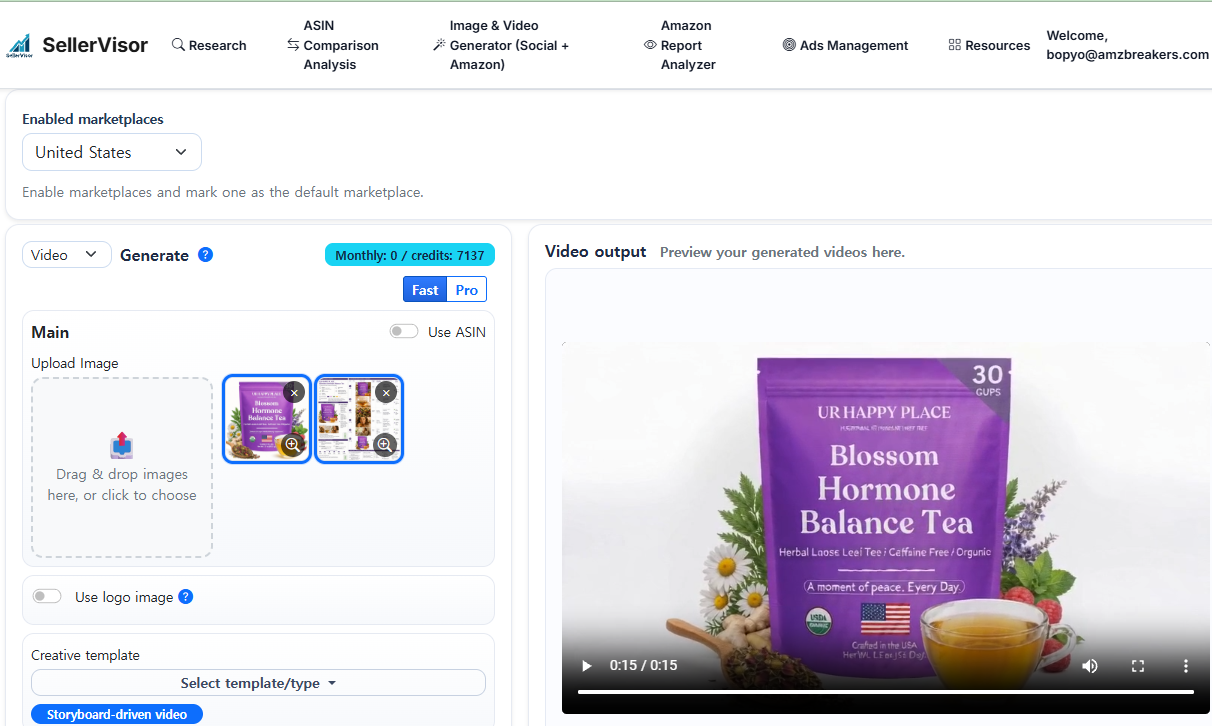
Here upload the main product image together with the storyboard images.
The two images serve different roles.
Main product image = product identity reference
Storyboard image = video direction reference
The main product image is the reference for preserving the product's name, logo, shape, package color, and sense of scale.
The storyboard is the reference for scene order, camera flow, lighting, mood, usage scenes, and the final product cut.
In other words, the main image is responsible for “what to show,” and the storyboard is responsible for “how to show it.”
Step 6. Select the storyboard in the template and generate the video
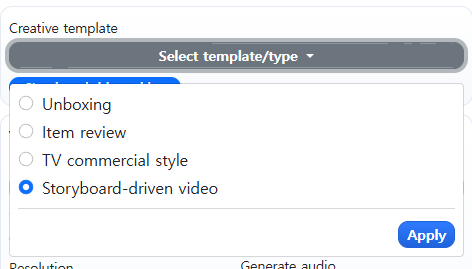
In the video generation step, choose the storyboard among the template options.
Then the AI will reference the uploaded storyboard images as the directing reference for the video.
The advantage of this method is clear.
AI will not compose scenes completely at random.
Because the storyboard already contains scene flow, the advertisement video structure is set more stably.
Within 15 seconds, you get a guideline for which scenes should come first and which should come later.
As a result, you can create a video flow that is closer to an advertisement rather than a simple collection of images.
Step 7. Inspect the completed video
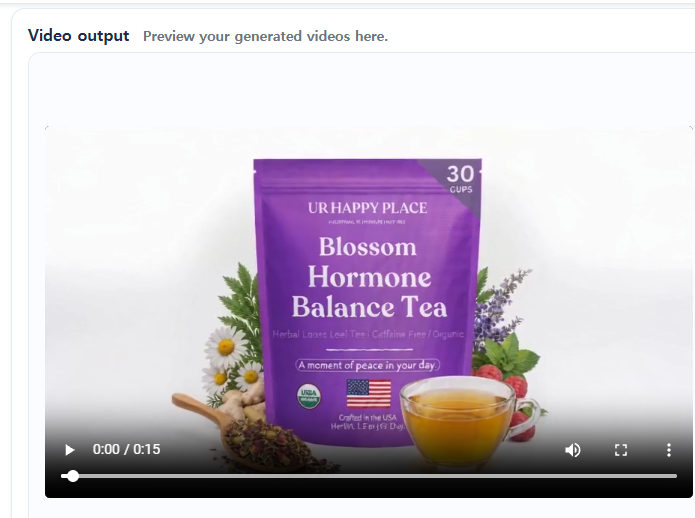
AI videos must always be reviewed by a human at the end.
This step is especially important for product advertisements.
Things to check are as follows.
Is the product name accurate?
Has the logo been altered?
Is the package shape preserved?
Has the product color changed?
Is the product size realistic?
Are hands or people appearing unnaturally?
Are the advertising claims exaggerated?
Be especially careful if the category is health, beauty, food, or supplements.
If the AI arbitrarily exaggerates efficacy or includes expressions not present in the actual product, it can cause issues with advertising policies.
Therefore, a human must always verify it before final use.
How was it? Now use storyboard generation inside SellerVisor to create more commercial-quality videos. AI videos are not perfect yet but are steadily improving. Start using AI video generation in your work now. You can gain new traffic and sometimes conversions.
Start using it on SellerVisor right now.
Thank you.