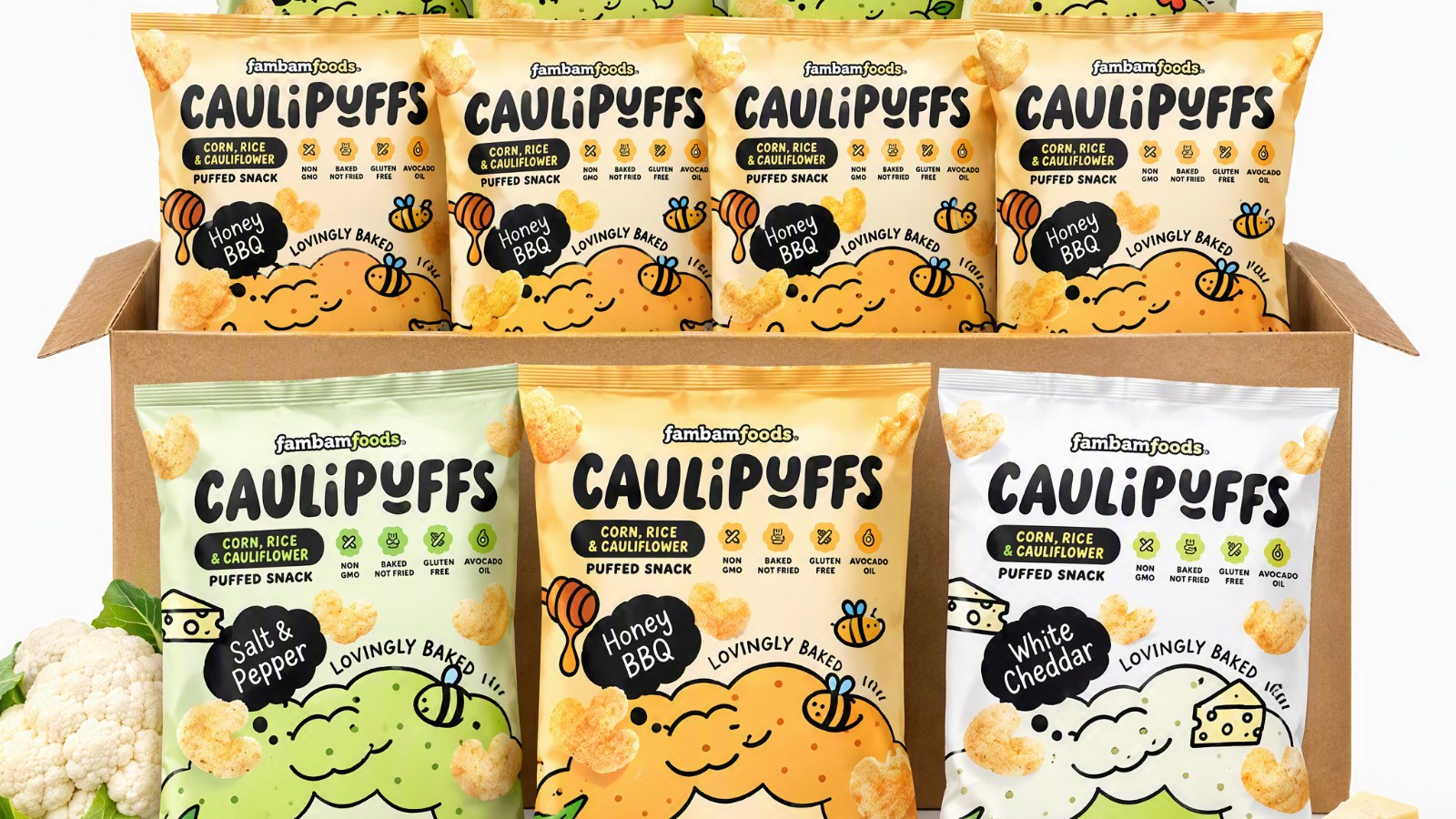
안녕하세요. SellerVisor를 이용해주시는 모든 고객님들 감사합니다.
아마존에서 상품 이미지는 클릭을 결정합니다. 검색 결과에서 같은 가격, 같은 조건이라면 사진이 좋은 쪽이 이깁니다. 문제는 촬영입니다. 모델을 세우고, 조명을 맞추고, 배경을 정리하고, 다시 찍는 과정이 매번 반복됩니다.
SellerVisor의 이미지 & 비디오 생성기에서 ChatGPT 이미지 2.5 (Image 2.5 Flare · Sunburst) 모델을 선택하면, 이미 있는 상품 사진 한 장이나 ASIN만으로 메인 이미지, 라이프스타일 컷, 인포그래픽, 사이즈 비교 이미지를 만들 수 있습니다.
이 글은 실제로 이미지를 만드는 과정을 순서대로 정리한 튜토리얼입니다. 예시는 Caulipuffs 스낵(ASIN B0CDC428ZN)이고, Image 2.5 Flare · 2K · 높음 품질 설정을 사용했습니다.
준비물
- Amazon 상품 ASIN 또는 상품 이미지 파일 (JPG · PNG · WebP · GIF, 최대 9개, 파일당 10MB)
- 크레딧 — 이 예시(2K · 높음 품질)는 이미지 한 장당 6 크레딧입니다. Image 2.5는 같은 해상도·품질의 Image 2.0보다 크레딧이 2배입니다.
1단계. 이미지 & 비디오 생성기에서 '이미지 생성' 탭
좌측 메뉴에서 이미지 & 비디오 생성기 (소셜 + 아마존)을 열고, 상단 탭에서 이미지 생성을 선택합니다. 상단의 마켓플레이스(US · CA · JP · MX)는 참조할 아마존 사이트입니다.
2단계. 모델은 Image 2.5 (Flare / Sunburst)
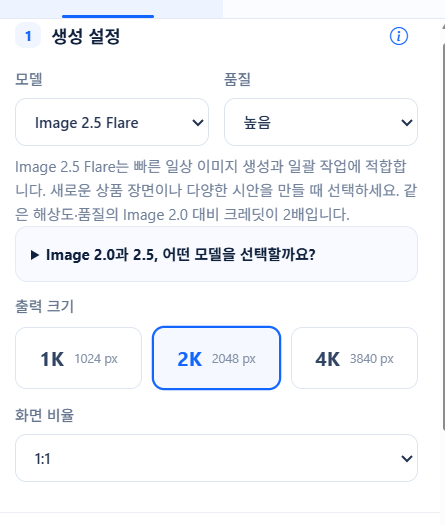
모델은 네 가지입니다. Image 2, Image 2.5 Flare, Image 2.5 Sunburst, Gemini.
- Image 2.5 Flare — 일상적인 이미지 생성과 여러 시안을 한 번에 뽑는 작업에 적합합니다. 이 글의 예시도 Flare로 만들었습니다.
- Image 2.5 Sunburst — 정밀한 편집이 중요한 작업에 적합합니다.
- Image 2 (2.0) — 기본 크레딧 요금 모델입니다. 초안을 여러 장 뽑을 때 유리합니다.
2.5 두 모델은 같은 해상도·품질에서 크레딧이 2.0의 2배입니다. 모델을 바꾸면 요금 확인 창이 뜨고, 적용을 눌러야 반영됩니다.
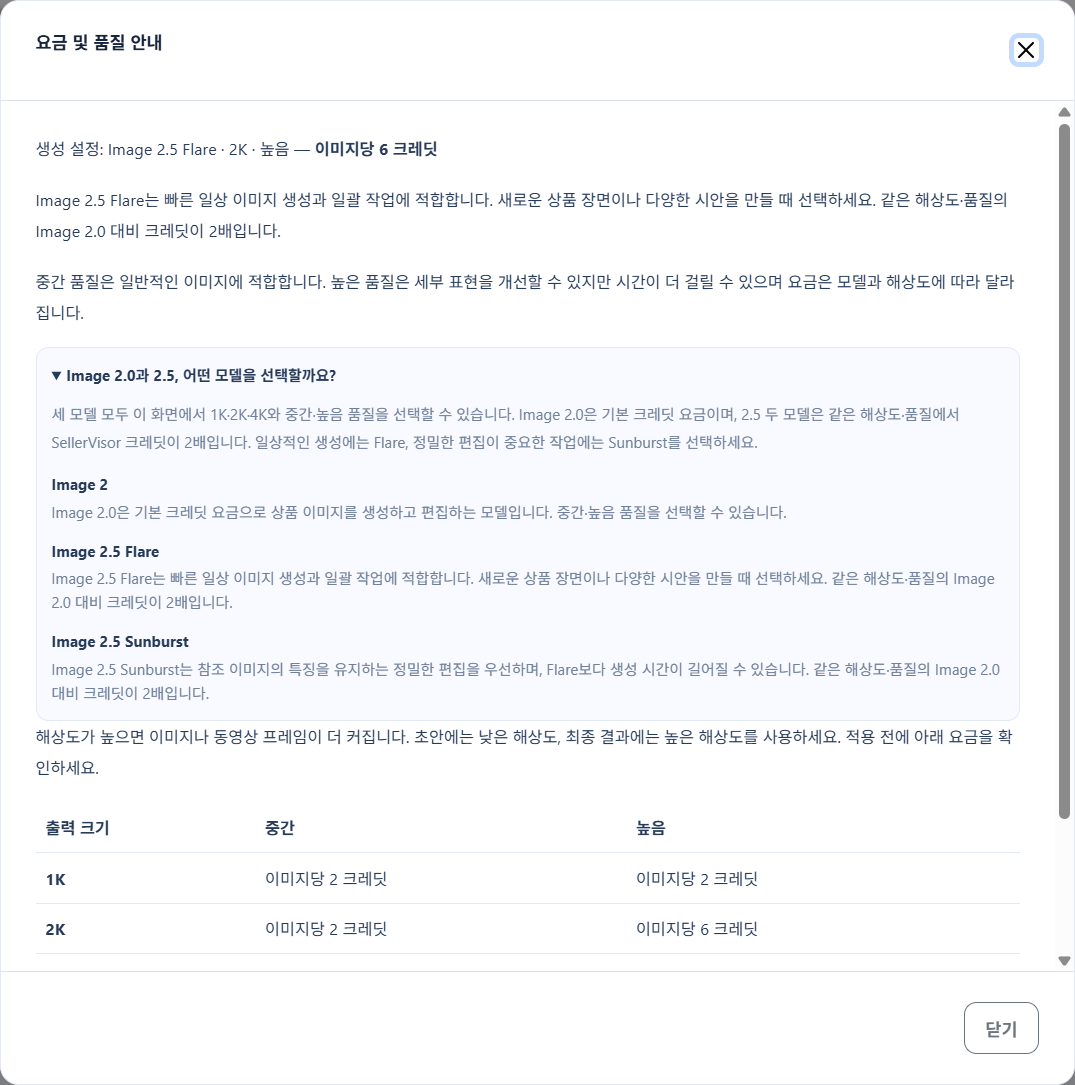
3단계. 품질 · 출력 크기 · 화면 비율
- 품질 — 중간은 일반적인 이미지, 높음은 세부 표현이 좋아지는 대신 시간이 더 걸립니다.
- 출력 크기 — 1K(1024px) · 2K(2048px) · 4K(3840px). 아마존 메인 이미지는 2K 이상을 권합니다.
- 화면 비율 — 1:1, 4:3, 3:4, 16:9, 9:16, 3:2, 2:3, 21:9, 직접 설정.
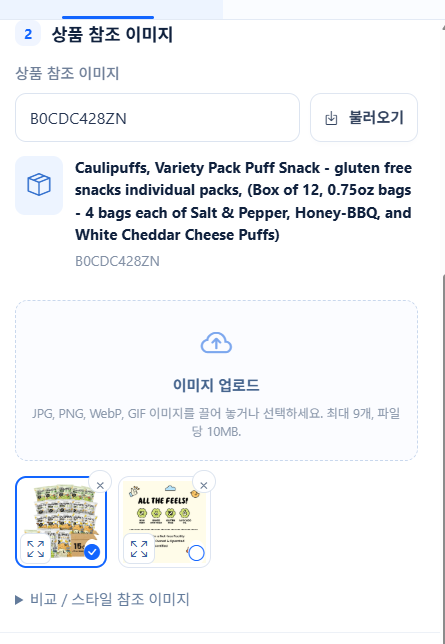
4단계. 상품 참조 이미지 넣기
ASIN을 입력하고 불러오기를 누르면 아마존 상품 이미지가 자동으로 채워집니다. 직접 찍은 사진을 쓰려면 이미지 업로드 영역에 파일을 끌어다 놓으면 됩니다. 스타일을 맞추고 싶으면 비교/스타일 참조 이미지를 추가로 넣을 수 있습니다.
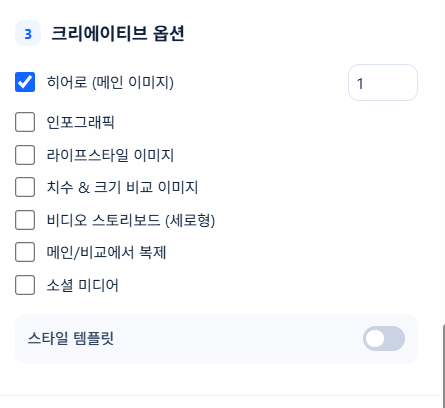
5단계. 크리에이티브 옵션 선택
무엇을 만들지 먼저 고릅니다.
- 히어로 (메인 이미지) — 검색 결과와 상세페이지 첫 컷
- 라이프스타일 이미지 — 실제 사용 장면
- 인포그래픽 — 특징과 장점 정리
- 치수 & 크기 비교 이미지 — 크기 오해로 생기는 반품을 줄이는 컷
- 비디오 스토리보드 (세로형) · 소셜 미디어 · 스타일 템플릿
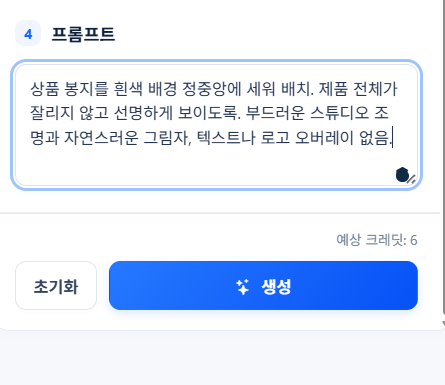
6단계. 프롬프트 작성
무엇을 어떻게 보여줄지 순서대로 적습니다. 배경, 조명, 구도, 넣지 않을 요소까지 쓰면 결과가 안정적입니다. 이번 히어로 이미지에 사용한 프롬프트입니다.
"상품 봉지를 흰색 배경 정중앙에 세워 배치. 제품 전체가 잘리지 않고 선명하게 보이도록. 부드러운 스튜디오 조명과 자연스러운 그림자, 텍스트나 로고 오버레이 없음."
7단계. 크레딧 확인 후 생성
생성 버튼을 누르면 사용될 크레딧을 먼저 보여줍니다. Image 2.5 Flare · 2K · 높음 기준으로 이미지 한 장당 6 크레딧이고, 시작 시 크레딧이 예약됩니다. 실패한 요청에는 크레딧이 차감되지 않습니다.

8단계. 결과 확인과 저장
히어로 이미지는 약 1분 정도 걸려 완성됐습니다. 결과 패널에서 바로 확인하고, 마음에 들면 내려받아 리스팅이나 광고에 쓰면 됩니다.
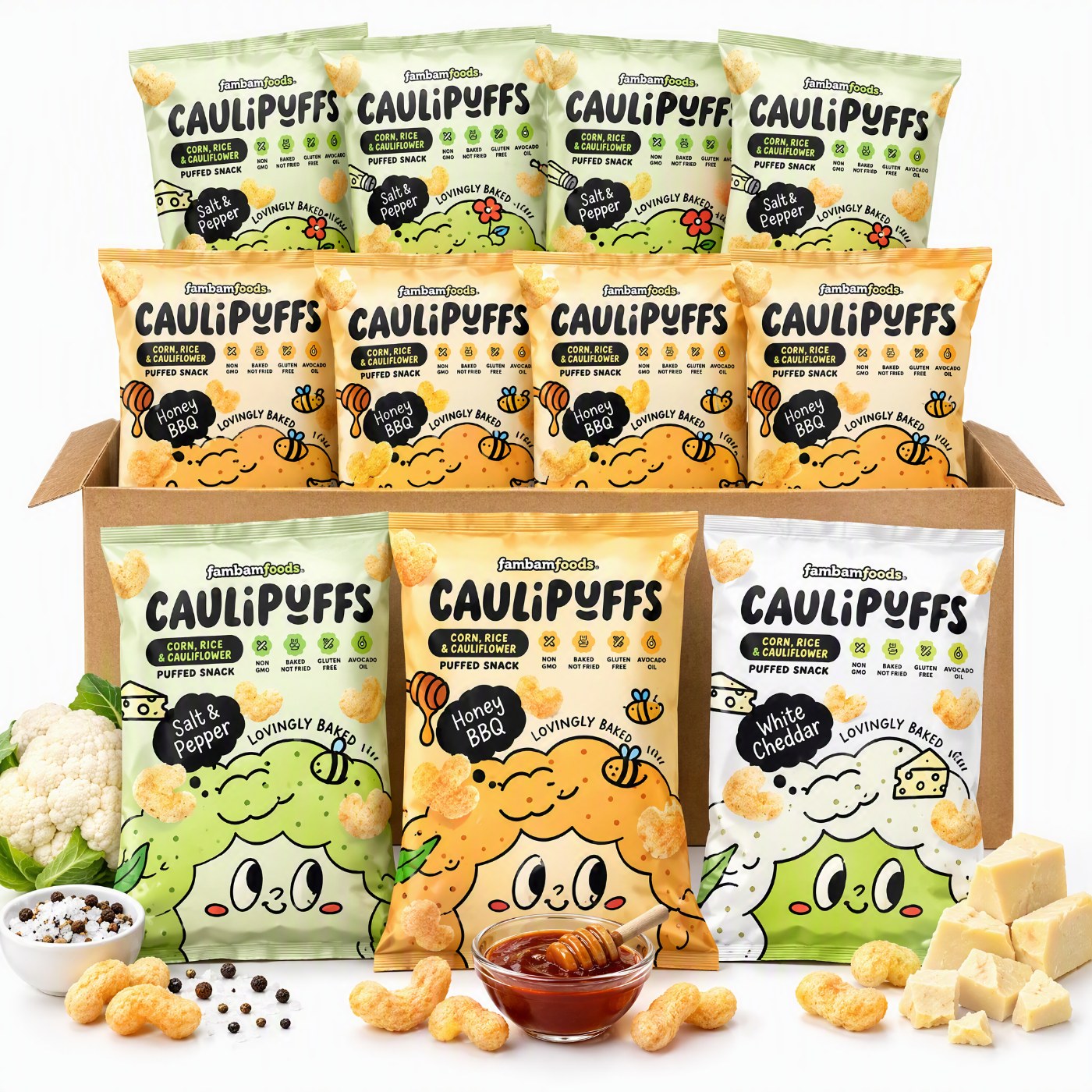
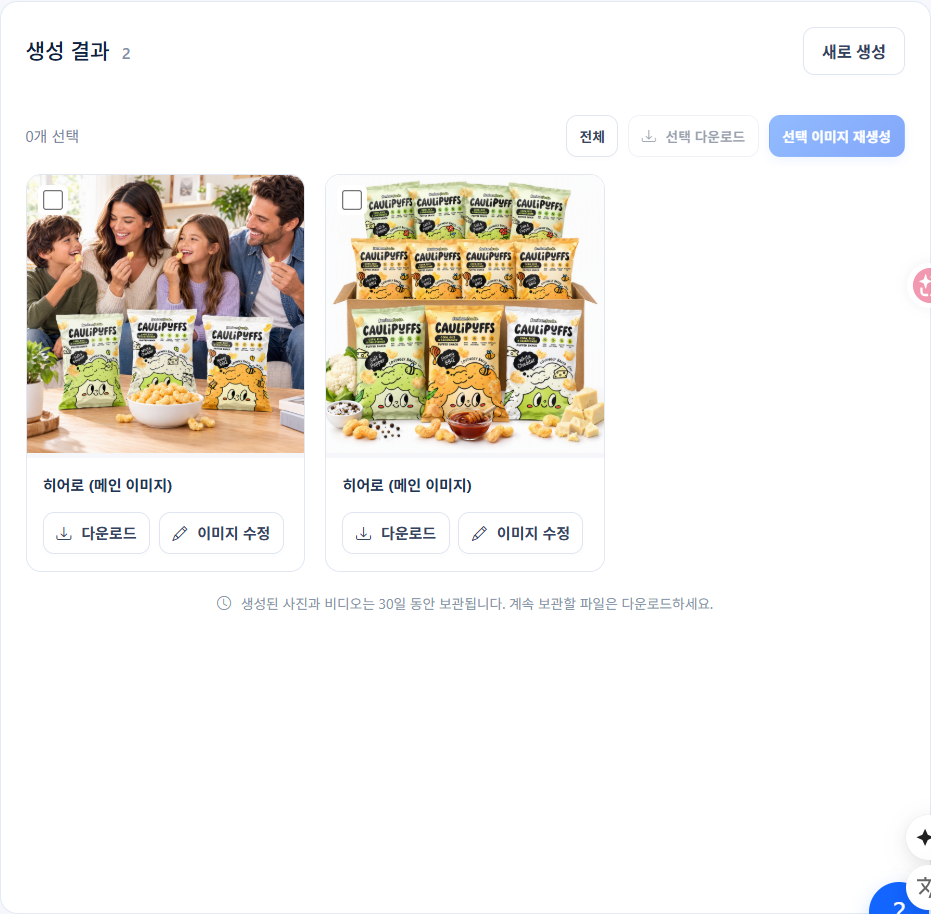
같은 방식으로 화면 비율을 16:9로 바꾸고 크리에이티브 옵션을 라이프스타일로 선택하면 사용 장면도 만들 수 있습니다. 이 글의 커버 이미지가 그렇게 만든 결과입니다.
자주 묻는 질문
- 크레딧은 얼마나 드나요? 모델·해상도·품질에 따라 달라집니다. 이 예시는 Image 2.5 Flare · 2K · 높음 = 이미지당 6 크레딧이었습니다.
- 원본 상품 사진이 없어도 되나요? ASIN만 있으면 아마존 상품 이미지를 불러와 참조할 수 있습니다. 다만 배경이 단순하고 해상도가 높은 원본일수록 결과가 좋습니다.
- 여러 장을 한 번에 만들 수 있나요? 크리에이티브 옵션을 여러 개 선택해 한 번에 생성할 수 있습니다. 초안은 Image 2(2.0)로 여러 장 뽑고 최종만 2.5로 뽑으면 크레딧을 아낄 수 있습니다.
- 생성이 실패하면 크레딧이 차감되나요? 차감되지 않습니다.
- 만든 이미지는 어디에 쓰나요? 아마존 메인·서브 이미지, A+ 콘텐츠, 광고 소재, 소셜 게시물에 사용할 수 있습니다. 게시 전 실제 제품과 다른 부분이 없는지 확인하세요.
결과를 잘 뽑는 팁
- 참조 이미지는 제품이 크게, 배경이 단순하게 찍힌 컷이 좋습니다.
- 프롬프트에 텍스트·로고 삽입을 요구하면 글자가 깨질 수 있습니다. 텍스트는 편집 단계에서 얹는 편이 안전합니다.
- 상품 크기 오해로 생기는 반품을 줄이려면 치수 & 크기 비교 이미지를 함께 만들어 두세요.
- 세부 수정이 필요하면 Sunburst를, 여러 시안이 필요하면 Flare를 쓰는 식으로 나눠 쓰면 효율적입니다.
- 생성된 이미지와 영상은 30일 동안 보관됩니다. 계속 쓸 파일은 내려받아 두세요.
이 글의 스크린샷과 결과 이미지는 모두 실제로 생성한 과정을 그대로 캡처한 것입니다.