SellerVisor Blog

How to use Keyword Rank Tracking: How to record organic rank and ad rank daily


Hello. Thank you to all customers who use SellerVisor.
When you optimize your listing, your ranking changes. You change the title, change images, and add A+ content. The problem comes after that. It's difficult to remember which keywords rose how much, or if impressions gained through advertising led to organic rankings. If you don't save today's metrics, you'll have no benchmark to compare against next week.
SellerVisor's keyword rank tracking automatically records organic rank, sponsored rank, and overall rank daily once products and keywords are registered. This article is a tutorial that outlines how to create groups and read rankings step-by-step.

Prerequisites

  • ASINs of products to track (max 10 per group, 5 for Starter plan)
  • List of keywords to track โ€” We recommend 10-20 per product. Too many makes it difficult to read, too few means you miss changes.
  • Marketplace selection (US ยท Canada ยท Mexico)

Step 1. Open Keyword Rank Tracking

From the left menu, go to Research > Keyword Rank Tracking. Select your marketplace at the top, and next to it, you can check your keyword usage and remaining quantity. It's a good habit to first see which keywords you are tracking and how many.

Step 2. Create Product Group โ€” 3 Steps

Clicking "Create Product Group" proceeds in three steps. Groups can be created per product, or bundled by launch, campaign, or niche. Grouping keywords with the same purpose together makes them easy to view in the heatmap.
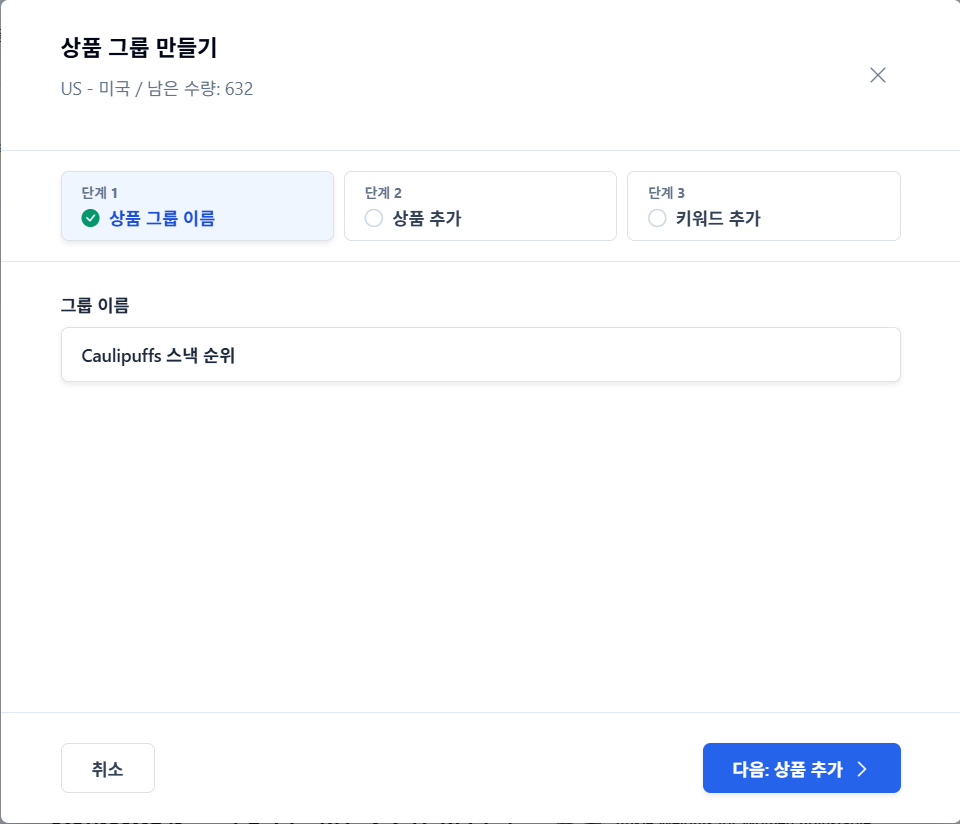
Step 1 ยท Group Name โ€” Assign a name that's easy to recognize later.


๋‹จ๊ณ„ 1์—์„œ ๊ทธ๋ฃน ์ด๋ฆ„์„ ์ž…๋ ฅํ•ฉ๋‹ˆ๋‹ค
Enter a group name in Step 1

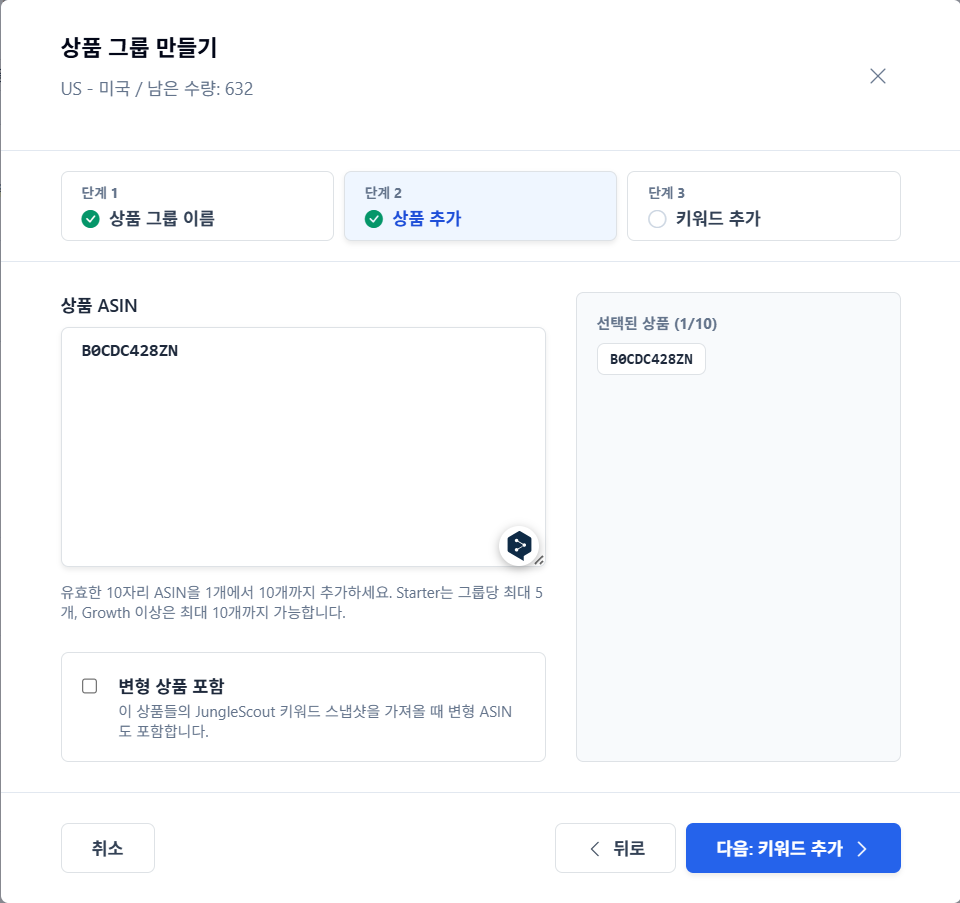
Step 2 ยท Add Products โ€” Paste ASINs one per line. Up to 10 (5 per group for Starter plan) are allowed, and if "Include Variations" is enabled, keyword snapshots for variation ASINs are also included.


ASIN์„ ๋ถ™์—ฌ๋„ฃ๊ณ  ๋‹ค์Œ ๋‹จ๊ณ„๋กœ ์ด๋™ํ•ฉ๋‹ˆ๋‹ค
Paste ASINs and proceed to the next step

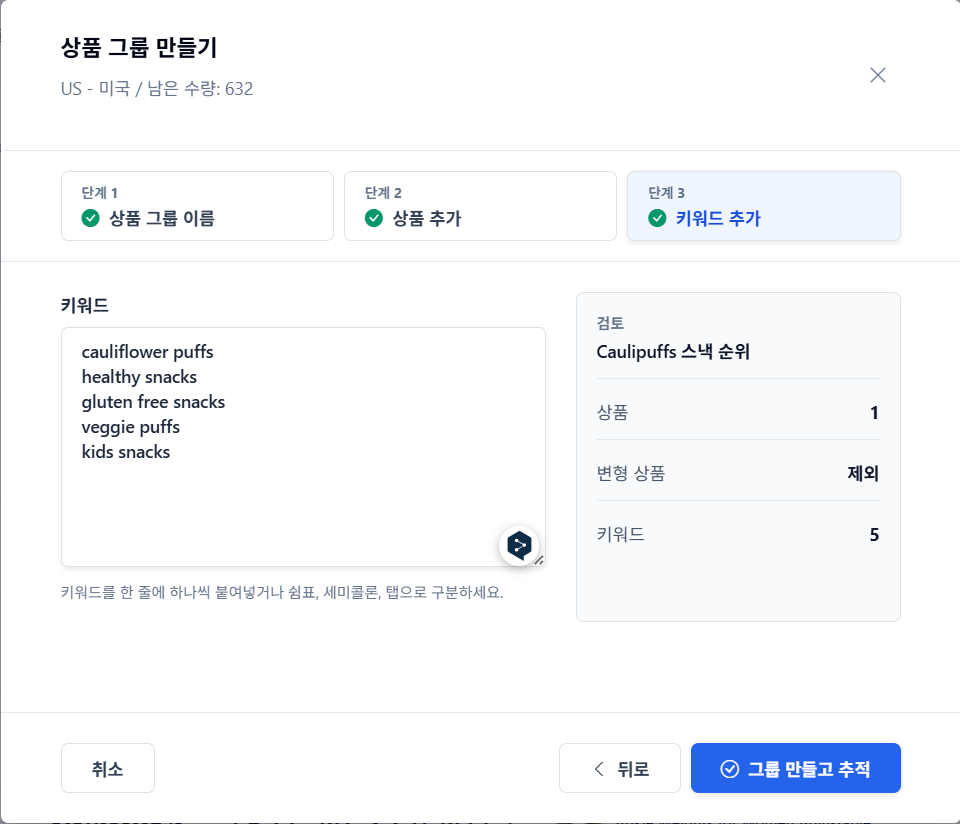
Step 3 ยท Add Keywords โ€” Enter keywords one per line, or separated by commas, semicolons, or tabs. After confirming the group name, number of products, and number of keywords in the review area on the right, click "Create Group and Track" to finish.


ํ‚ค์›Œ๋“œ๋ฅผ ๋„ฃ๊ณ  ๊ฒ€ํ†  ํ›„ ๊ทธ๋ฃน์„ ๋งŒ๋“ญ๋‹ˆ๋‹ค
Enter keywords, review, and then create the group

Step 3. Check in Group List

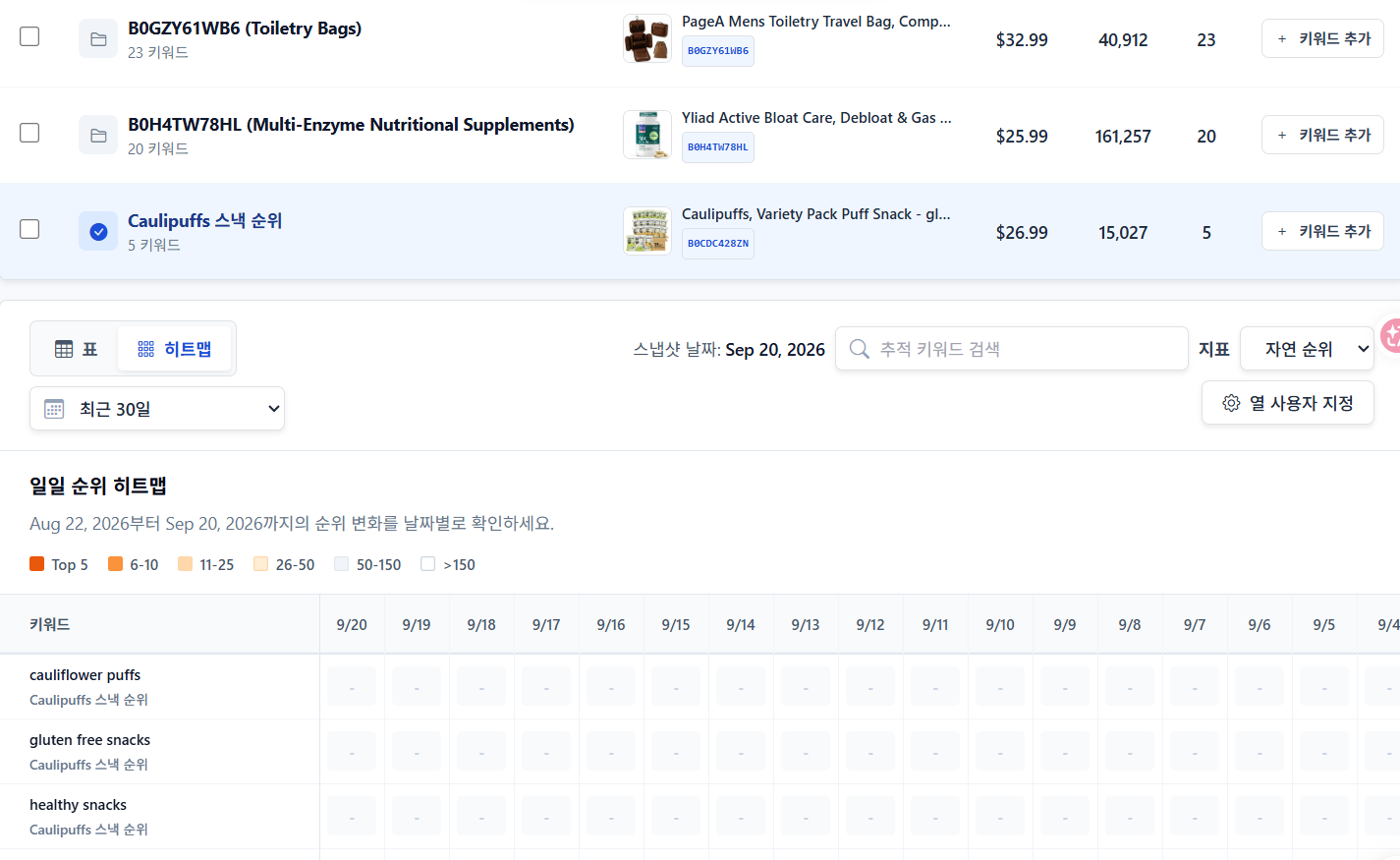
Once a group is created, the product, selling price, product rank, and number of tracked keywords are displayed in the list. Keyword usage also increases by the number of registered keywords. If you have multiple groups, you can organize them in Group Management as needed.


๋งŒ๋“  ๊ทธ๋ฃน์€ ์ƒํ’ˆยทํŒ๋งค๊ฐ€ยทํ‚ค์›Œ๋“œ ์ˆ˜์™€ ํ•จ๊ป˜ ๋ชฉ๋ก์— ํ‘œ์‹œ๋ฉ๋‹ˆ๋‹ค
The created group is displayed in the list along with product, selling price, and keyword count

Step 4. Read Rankings in Table View

When you select the table, keyword-specific metrics appear one line at a time. The columns are structured as follows:
  • Rank Trend (last 30 days) โ€” See the trend at a glance with a sparkline.
  • Search Volume (last 30 days) โ€” This is the actual search volume for that keyword. This is why you shouldn't judge based on rank alone.
  • Organic Rank / Sponsored Rank / Overall Rank โ€” Changes compared to the previous snapshot are displayed for each.
  • Search Trend (30 days ยท 90 days) โ€” See if the keyword itself is growing or shrinking.
  • PPC Bid (Exact ยท Broad) โ€” Use directly for ad bidding plans.
  • Rank Difficulty Score โ€” Determine if it's an easy keyword to rank for.
  • Updated โ€” The time of the last snapshot.

Step 5. View a Month with the Heatmap

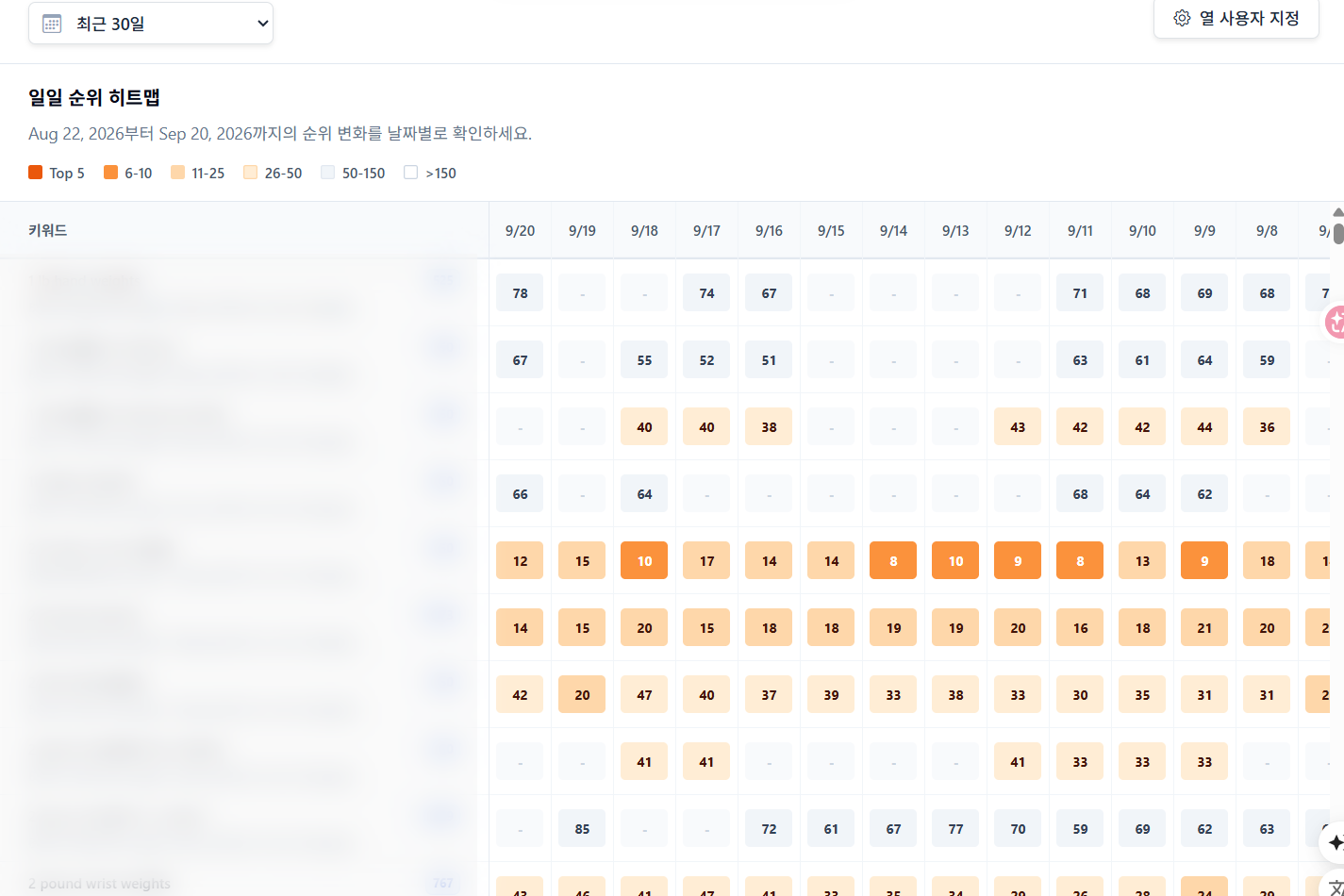
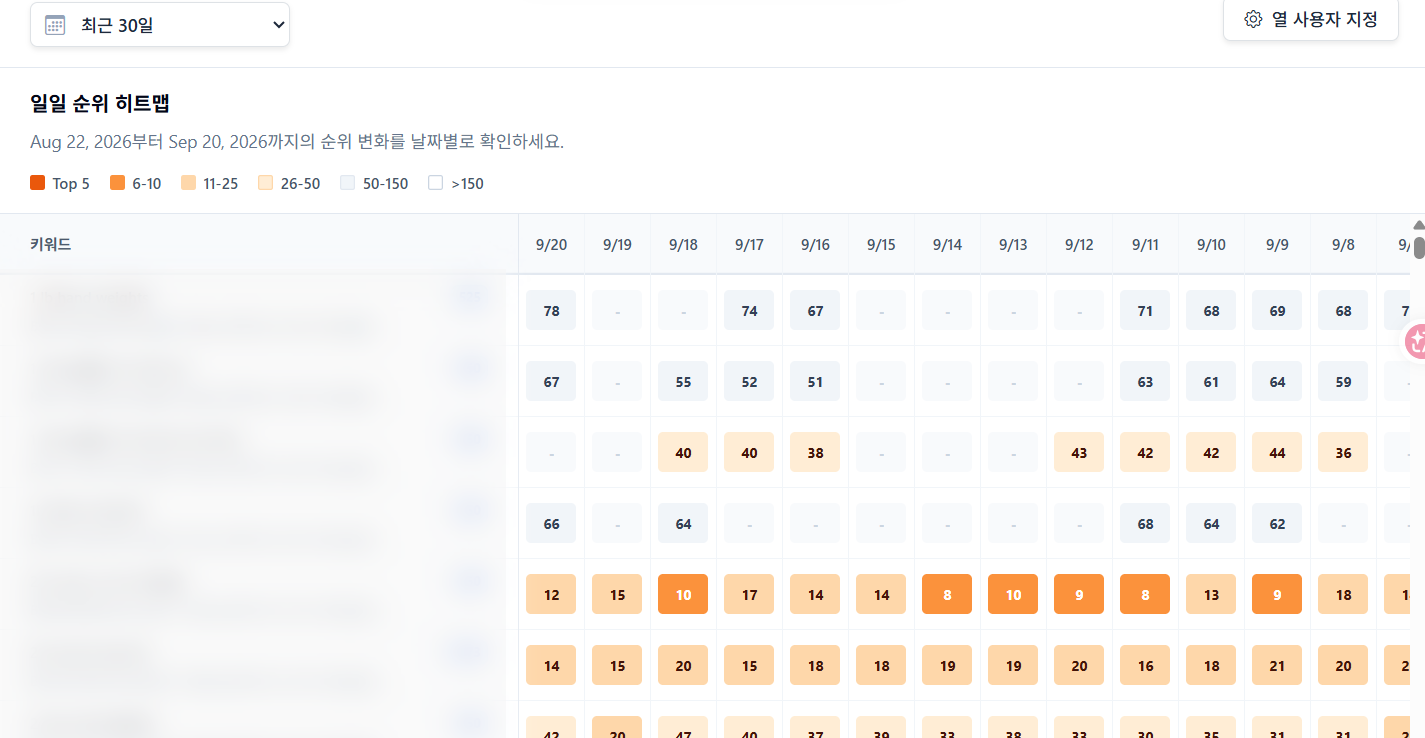
When you switch to the heatmap, rankings are displayed by color on a keyword ร— date grid. Darker colors indicate higher ranks. The legend is divided into Top 5 / 6-10 / 11-25 / 26-50 / 50-150 / >150 ranges, so you can see which keywords are performing well on one screen.
  • Date Range โ€” Last 7 days ยท 30 days ยท 90 days ยท Custom Range
  • Metrics โ€” Select from Organic Rank ยท Sponsored Rank ยท Overall Rank
  • Keyword Search ยท Customize Columns โ€” You can reduce columns, keeping only the keywords you want to see.


ํžˆํŠธ๋งต์€ ํ‚ค์›Œ๋“œ๋ณ„ ์ˆœ์œ„๋ฅผ ๋‚ ์งœ๋ณ„ ์ƒ‰์œผ๋กœ ๋ณด์—ฌ์ค๋‹ˆ๋‹ค
The heatmap shows keyword rankings by date and color


์‹ค์ œ ์‚ฌ์šฉ ์ค‘์ธ ํžˆํŠธ๋งต ์˜ˆ์‹œ โ€” ํ‚ค์›Œ๋“œ๋ช…์€ ๊ฐ€๋ฆผ ์ฒ˜๋ฆฌํ–ˆ์Šต๋‹ˆ๋‹ค
Example of a heatmap in actual use โ€” Keyword names have been masked

Step 6. Snapshots are Automatically Accumulated Daily

Rank snapshots are automatically updated daily as long as your subscription is maintained. Therefore, immediately after creating a group, the values are empty (-), and the table starts to fill up from the day after the first snapshot is recorded. The heatmap also starts to be colored from that day. In other words, this tool is not for viewing "today's rank" but for accumulating changes.

Step 7. What to Judge with These Numbers

1) Gap between Organic Rank and Sponsored Rank โ€” If only sponsored rank increases while organic rank stays the same, you are buying impressions through advertising. Whether the gap narrows is a key indicator of ad efficiency.
2) Change from previous snapshot โ€” You can immediately see what changed yesterday. Checking this column the day after modifying a listing or ad allows you to confirm the effect of that change.
3) Top 5 entry and exit in the heatmap โ€” Keywords that suddenly turn darker are assets secured, while keywords that become lighter indicate positions that need checking.
4) Viewing search volume and rank together โ€” Even if the rank is high, if the search volume is low, the contribution to sales is small. Conversely, if the search volume is large but the rank is low, it's a keyword to address first.
5) Viewing with bid price and difficulty โ€” Keywords with high search volume, low difficulty, but low rank are candidates for improving both ads and listings.

Step 8. Export and Management

You can export tracking data as a file and attach it to your reports. Customizing columns to show only the necessary metrics makes it much easier to read. If you have many groups, it's better to filter by group to view product-specific rank changes separately.

Frequently Asked Questions

  • How many keywords should I track? We recommend 10-20 per product. A balance of core keywords + competitor brand keywords + a few long-tail keywords is ideal.
  • What is the difference between sponsored rank and overall rank? Organic rank is the position where you appear without advertising, sponsored rank is your position on ad placements, and overall rank is your combined position when both are considered.
  • My rank changed significantly overnight. Is this normal? Amazon frequently recalculates rankings. It's safer to look at 7-day or 30-day trends rather than day-to-day fluctuations.
  • Why are values empty immediately after creating a group? This is because the first snapshot has not yet been recorded. It will be filled from the next update.
  • Can I track competitor products? Yes, it's possible. By grouping competitor products, you can compare their rank changes side-by-side with your own products.

Operation Tips

  • Make a note of the date you modified your listing. Comparing the heatmap before and after that date will show the effect of the changes.
  • Management is easier if you follow the principle of one group per product. If you want to group by campaign, create a separate group.
  • Dividing your routine, such as viewing a 90-day range once a week and a 30-day range for the rest, reduces the burden.
  • Don't just look at rank; view search volume and bid price together. This is how you determine your next action.
  • The cause of rank changes is likely one of the following: listing, price, inventory, or advertising. Reviewing it with the change history in the Profit Dashboard will help you quickly identify the cause.
โ† Go Back