Hello. We would like to thank everyone who uses SellerVisor.
As of today, April 6, when I am writing this blog, we have carried out a major update to SellerVisor's advertising features. I thought I should review the details, so I'm leaving them in the blog in detail.
1. Amazon Advertising Automation Part One: '200% increase? No more worrying about missing keywords that are performing well on competitors!'
Which keywords do competing products target that lead to good sales? Have you spent tens or hundreds of hours every time analyzing keywords using tool H or tool J to add keywords found on competitor products? If you've ever gone through this kind of hardship even once, you know how repetitive and tiring that work is. I had the same experience. Each time I thought, "I wish someone would do this automatically..." which led me to develop this feature. These days are the age of automation, right? While you sleep, you can track competitor products and automatically create ad campaigns by taking the competitive keywords that competitors are aggressively advertising on or quietly growing. (Automate Amazon ad keyword tracking in the age of automation!)
How is this possible?
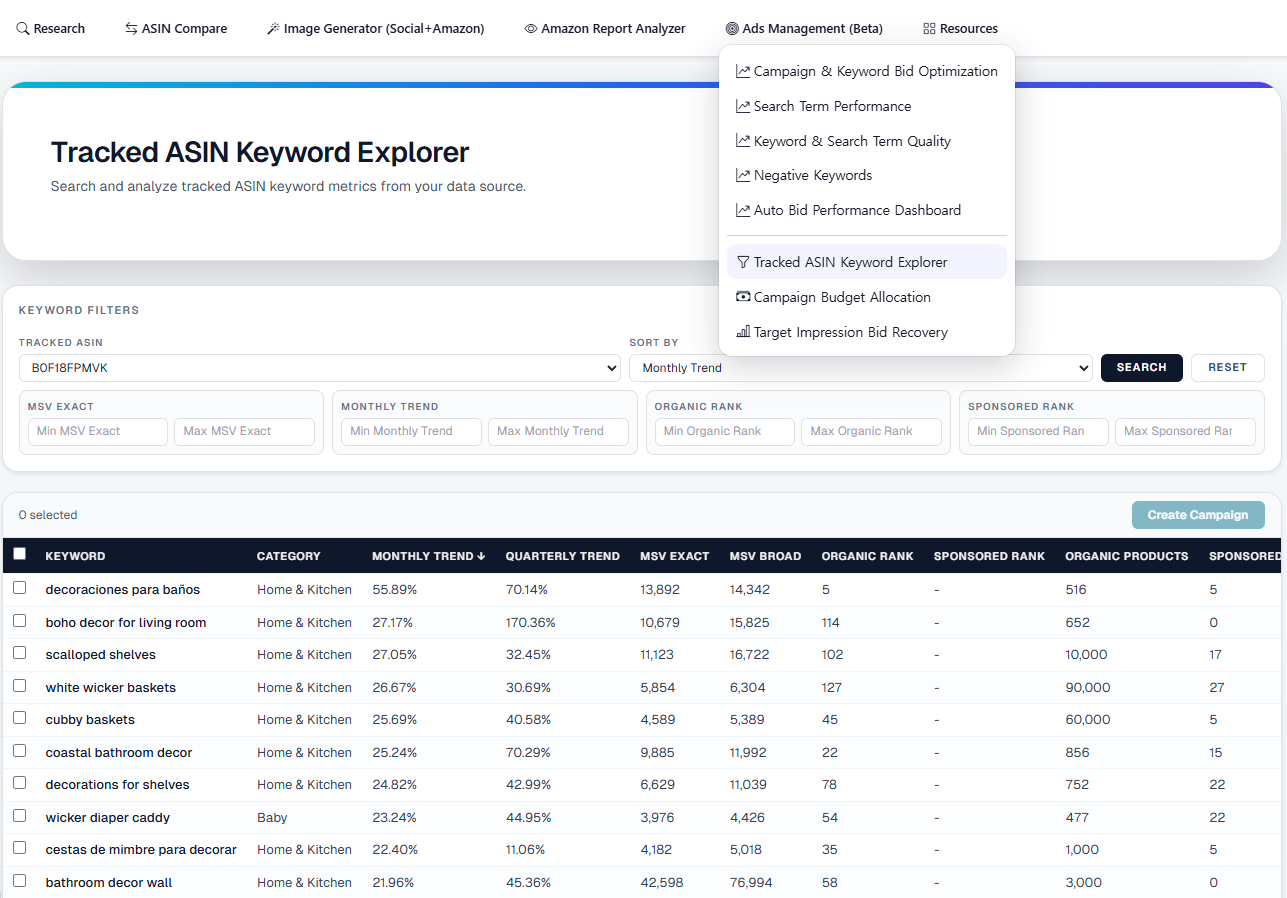
This is possible with the newly updated feature 'Tracked ASIN Keyword Explorer.'
First, you need to enter the ASIN you want to track.
(Tip: Add competitor products or well-performing new release products)
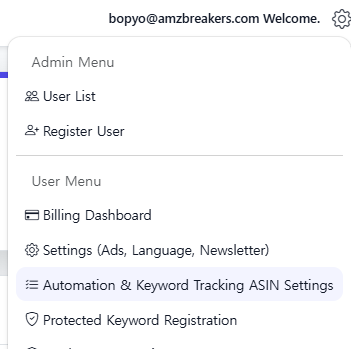
After logging into SellerVisor, click the gear icon on the right and select 'Automation & Keyword Tracking ASIN Settings.'
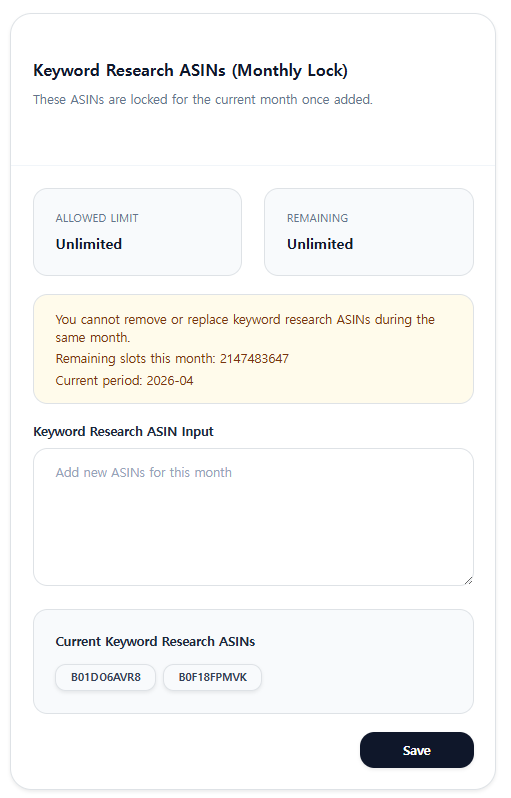
Then on the page you are taken to, you will see a section called Keyword Research ASINs (Monthly Lock). In this section, enter the ASIN you want to track into the 'Keyword Research ASIN Input' field and save it. Once saving is complete, it will be displayed below in Current Keyword Research ASINs.
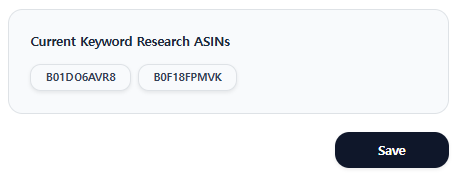
In the above screen, two products are currently applied as tracked products. Once applied like this...
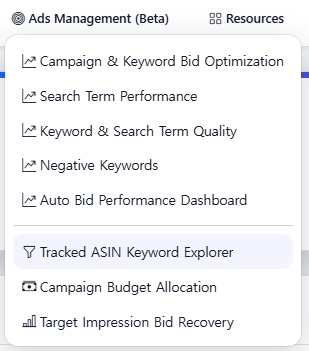
If you select Tracked ASIN in the Ads Management (Beta) menu, the two ASINs you previously registered as tracked ASINs will appear and can be selected.
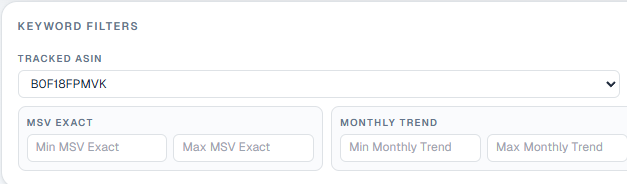
Here, after selecting the ASIN to apply, you can set various filters as shown below.
MSV EXACT: Monthly search volume
(For example, if you enter 3,000 and 30,000 here, you can extract keywords with a minimum search volume of 3,000 and a maximum search volume of less than 30,000.)
MONTHLY TREND: Monthly increasing search volume
(For example, if you enter 50 in 'Min Monthly Trend' here, you can find keywords whose monthly searches increase by at least 50%.)
ORGANIC RANK: Ranking of keywords without ads
(For example, if you enter '1' in Min and '10' in Max here, among the keywords this product ranks for, it will show keywords that are not advertised and rank between 1st and 10th.)
SPONSORED RANK: Ranking of keywords with ads
(Same as above)
After setting filters with the above information and clicking the 'Search' button, the keywords that match the criteria will be retrieved.
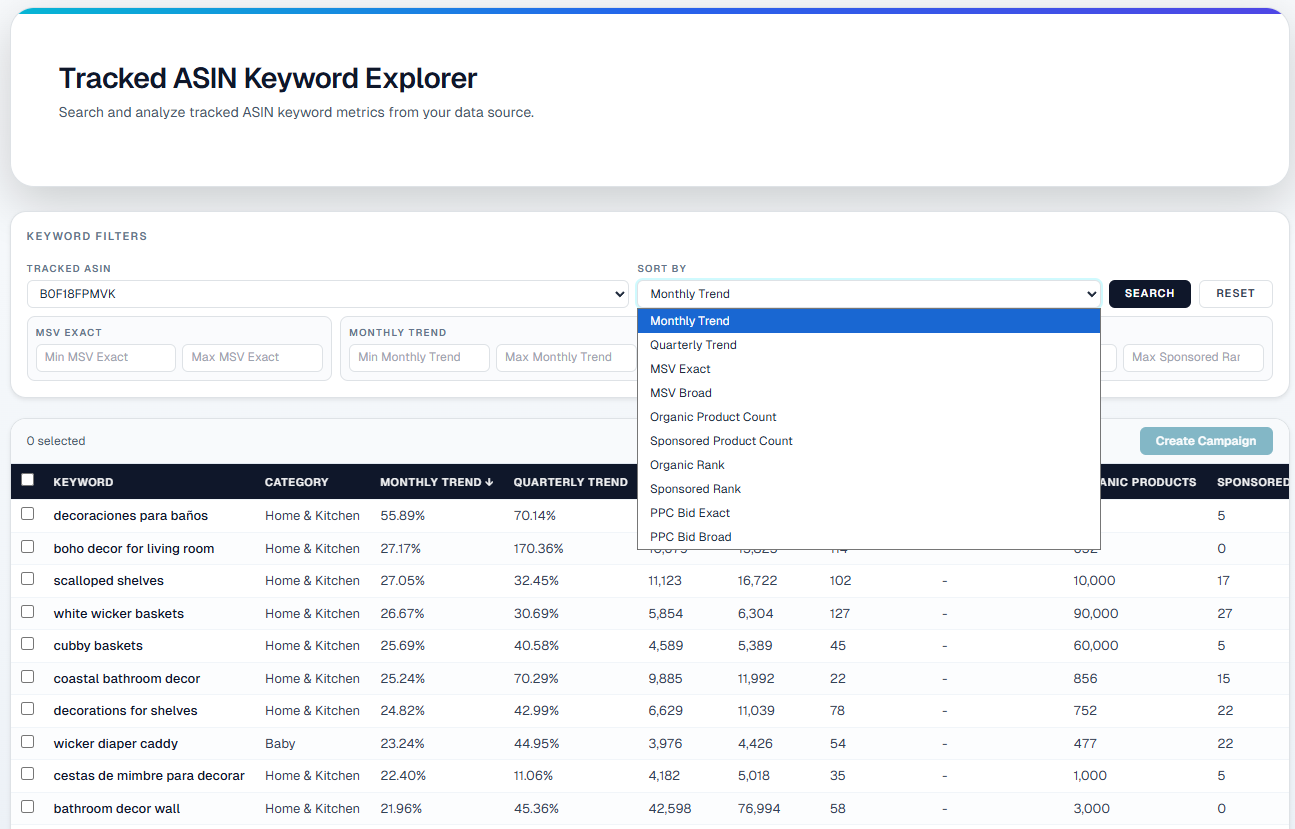
If you want to advertise our product on the two keywords whose Monthly Trend is rapidly rising in the above data, how should you do it?
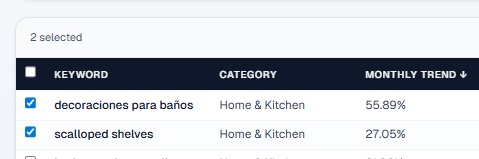
Check the checkbox next to the keyword, then click Create Campaign at the top right to create the campaign.
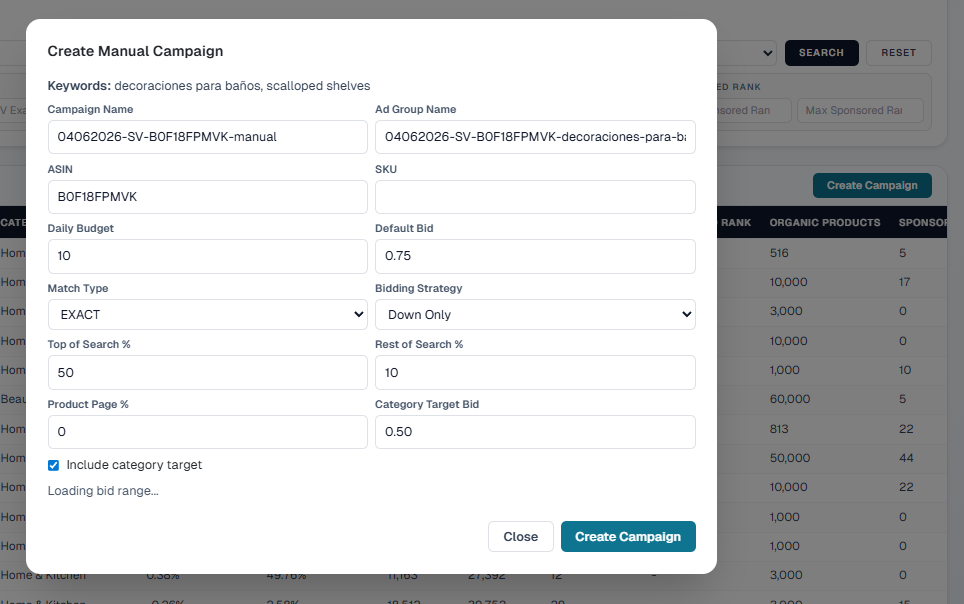
After clicking the Create Campaign button, the campaign creation screen appears as above. Here you can create it exactly like creating a campaign on Amazon. I think those who already run ads on Amazon will be familiar with these settings. However, for those who may not know, the explanation is attached below.
Daily Budget
- This is the maximum ad budget to be spent on this campaign per day.
- Example: If it is 10, up to about $10 per day will be used.
Default Bid
- The bid placed by default per keyword click (CPC).
- Example: 0.75 means you can pay up to $0.75 per click.
Match Type
- A setting that determines how closely a customer's search term should match my keyword.
- EXACT is shown only when the search is almost exactly the same.
Bidding Strategy
- An option that determines whether Amazon will automatically adjust my bids according to circumstances.
- Down Only is a conservative approach that lowers bids if performance is expected to be weak.
Top of Search %
- The percentage added to the base bid to more aggressively show the ad at the top position of search results.
- Example: 50% means you can compete up to 50% higher than the base bid.
Rest of Search %
- A value that determines how much to adjust bids for search positions other than the top of search results.
- Usually considered less important than Top of Search.
Product Page %
- This is the bid adjustment applied when showing ads in the product page area of other product detail pages.
- If it is 0, it means you will operate at the base level without additional increase.
Category Target Bid
- This is the category bid applied when using category-targeted ads.
- In other words, this bid is used when appearing in related category/product areas, not for a specific keyword.
Include Category Target
- If you check this option, ads will be run including category targets in addition to keyword targets.
- It can increase exposure opportunities, but beginners should be careful as less relevant clicks may be mixed in.
In this way, you can immediately reflect the keywords that are performing well for competing products or trending keywords into our product's keyword ads. It's a great feature, right? However, it's still somewhat lacking to call it fully automated. Why? Because the seller still needs to set filters and make selections manually.
What if even this...
automated?
Of course it's possible.
Now listen carefully and follow along for just one minute.
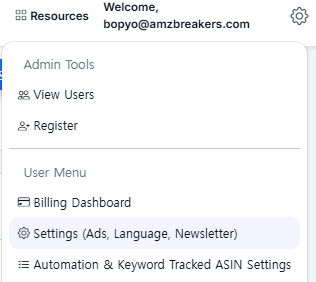
Once again, click the gear icon on the right and this time click 'Settings (Ads, Language, Newsletter)'.
After clicking Settings, there is a Keyword-Based Campaign Automation settings area, so please go to that section. (You can check it by scrolling down)
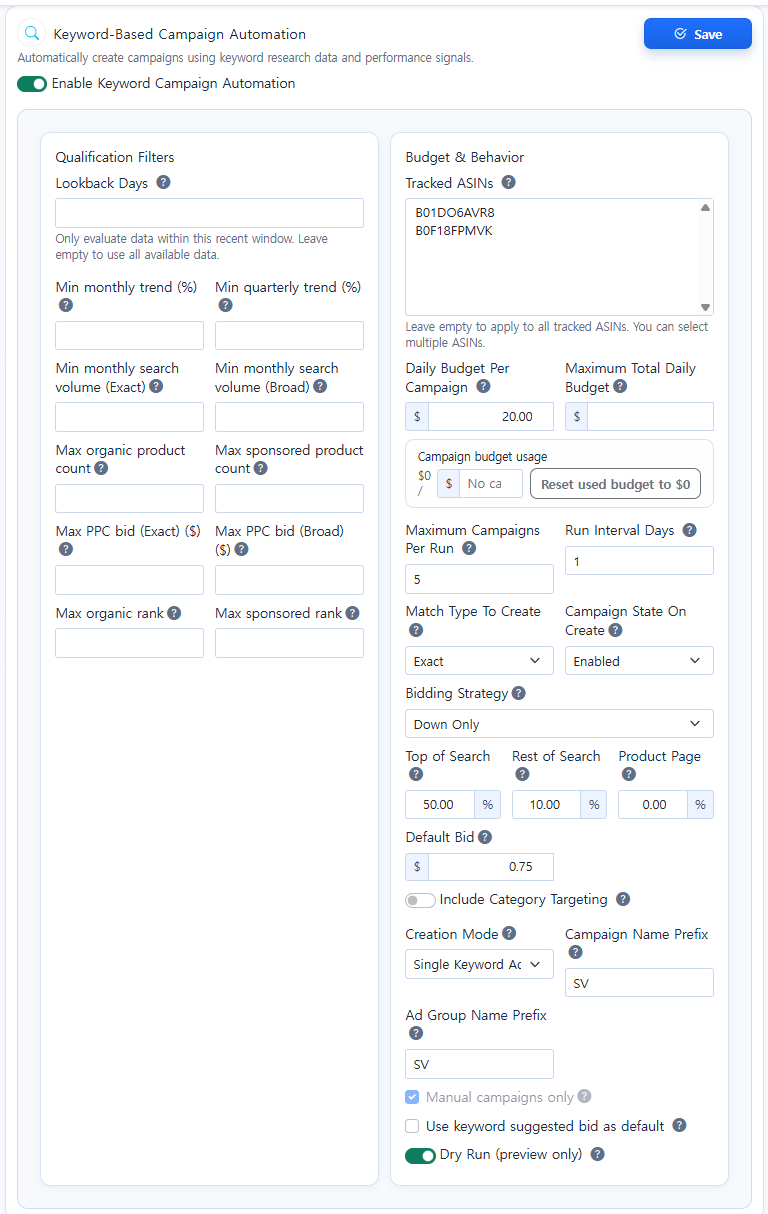
After setting the desired conditions here and clicking Save, it can be generated automatically.
Note! If you want to just see how it works before actually testing, please enable the 'Dry Run (Preview only)' option shown below. It will notify you by email without creating a real campaign.
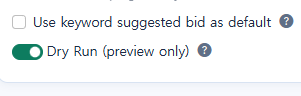
All automation setting apply functions have a 'Dry Run (preview only)' mode. Before applying in reality, be sure to activate this mode and receive an email to see how it will be applied.
Below are explanations of the detailed setting values. (For your reference)
Lookback Days
- Determines how many recent days of data to consider.
- If left blank, data from the entire period is referenced.
Min monthly trend (%)
- Only includes keywords whose monthly trend is at least this value.
- Useful for finding keywords with a recent increase in search trends.
Min quarterly trend (%)
- Condition to filter only keywords that have grown based on the recent quarter.
- Use when you want to look at a broader trend rather than a short-term fad.
Min monthly search volume (Exact)
- Includes only keywords with an Exact monthly search volume above a certain level.
- Used when excluding keywords with too little search volume.
Min monthly search volume (Broad)
- Includes only keywords whose Broad monthly search volume is above a certain threshold.
- Used to find keywords with broader search demand.
Max organic product count
- A condition to exclude keywords where the number of organic products appearing in the search results for the keyword is too large.
- You can use this to filter out keywords that are excessively competitive.
Max sponsored product count
- A condition to exclude keywords that have too many sponsored ad products attached.
- Refer to this when you want to avoid keywords with overheated ad competition.
Max PPC bid (Exact) ($)
- Includes only exact keywords whose estimated cost-per-click is less than or equal to this amount.
- Use this when you want to exclude overly expensive keywords from automatic generation.
Max PPC bid (Broad) ($)
- A value that sets the upper limit of the estimated bid for Broad keywords.
- It is important for controlling advertising costs.
Max organic rank
- Used to filter out cases where you are already too far back on a particular keyword or do not meet the condition criteria.
- Simply put, it is the value that limits the organic exposure rank condition.
Max sponsored rank
- The value that limits the ad exposure rank criteria.
- Used when filtering based on ad competitive position.
Tracked ASINs
- Choose which ASINs to create automatic campaigns for.
- If left empty, it applies to all tracked ASINs.
Daily Budget Per Campaign
- The daily budget per automatically generated campaign.
- For example: if 20, up to $20 per day can be used per campaign.
Maximum Total Daily Budget
- The total daily budget limit that all automatically generated campaigns can spend in one day.
- A safety measure to prevent overspending when multiple campaigns occur at the same time.
Campaign budget usage
- This shows the amount of automatic campaign budget used so far.
Reset used budget to $0
- Resets the displayed cumulative used budget to 0.
- This is closer to resetting the display value rather than an actual refund of advertising costs.
Maximum Campaigns Per Run
- Sets the maximum number of campaigns that can be created each time the automation runs.
- Example: if 5, up to 5 will be created per run.
Run Interval Days
- Sets how many days apart the automation runs.
- Example: 1 means it runs daily.
Match Type To Create
- The keyword match type for the campaigns to be automatically created.
- If Exact, it will only be shown for more precise search terms.
Campaign State On Create
- Decide whether to activate the campaign immediately upon creation or to leave it in a paused state for now.
Bidding Strategy
- The method that determines how Amazon will automatically adjust bids.
- Down Only is a conservative approach that only lowers bids when performance is weak. (Most commonly used)
Top of Search
- A value that adds extra weight to the base bid to show more prominently at the top of search results.
Rest of Search
- Bid adjustment value to apply for positions other than the top of search results.
Product Page
- Bid adjustment value applied when the ad is displayed on the product detail page area.
Default Bid
- The default cost-per-click bid for automatically generated keywords.
- Example: If 0.75, you will bid up to about $0.75 per click.
Include Category Targeting
- Decide whether to include category targeting as well as keyword targeting.
- Turning it on can increase reach, but beginners should be somewhat cautious.
Creation Mode
- An option to decide how to structure the campaign.
- For example: Single Keyword Ad...is a way to make it easy to manage, usually with one ad group/campaign per keyword.
Campaign Name Prefix
- Common characters prefixed to automatically generated campaign names.
- For example: SV
Ad Group Name Prefix
- Common characters prefixed to automatically generated ad group names.
Manual campaigns only
- Indicates that only manual campaigns, not automatic campaigns, will be created/managed.
Use keyword suggested bid as default
- Option to decide whether to use the system-recommended keyword bid as the default bid.
- If turned off, the manually entered Default Bid will be used.
Dry Run (preview only)
- This function only provides a preview and does not actually create anything.
- This is very important for beginners. It is safer to turn this on first and check the results.
Automation Scenario 1.
How should you set it to automatically discover and advertise keywords whose 200% Monthly Trend is rising?
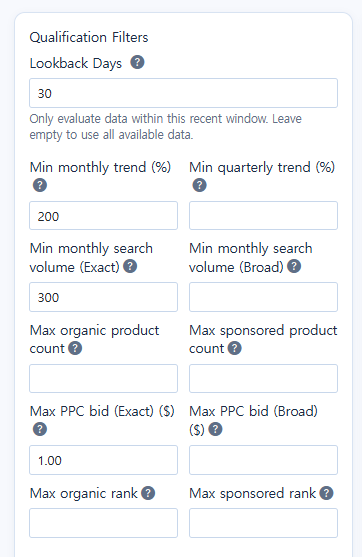
I set it up as above. Do you understand? From data of the last 30 days (lookback Days), the setup selects keywords whose monthly search volume increases by 200% and then, if the minimum monthly search volume (Min monthly search volume) is at least 300 (set a minimum search volume because it can be meaningless if the search volume is too low) and the cost per click is at most $1.00 (Max PPC Bid), the keyword meets the conditions to create an ad campaign.
Automation Scenario 2.
How to automatically discover and advertise only keywords that have sufficient search volume and are not too expensive in click cost?
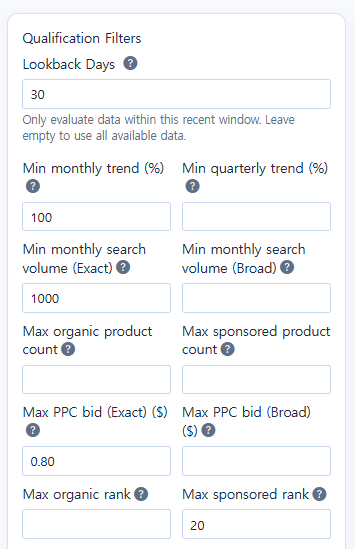
Scenario 2 automatically generates only keywords that are "recently rising, have sufficient search volume, and whose CPC is not too expensive." For beginner sellers, this is more practical than Scenario 1.
What do you think?
There is one important point here.
The features described in this article are available from SellerVisor's Growth Plan onward.
The features described in this article are available from SellerVisor's Growth Plan onward.
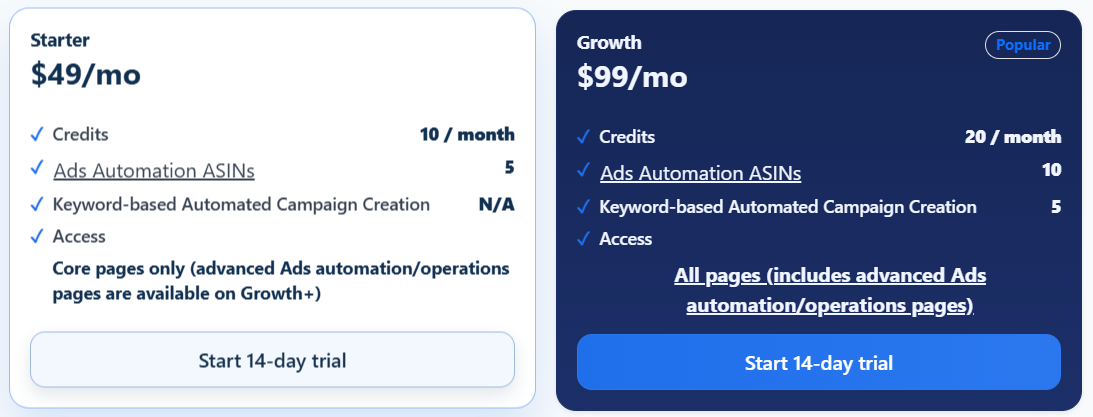
Because the core of this feature is not simply viewing data, but actually automatic campaign creation and automatic negative keyword registration running. The key of this update is the flow that tracks competitors' keywords to automatically create campaigns for keywords that meet conditions, and automatically organize inefficient search terms. In SellerVisor, you can actually create a campaign directly after Tracked ASIN-based keyword exploration with Create Campaign, in Keyword-Based Campaign Automation you can save settings and enable automatic creation, and you can preview with a Dry Run. Ads Management is also designed to handle negative management and the concept of protected keywords together.
In the end, the criterion is simple.
If you don't need campaign automation, Starter is fine.
However if you want actual automation to run, including competitor keyword tracking, automatic campaign creation, and automatic negative keyword registration, you should start with the Growth Plan.
However if you want actual automation to run, including competitor keyword tracking, automatic campaign creation, and automatic negative keyword registration, you should start with the Growth Plan.
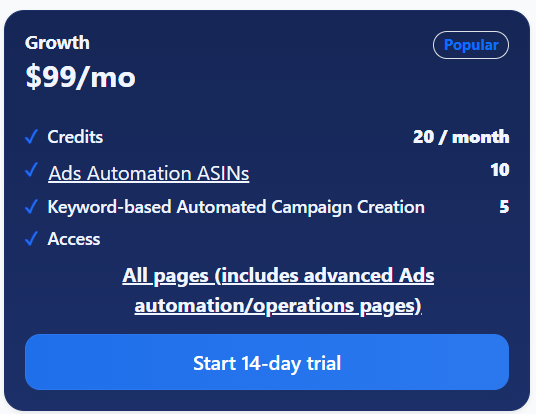
This is not simply a matter to judge by plan price differences alone.
Even if the difference between Starter and Growth is $50 per month, once you actually run ads, that difference may not feel like a loss at all.
Even if the difference between Starter and Growth is $50 per month, once you actually run ads, that difference may not feel like a loss at all.
Because there are two things that repeat in advertising.
One is that ad spend keeps leaking because you fail to block search terms that should be blocked in time, and the other is that you miss sales opportunities because you discover a good keyword but cannot immediately connect it to a campaign. The Growth Plan can reduce both of these at the same time. In other words, it means you can manage both the areas where you can reduce ad spend and areas where you can generate additional revenue together.
One is that ad spend keeps leaking because you fail to block search terms that should be blocked in time, and the other is that you miss sales opportunities because you discover a good keyword but cannot immediately connect it to a campaign. The Growth Plan can reduce both of these at the same time. In other words, it means you can manage both the areas where you can reduce ad spend and areas where you can generate additional revenue together.
By slightly reducing the areas where ad spend leaks, the $50 monthly difference can be more than offset.
If efficient keywords are automatically connected to campaigns here and actual sales opportunities increase, this difference is closer to an investment in changing the operational structure rather than a cost.
If efficient keywords are automatically connected to campaigns here and actual sales opportunities increase, this difference is closer to an investment in changing the operational structure rather than a cost.
The core of the feature explained in this article is exactly that.
Rather than managing ads more diligently by hand,
to create a structure that automatically runs good keywords and automatically cleans up inefficient keywords.
Rather than managing ads more diligently by hand,
to create a structure that automatically runs good keywords and automatically cleans up inefficient keywords.
So while reading this article
“I now want to move away from managing ads solely by hand”
If this thought occurred to you, starting with the Growth Plan rather than Starter may be more appropriate.
“I now want to move away from managing ads solely by hand”
If this thought occurred to you, starting with the Growth Plan rather than Starter may be more appropriate.