SellerVisor Blog

Is my keyword ranking going up? Check it at a glance on SellerVisor


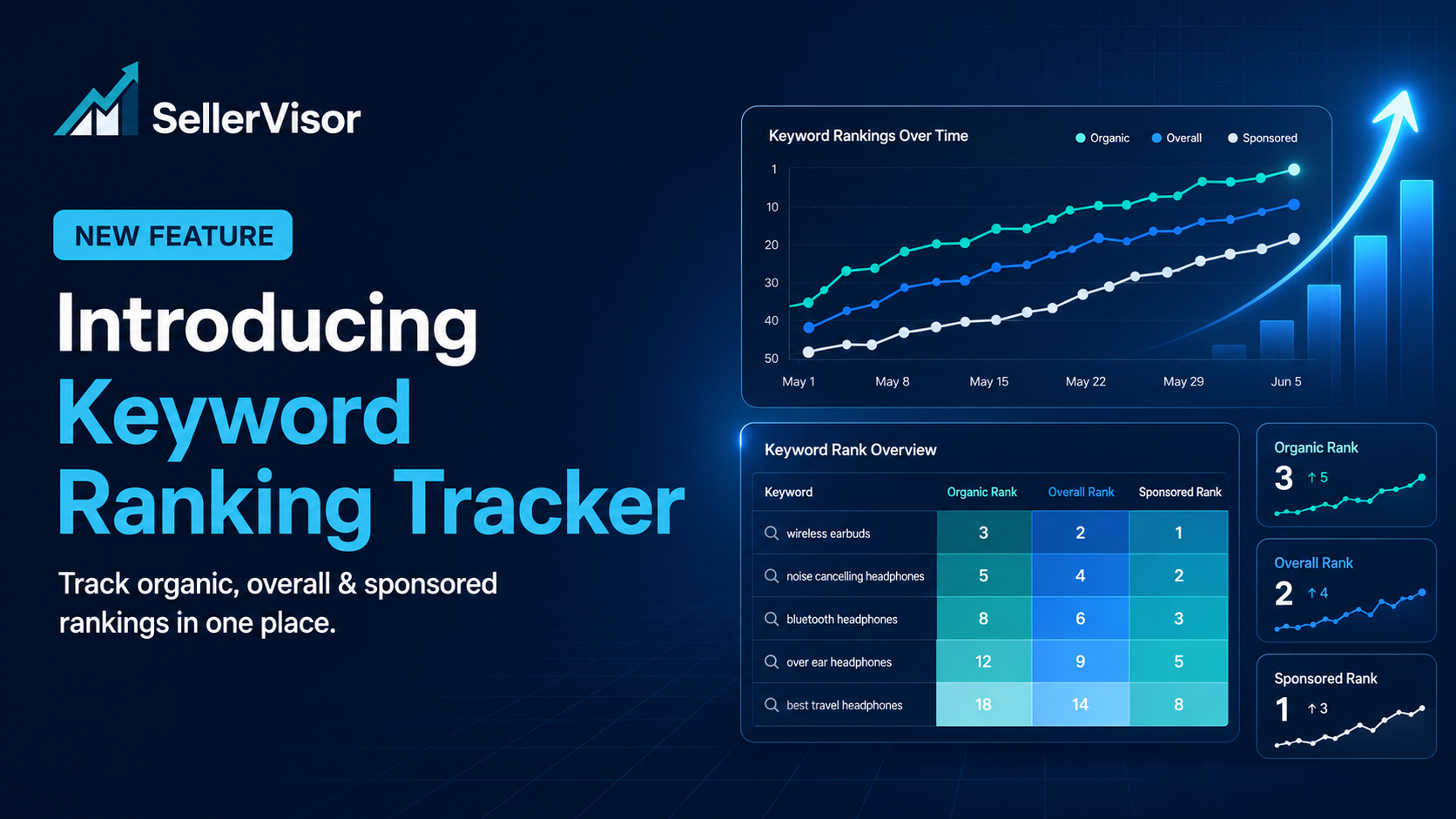
SellerVisor Keyword Ranking Tracker update: How to track organic, overall, and sponsored ranks on one screen

Keyword rankings on Amazon are not fixed numbers. They continuously move depending on ad budgets, competitors' actions, price and promotions, inventory status, and changes in search demand. The problem is that sellers don't have time to manually search and record many keywords every day.
The newly added Keyword Ranking Tracker in SellerVisor lets you register products and keywords to track as groups and view daily rank changes on a single screen. It doesn't just show the current rank โ€” it provides search volume, search trends, PPC bid estimates, organic rank, overall rank, and sponsored rank together so it's easier to determine "what moved and what to check next."

Why should you continuously track keyword rankings?

Keyword rankings are an important signal that show the results of your listing and ad operations. But looking at a single day's number can lead to misattributing causes. Rankings only become meaningful when you consider volatility and direction, search demand, and ad status together.
  • You can confirm whether target keywords actually rise after launching a new listing.
  • You can compare how organic and sponsored ranks changed before and after PPC adjustments.
  • You can distinguish whether a rank drop is a temporary fluctuation or a decline that continues for several days.
  • You can reduce the risk of misjudging based only on rank numbers when search volume and search trends are changing.

SellerVisor Keyword Ranking Tracker at a glance

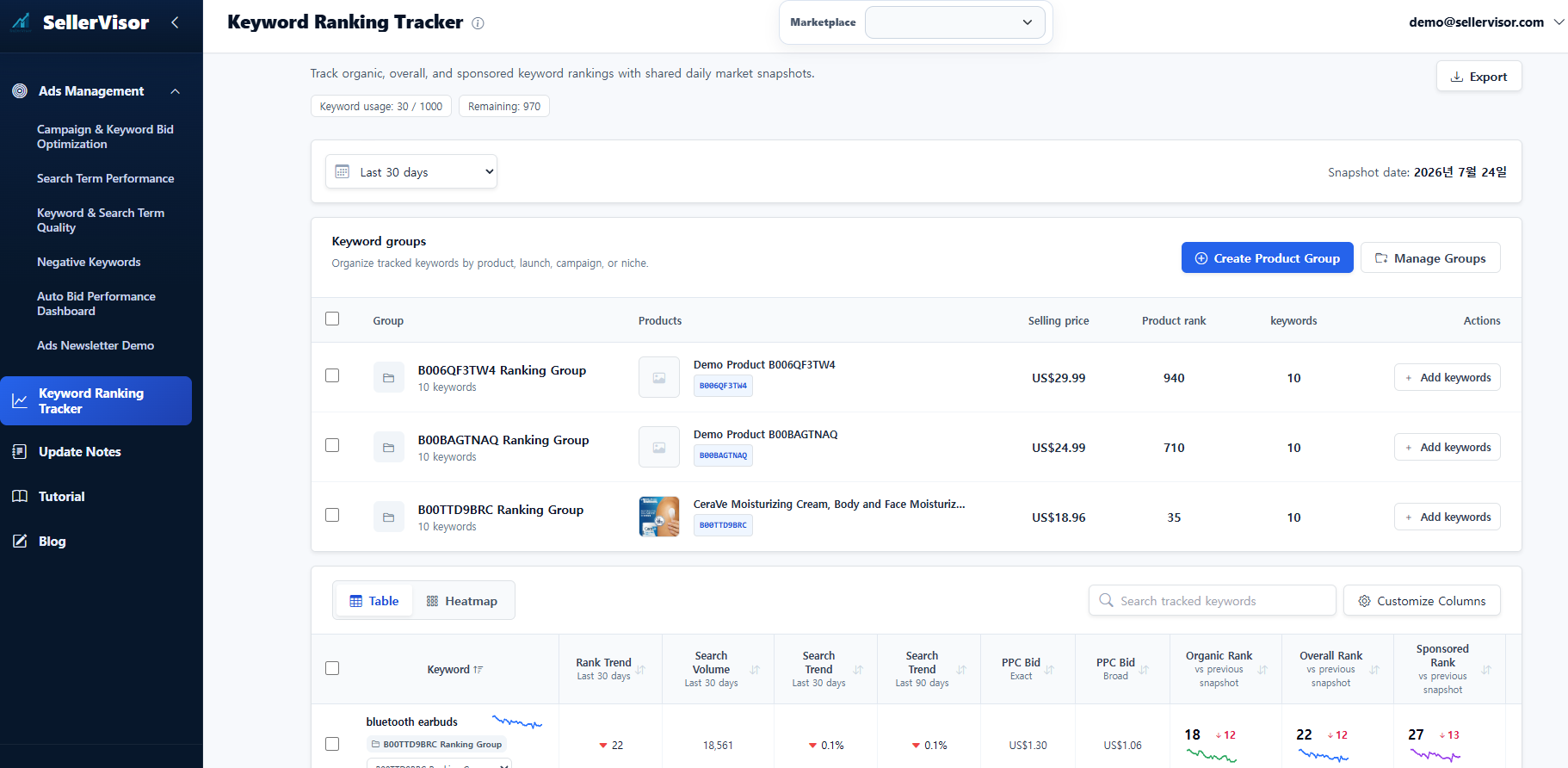
After selecting the Marketplace and setting the period, product groups and keyword-level key metrics are displayed on one dashboard. You can also see your account's keyword usage and remaining quota at the top, and download needed data using the Export function.


Figure 1. Keyword Ranking Tracker dashboard showing product groups and keyword performance on one screen

Key metrics you can view on one screen

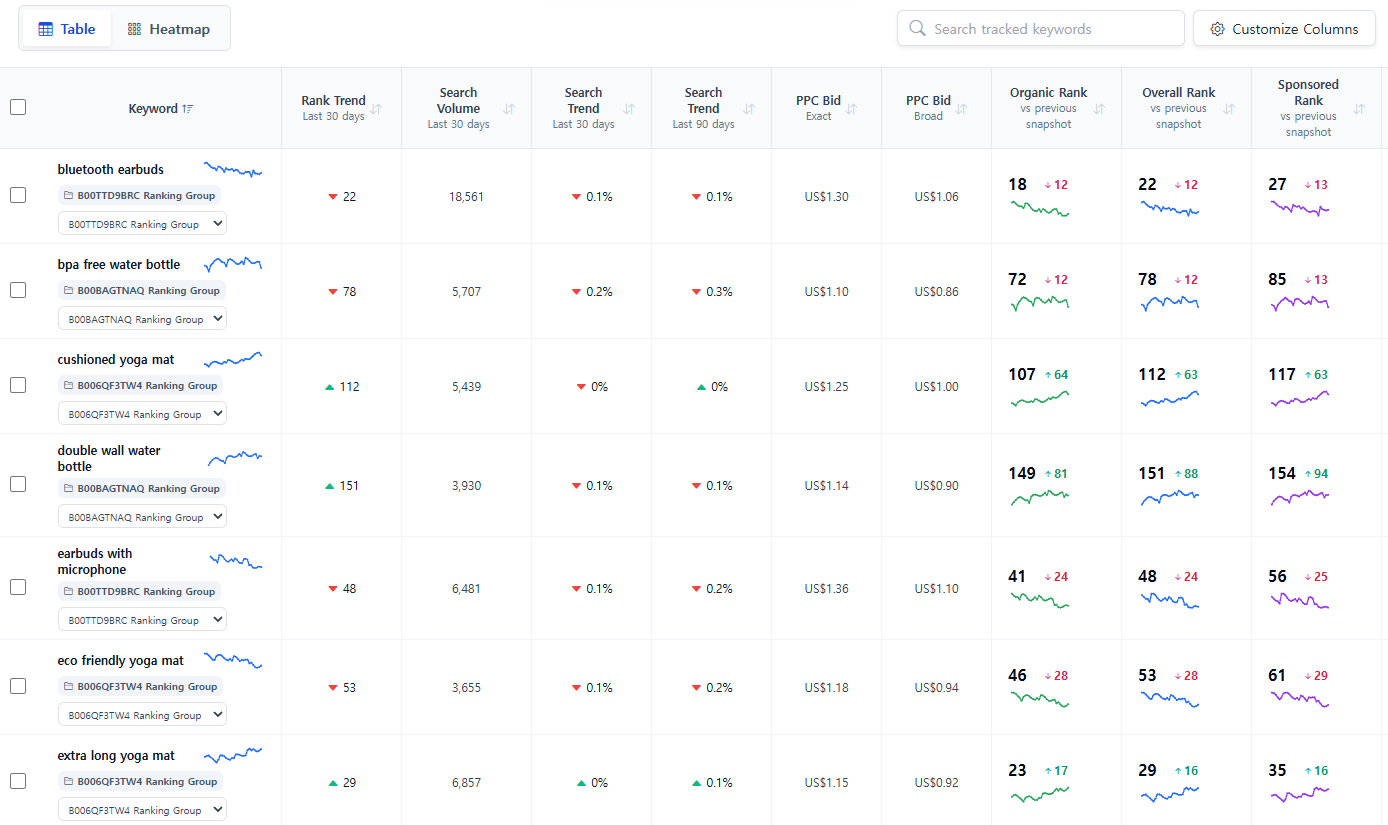
The Table view is designed to quickly compare current status and recent changes by keyword.
  • Rank Trend: direction and magnitude of rank changes over the last 30 days
  • Search Volume: search volume based on the last 30 days
  • Search Trend: change in search demand over the last 30 and 90 days
  • PPC Bid: reference bid values for Exact and Broad
  • Organic Rank: rank in organic search results and change versus the previous snapshot
  • Overall Rank: rank based on overall search results and change versus the previous snapshot
  • Sponsored Rank: rank in sponsored search results and change versus the previous snapshot
You can quickly find specific keywords using the search box and keep only columns relevant to your operation using Customize Columns. Rank increases and decreases are shown with colors and change values, so even if you register many keywords you can quickly narrow down what to check first.


Figure 2. Table view comparing search volume, search trends, PPC bids, and three rank metrics together

Daily Ranking Heatmap to read day-by-day changes

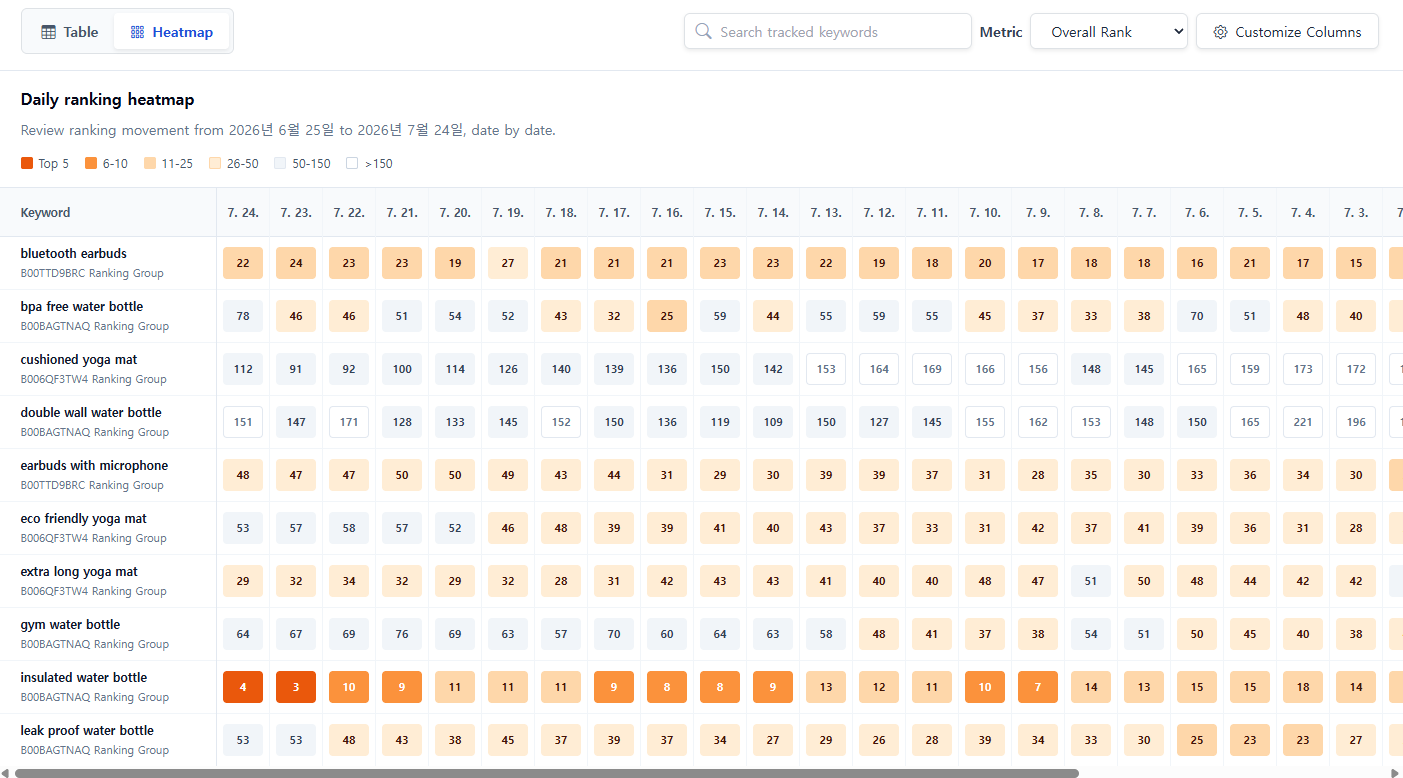
Looking at only the current rank can make you miss what happened in between. The Heatmap displays daily ranks in color bands to intuitively show upward/downward flows and periods of volatility.
  • Top 5, 6โ€“10, 11โ€“25, 26โ€“50, 50โ€“150, and beyond 150 are distinguished by colors.
  • You can select metrics to view, such as Organic Rank and Overall Rank, to compare day-by-day movements.
  • It's useful to check from which date ranks responded after ad adjustments, coupons, price changes, or listing edits.
In practice, it's better not to draw conclusions from a single day's spike or drop. Check whether the direction continues over several days and interpret it together with search volume, PPC changes, and actual sales performance for the same period.


Figure 3. Daily Ranking Heatmap showing ranks by date in color bands

How to set up keyword tracking

Setup has three steps. Log in to SellerVisor, go to Research > Keyword Ranking Tracker, and select Create Product Group.

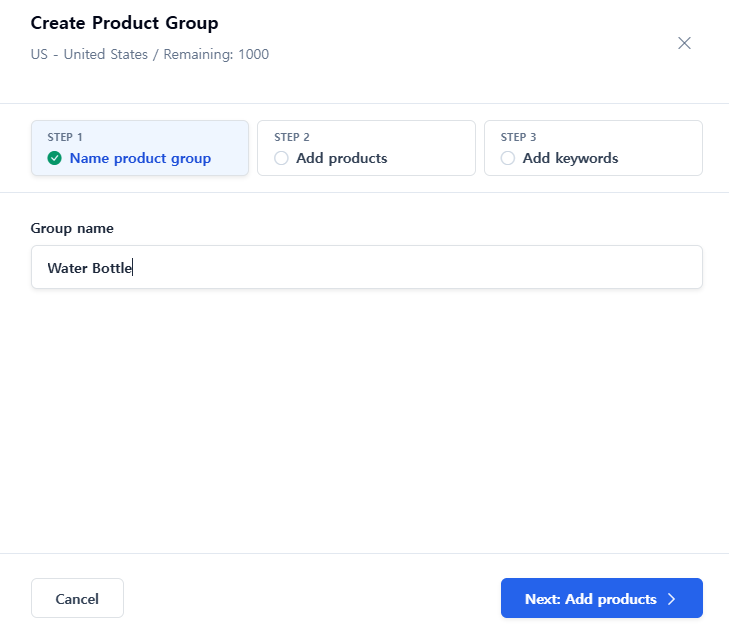
Step 1. Create a product group name

Enter a group name that is easy to distinguish based on product name, launch name, campaign name, or operational purpose. For example, names like Water Bottle, New Launch, or Brand Defense are good because the purpose remains clear when you look back later.


Figure 4. Enter a product group name to distinguish tracking targets

Step 2. Add product ASINs to track

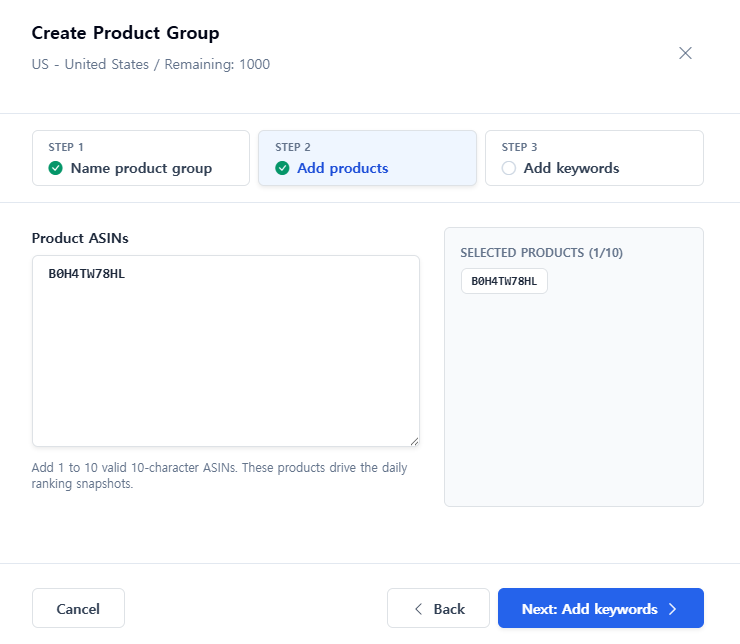
Enter the 10-character ASINs to track in that group. According to the on-screen guidance, you can add from 1 up to 10 valid ASINs per group. To compare product lines or variations together, it's efficient to group ASINs with the same operational purpose in one group.


Figure 5. Select product ASINs to check keyword rankings

Step 3. Enter keywords to track

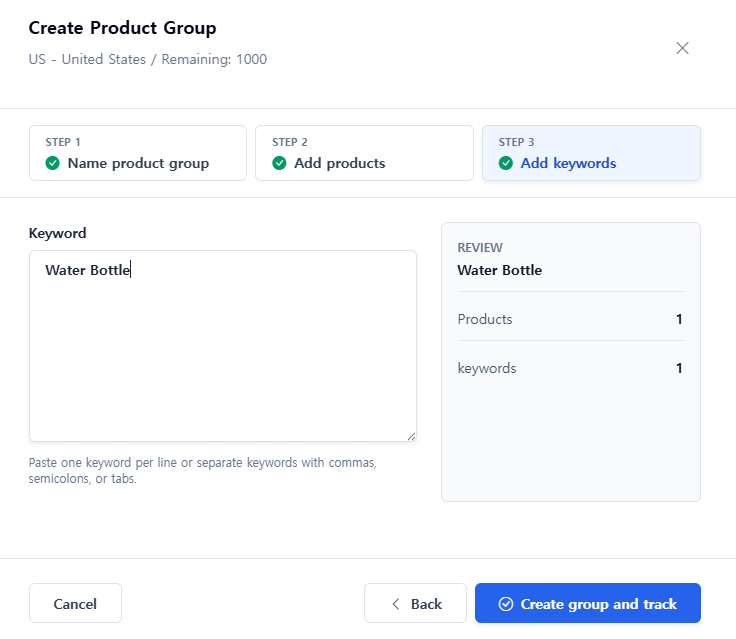
Enter keywords one per line or add them separated by commas, semicolons, or tabs. Rather than adding too many keywords at first, it's better to register core revenue keywords, keywords you want to grow, and brand-defense keywords first.


Figure 6. Enter keywords to track and select Create group and track

How to manage groups after creating them

Created groups can be selected in the Keyword groups area. Afterwards you can reinforce keywords with Add keywords and manage groups in Manage Groups. Using group filters lets you view only product- or campaign-specific keywords, which helps keep the screen from getting cluttered as your account grows.


Figure 7. Screen for viewing and managing created product groups and keyword counts

4 practical use-case scenarios

1. New product launch

Register main keywords and mid-sized related keywords as a group and monitor the direction of Organic Rank and Overall Rank during the launch period. If ranks don't rise, before simply increasing ad spend you should check click-through rate, conversion rate, price competitiveness, listing messaging, and inventory status together.

2. Compare before and after PPC optimization

Check baseline ranks before adjusting bids or budgets, and compare how Sponsored Rank and Organic Rank moved after changes. If only sponsored rank improves while organic rank remains stagnant, you need to re-evaluate listing conversion and keyword relevance beyond ad exposure.

3. Early detection of declining keywords

Find keywords with large drops first in the Table, then check the date the decline started using the Heatmap. Matching that with price, coupons, ads, inventory, and listing change history can help quickly narrow down candidate causes.

4. Keyword portfolio management

Tracking core, growth, and defense keywords per product reduces the risk of relying on just one or two main keywords. Keywords with increasing search volume but stagnant ranks become candidates for the next ad and content improvement priorities.

Things to remember when looking at the data

  • Rank increases do not necessarily mean revenue increases. Check sessions, conversion rate, and revenue together.
  • If search volume changes significantly, the actual traffic value at the same rank can differ.
  • Prioritize trends over several days rather than daily fluctuations.
  • PPC bid reference values are a starting point for decision-making, not a definitive answer to apply as-is.

Conclusion: Turn rank checks into decisions, not records

The purpose of keyword tracking is not to collect a lot of numbers. The core is to more quickly determine which keywords are growing, which are sending warning signals, and where to place your next operational priorities.
With SellerVisor Keyword Ranking Tracker you can organize changes across multiple products and keywords by group, and check daily movements by switching between Table and Heatmap. Instead of searching Amazon manually and recording to separate sheets each time, use SellerVisor to review important changes in one place.

โ† Go Back