Hello. We thank all of you who are using SellerVisor.
As of today, April 6, we have made a major update to SellerVisor's advertising features. We are providing a detailed review on our blog to share the details.
1. Amazon Advertising Automation First: '200% Increase? No more worries about missing popular keywords from competitors!'
Which keywords are targeted by competitors and lead to good sales? Have you spent hours analyzing keywords using H or J company's Amazon tools and adding keywords from competitors? If you've ever gone through this effort even once, you know how tedious and exhausting repetitive tasks can be. I've had the same experience. I always thought, "Wouldn't it be great if someone automatically did this work for me..." That’s why I developed this feature. Today, we live in an era of automation, right? You can automatically track competitors’ products while sleeping and set up automatic ad campaigns by focusing only on highly competitive keywords quietly grown in the background. (Automate your Amazon ad keyword tracking too!)
How is this possible?
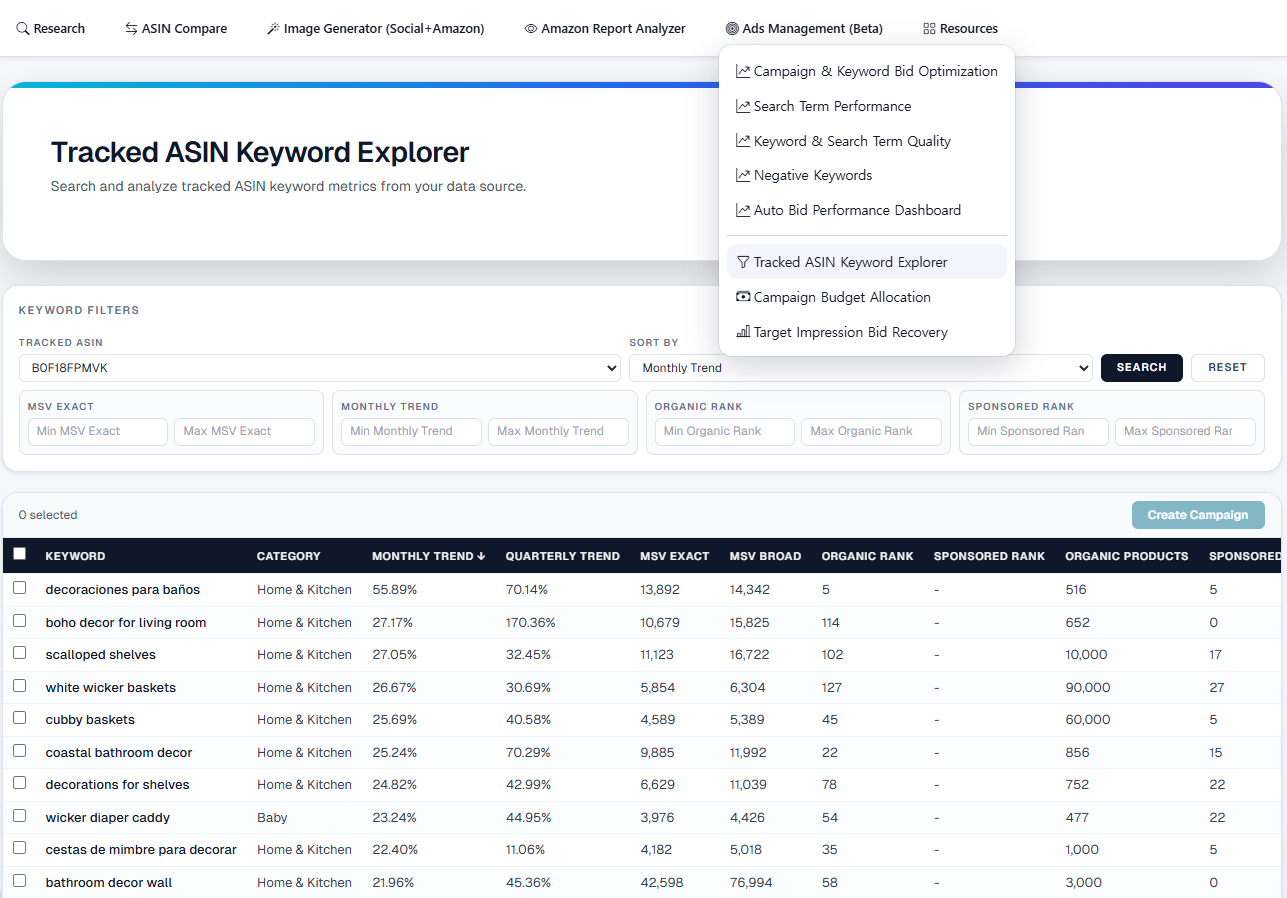
It's available in the newly added feature 'Tracked ASIN Keyword Explorer.'
First, you need to enter the ASIN you want to track.
(Tip: Add well-selling products from competitors or new releases)
After logging into SellerVisor, click the gear icon on the right and select 'Automation & Keyword Tracking ASIN Settings.'
Then, you will see the section titled 'Keyword Research ASINs (Monthly Lock),' and in this area, enter the ASIN you want to track in 'Keyword Research ASIN Input' and save. When saved, it will appear in 'Current Keyword Research ASINs.'
At this screen, two products are now being tracked. If this is the case...
Selecting 'Tracked ASIN' in the Ads Management (Beta) menu will show the two ASINs already registered, and you can choose one of them.
Then, you can select the ASIN to apply and set various filters as shown below.
MSV EXACT: Monthly Search Volume
(For example, entering 3,000 and 30,000 here will extract keywords with minimum search volume of 3,000 and less than 30,000)
MONTHLY TREND: Monthly Rising Search Volume
(For example, entering 50 in 'Min Monthly Trend' will find keywords with at least 50% monthly increase)
ORGANIC RANK: Non-sponsored Keyword Rank
(For example, entering Min as '1' and Max as '10' will show keywords ranked between 1st and 10th position where no ads are running)
(Find keywords with no ads running within the specified rank range)
SPONSORED RANK: Sponsored Keyword Rank
(Shows keywords ranked between Min and Max where ads are running)
Using these filters, clicking the 'Search' button will retrieve keywords matching your conditions.
From this data, how can we target the 2 keywords with rapidly rising Monthly Trend for our products' advertising?
If you check the boxes next to these keywords and click 'Create Campaign' on the top right, you can generate campaigns.
When you press the 'Create Campaign' button, the campaign creation screen appears as shown above. You can create campaigns just like on Amazon. If you're familiar with these settings, you probably know them well. However, for those who don't, here is a brief explanation.
Daily Budget
- This is the maximum daily advertising budget for this campaign.
- For example, if it is 10, then up to approximately $10 is spent per day.
Default Bid
- This is the default bid (CPC) set when a keyword is clicked.
- For example, 0.75 means the maximum bid per click can be $0.75.
Match Type
- This setting determines how much the customer's search terms match your keywords.
- EXACT means it will only appear for very similar searches.
Bidding Strategy
- This determines how Amazon automatically adjusts your bid.
- Down Only is a conservative approach where bids are lowered if performance seems weak (most used method).
Top of Search %
- A ratio added to the base bid to make ads more prominent at the top of search results.
Remaining Search %
- A value that determines how much the bids are adjusted in positions below the top of search.
Typically used less than Top of Search.
Product Page %
- An adjustment value applied when showing ads on other product detail pages of the same product.
0 means operating at the default level without additional surcharge.