Hola. Soy Bopyo. El Amazon Prime Day se acerca pronto. ¿Con qué frecuencia ustedes, que están leyendo esto, revisan los datos de publicidad en Amazon?
¿Saben cuál es el error que cometen con más frecuencia los vendedores en Amazon, especialmente los vendedores principiantes?
Es justamente "no comparar los datos".
¿Actualmente están gestionando anuncios? Entonces déjenme hacerles una pregunta.
"¿Están gestionando bien sus anuncios ahora?"
Si pueden responder con seguridad a esta pregunta, son vendedores que hacen buen seguimiento de los datos. Pero si dudaron aunque sea un momento, les recomiendo leer este artículo hasta el final.
¿Por qué es importante comparar los datos?
Vender en Amazon es una sucesión constante de optimizaciones. Tomamos decisiones grandes y pequeñas todos los días.
· Cambié la imagen principal
· Ajusté las pujas de los anuncios
· Añadí palabras clave nuevas
· Reduje el precio un 5%
· Actualicé el contenido A+
Pero hay demasiadas ocasiones en las que no podemos responder la pregunta más importante — "¿Así que tuvo efecto?" —.
Si cambiaron la imagen, deben comprobar si el CTR (tasa de clics) subió o bajó. Si crearon una nueva campaña publicitaria, deben saber si el ACOS está mejorando o empeorando. Si añadieron una palabra clave, deben verificar si esa palabra clave realmente está contribuyendo a las ventas.
Si no hacen seguimiento de los "cambios" en estas métricas, en realidad están tomando decisiones basadas en corazonadas.
Límites del Seller Central
Aquí es donde empieza el problema.
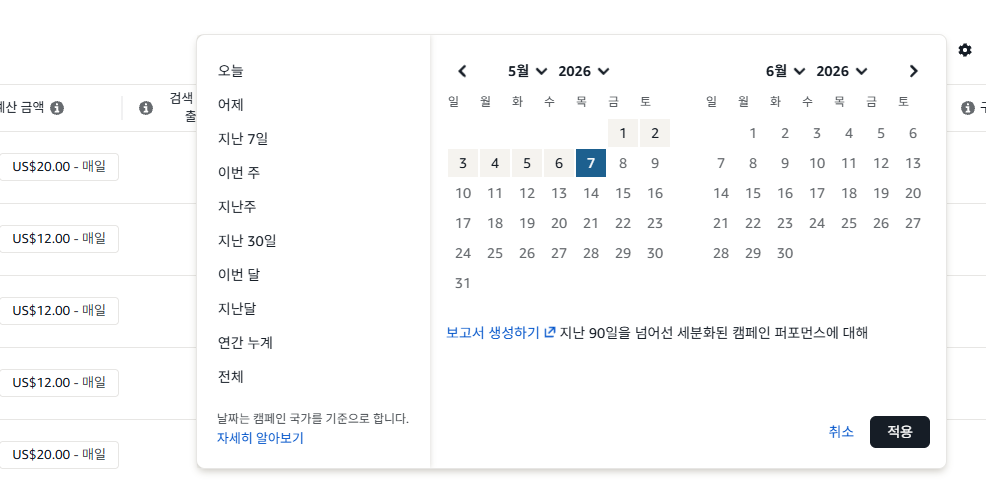
Amazon Seller Central muestra las métricas actuales, pero no compara automáticamente el "cambio respecto al período anterior".
Por supuesto, pueden descargar los informes y compararlos en Excel. Pero siendo sinceros: ¿pueden repetir esa tarea cada semana o cada mes?
La mayoría de los vendedores no pueden. No tienen tiempo, trabajar en Excel es engorroso y al final se quedan en un nivel de "me siento que va bien / va mal".
Pasa un mes, pasan dos meses, y al final sólo acumulan preguntas como "¿Desde cuándo mi ACOS se volvió tan alto?" o "¿Por qué no aumentan las ventas?".
Mientras tanto, el gasto publicitario sigue saliendo.
Solución: Campaign & Keyword Performance de SellerVisor
Lo que creamos para resolver este problema es la página "Campaign & Keyword Performance" de SellerVisor.
Su uso es muy sencillo.
Paso 1. Inicien sesión en SellerVisor
Paso 2. Vayan al menú "Campaign & Keyword Performance"
Paso 3. Configuren el período que desean comparar (1 día / 7 días / 14 días / 30 días)
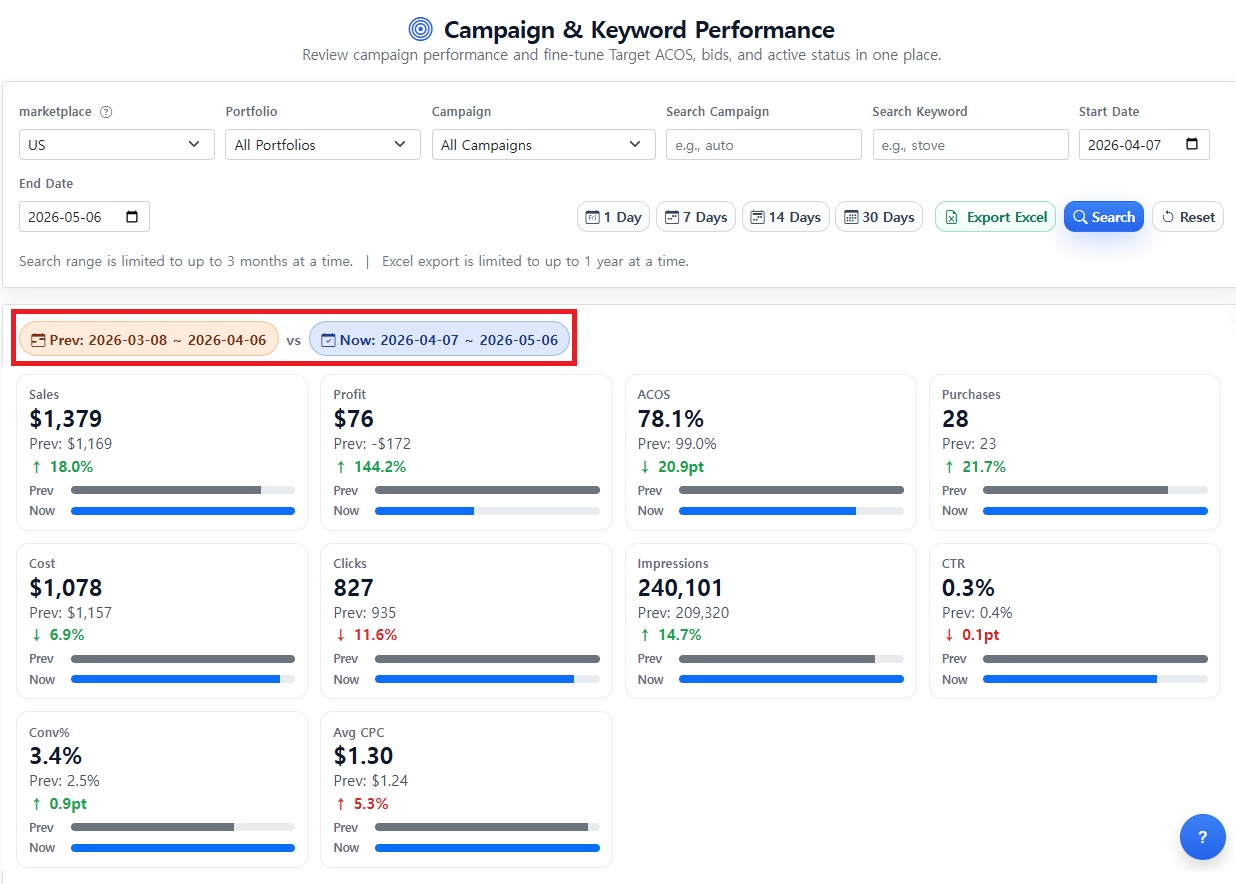
Paso 4. Los datos se compararán automáticamente como "período anterior vs período actual"
Eso es todo. No necesitan Excel, fórmulas ni trabajos adicionales.
Métricas clave visibles de un vistazo
En la página Campaign & Keyword Performance las siguientes métricas se mostrarán comparadas automáticamente como "anterior vs actual".
· Sales (Ventas) — si las ventas están subiendo o bajando
· Profit (Beneficio) — cómo está cambiando el beneficio real
· ACOS (porcentaje de gasto publicitario) — si la eficiencia publicitaria está mejorando
· Purchases (Compras) — si el número de compras aumentó o disminuyó
· Cost (Gasto) — la tendencia del gasto publicitario
· Clicks (Clics) — cambios en el tráfico de clics
· Impressions (Impresiones) — tendencia de las impresiones
· CTR (Tasa de clics) — comprobar efecto de cambios en imagen/título
· Conv% (Tasa de conversión) — comprobar efecto de optimización de la página del listing
· Avg CPC (Coste medio por clic) — comprobar resultados de ajustes de puja
Cada métrica se muestra con el porcentaje de cambio y flechas arriba/abajo; las métricas que mejoran aparecen en verde y las que empeoran en rojo, para identificarlo inmediatamente.
Escenarios de uso reales
[Escenario 1] Cuando se cambia la imagen principal
→ Configurar el período como 7 días antes del cambio vs 7 días después
→ Ver de un vistazo si el CTR subió o bajó
→ Si fue efectivo mantener el cambio; si no, revertir inmediatamente
[Escenario 2] Al lanzar una nueva campaña publicitaria
→ Comparar 30 días antes del lanzamiento vs 30 días después
→ Ver cómo cambió el ACOS y si el aumento de ventas justifica el aumento del gasto publicitario
[Escenario 3] Comprobar efectos tras ajustar las pujas
→ Comparar 14 días antes y después del ajuste
→ Evaluar de forma integral los cambios en CPC, tasa de conversión y ACOS
→ Definir la siguiente estrategia de pujas basada en datos
[Escenario 4] Prueba de reducción de precio
→ 7 días antes de la reducción vs 7 días después
→ La tasa de conversión puede subir, pero comprobar simultáneamente qué pasó con el margen
Para quienes ya usan SellerVisor
Si ya usan SellerVisor pero nunca han entrado a la página Campaign & Keyword Performance, hay dos posibilidades.
1. La cuenta de anuncios no está conectada → los datos están vacíos y no se puede utilizar
2. No sabían que la página existía
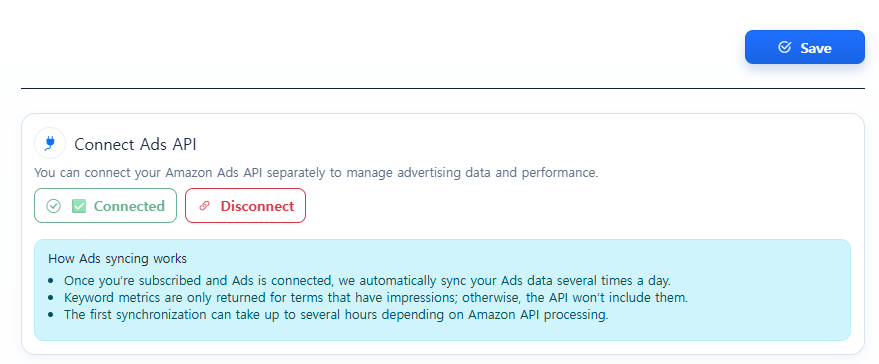
Conectar la cuenta de anuncios se completa en 30 segundos si tienen permisos de publicidad en Seller Central. Una vez conectada, los datos se rellenan automáticamente a partir de entonces.
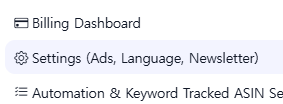
Para conectar, inicien sesión en SellerVisor, hagan clic en la rueda dentada (Configuración) en la derecha y seleccionen Settings (Ads, Language, Newsletter). Luego en Connect Ads API conecten la cuenta de anuncios y hagan clic en Save.
Inicien sesión en SellerVisor ahora mismo y verifiquen el estado de conexión de su cuenta de anuncios. La página más poderosa podría haber estado dormida todo este tiempo.
Si aún no han probado SellerVisor, vender en Amazon es una batalla de datos. El vendedor que ve más datos más rápido es quien finalmente gana.
Comiencen gratis en SellerVisor ahora. No hace falta registrar tarjeta.
Después de registrarse y conectar Seller Central y la cuenta de anuncios, podrán ver en pocos minutos todos los datos comparativos de "periodo anterior vs actual".
▶ Comenzar gratis: https://sellervisor.com
Conclusión
La idea principal de hoy se puede resumir en una sola frase.
"Si no comparas, no puedes mejorar."
Ya sean campañas publicitarias, la imagen principal o la política de precios — si no rastrean los cambios, no sabrán si la decisión fue correcta. Si no saben si fue correcta, la siguiente decisión también será tomada por intuición.
La página Campaign & Keyword Performance de SellerVisor automatiza esa comparación.
No necesitan Excel, fórmulas ni el trabajo repetitivo semanal. Con dos clics verán en números "si lo están haciendo bien".
Desde hoy, tomen decisiones basadas en datos, no en corazonadas.